> For the complete documentation index, see [llms.txt](https://docs.deltaquad.com/sth/llms.txt). Markdown versions of documentation pages are available by appending `.md` to page URLs; this page is available as [Markdown](https://docs.deltaquad.com/sth/flight/deltaquad-controller/connecting-a-secondary-control-and-command-terminal.md).
# Connecting a secondary Control & Command Terminal
The following section describes how to connect a laptop or Android device to the DeltaQuad Controller.
Requirements:
* Auterion Suite account to download the latest AMC version.
* An AMC-compatible device such as a Windows, Linux, or macOS computer or Android device.
* A hotspot.
* A powered DeltaQuad Evo system (UAV + Controller).
#### Downloading and installing AMC on a laptop or Android device.
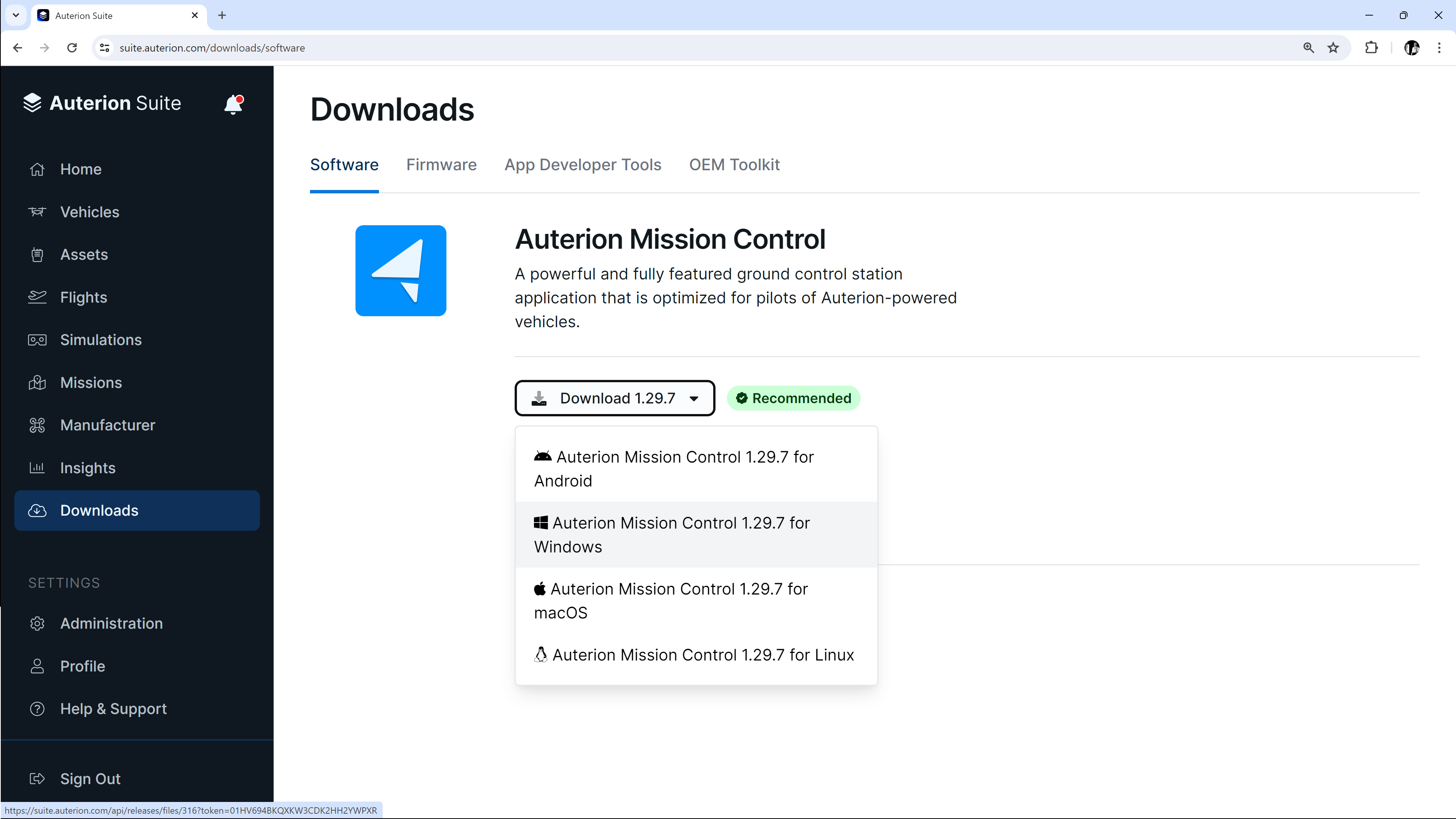
1. Log into your Auterion Suite account on the device of your choice. Select the latest version of AMC and choose your operating system.
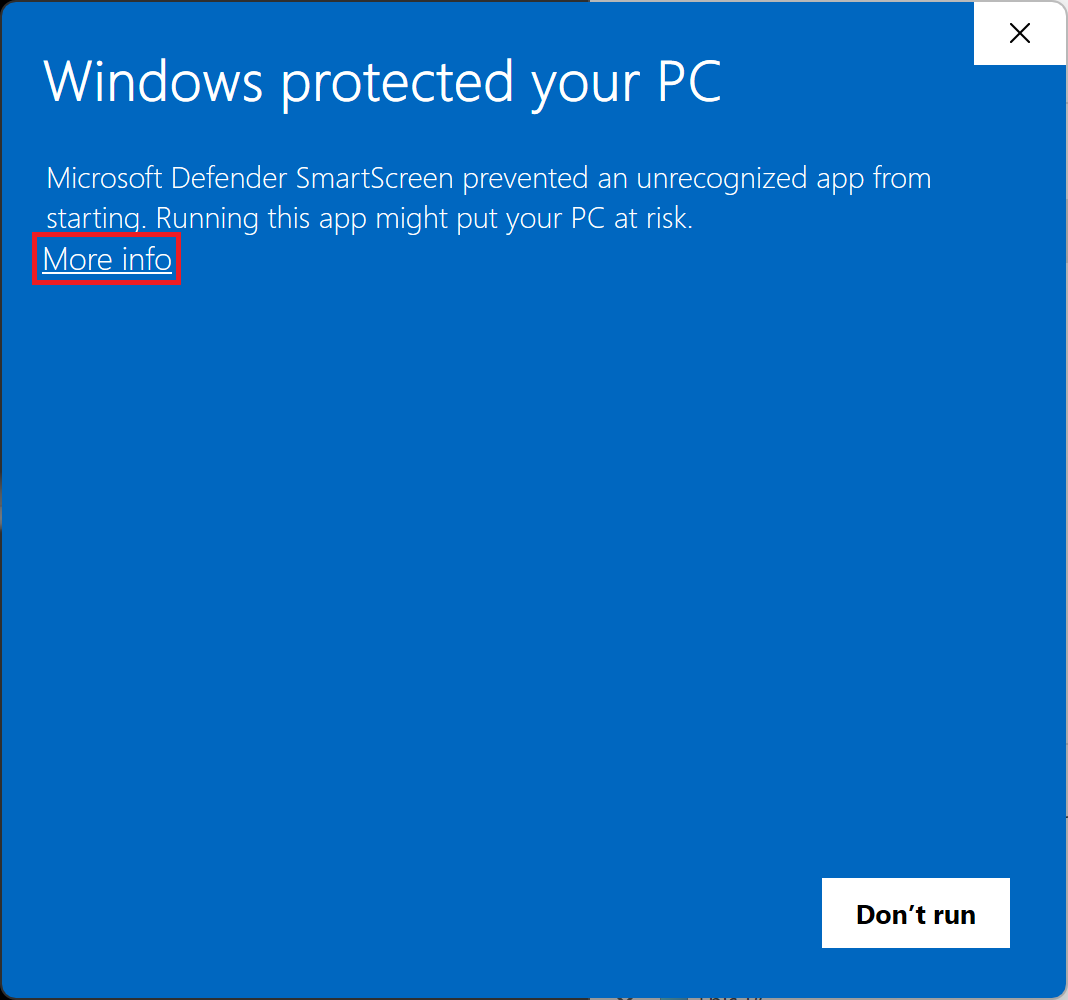
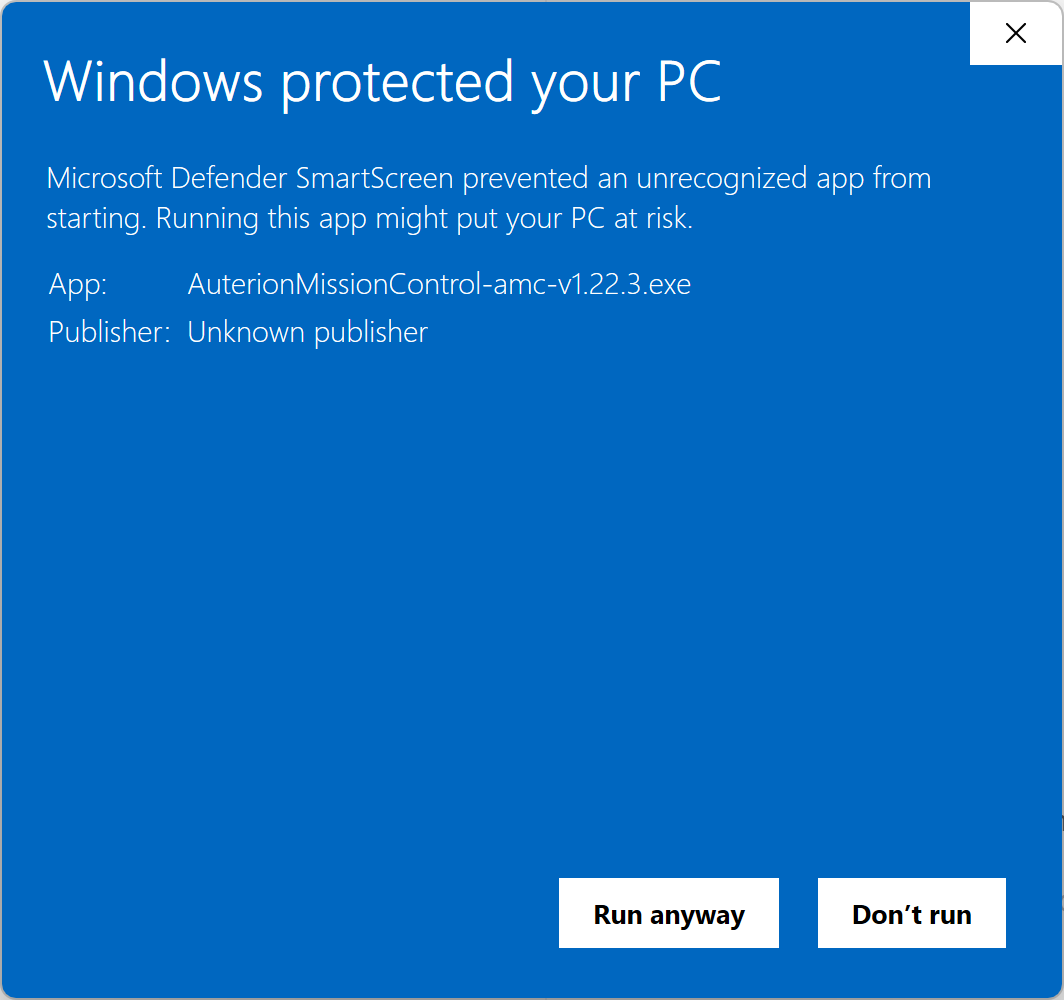
2. Download and run the installer. On Windows, a window might pop up saying *Windows protected your PC*. Click on *More info* and *Run anyway.*
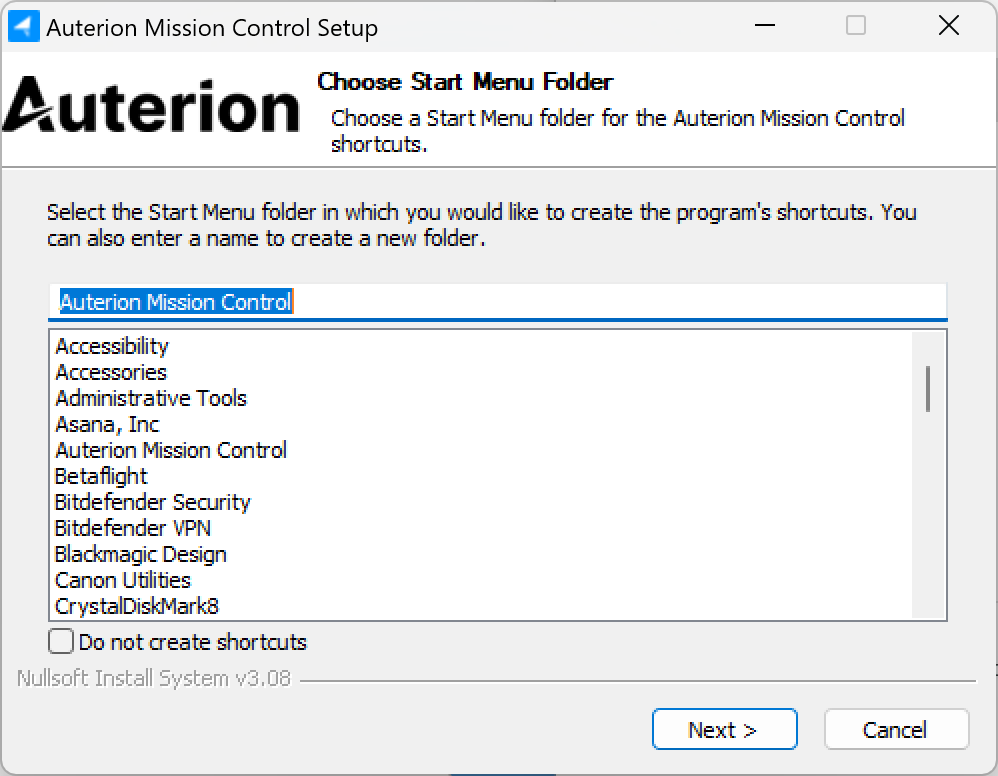
3. Install AMC by following the instructions.
#### Connect to the DeltaQuad Controller via hotspot.
1. Power up your DeltaQuad Evo system (UAV and Ground Control Station). Make sure a radio connection has been established.
2. Create a hotspot on your smartphone. Connect both devices, the DeltaQuad Controller and the computer or tablet, to the hotspot.
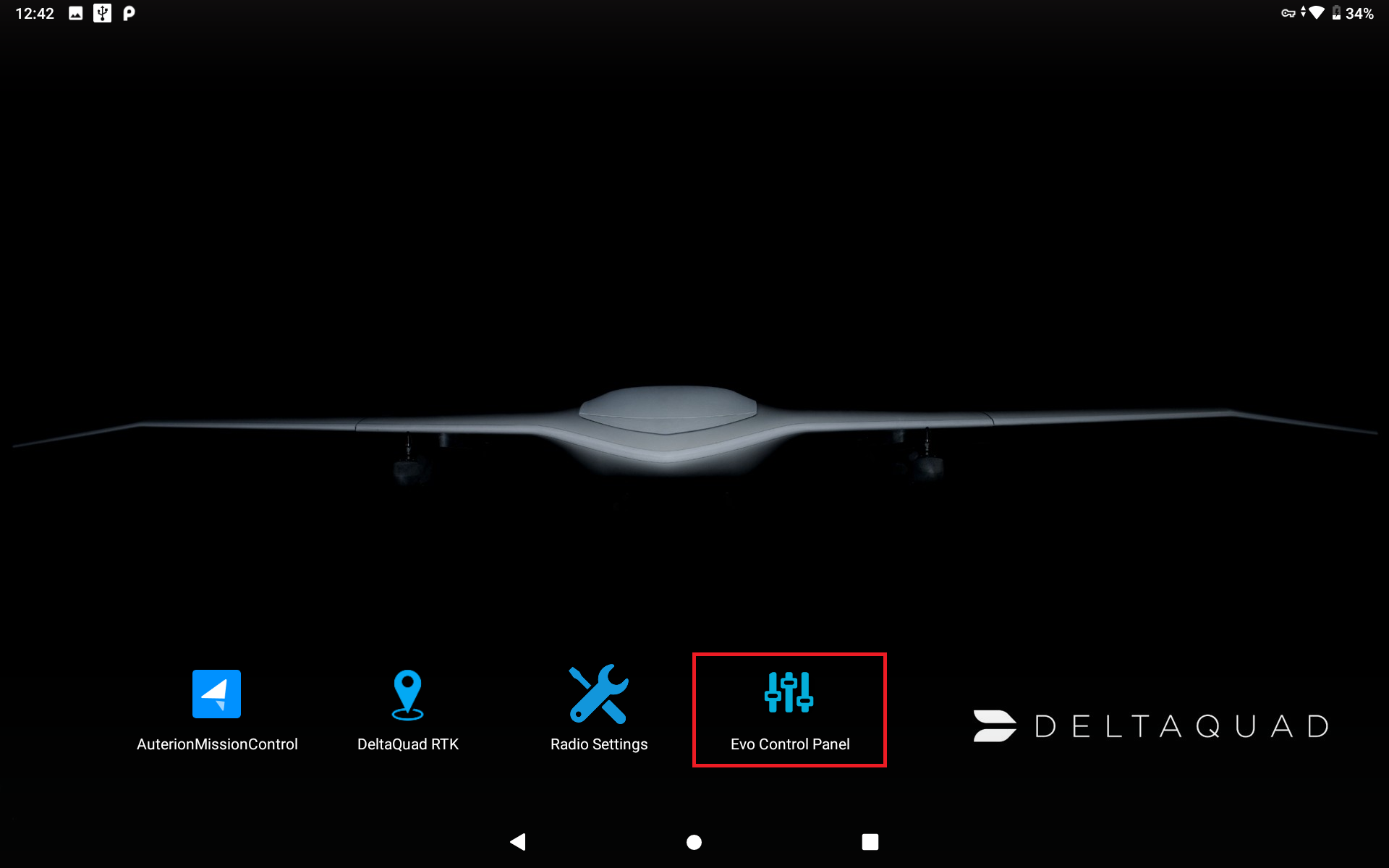
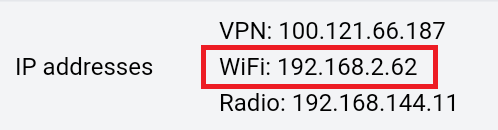
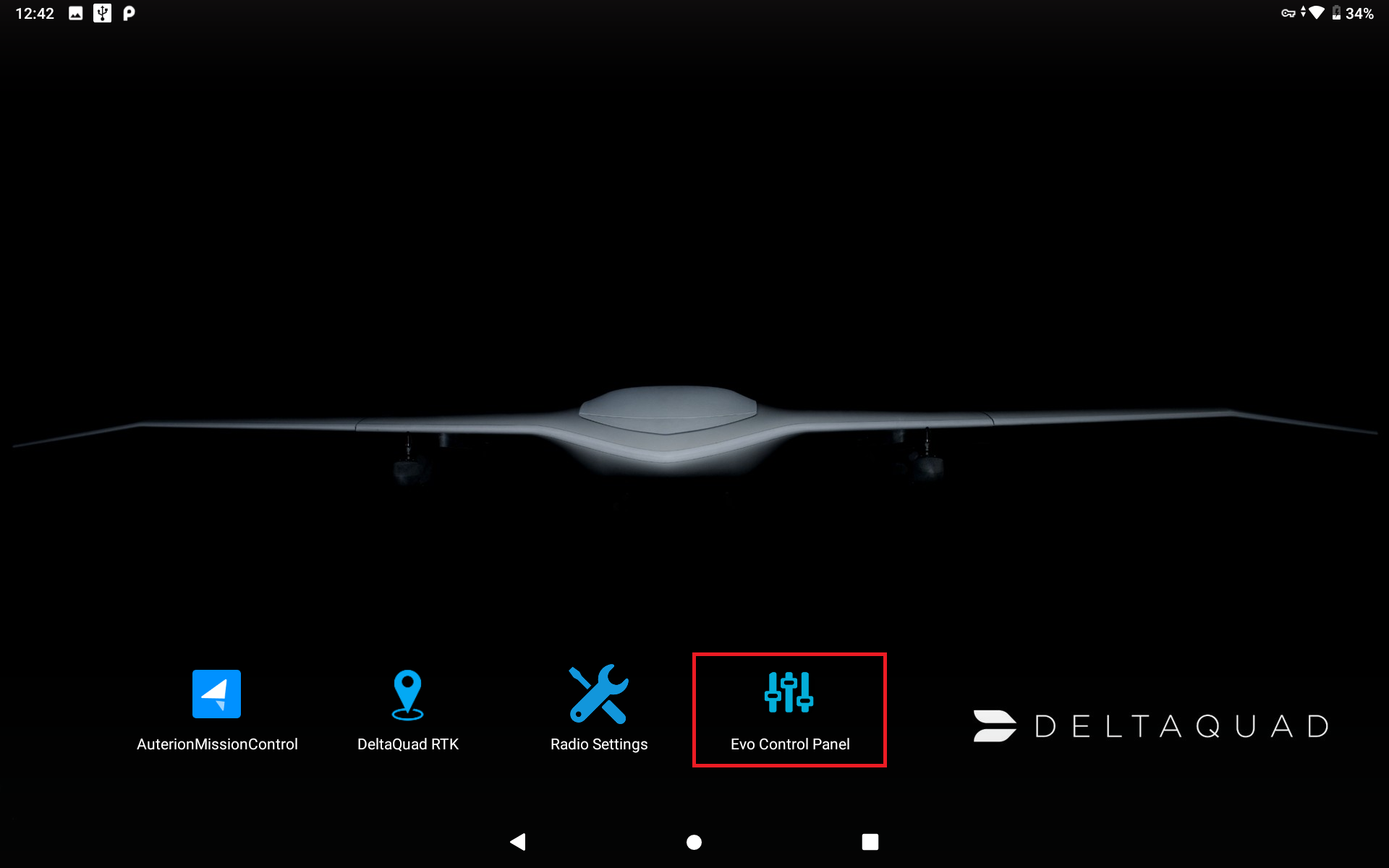
3. On the DeltaQuad Controller, open the Evo Control Panel.
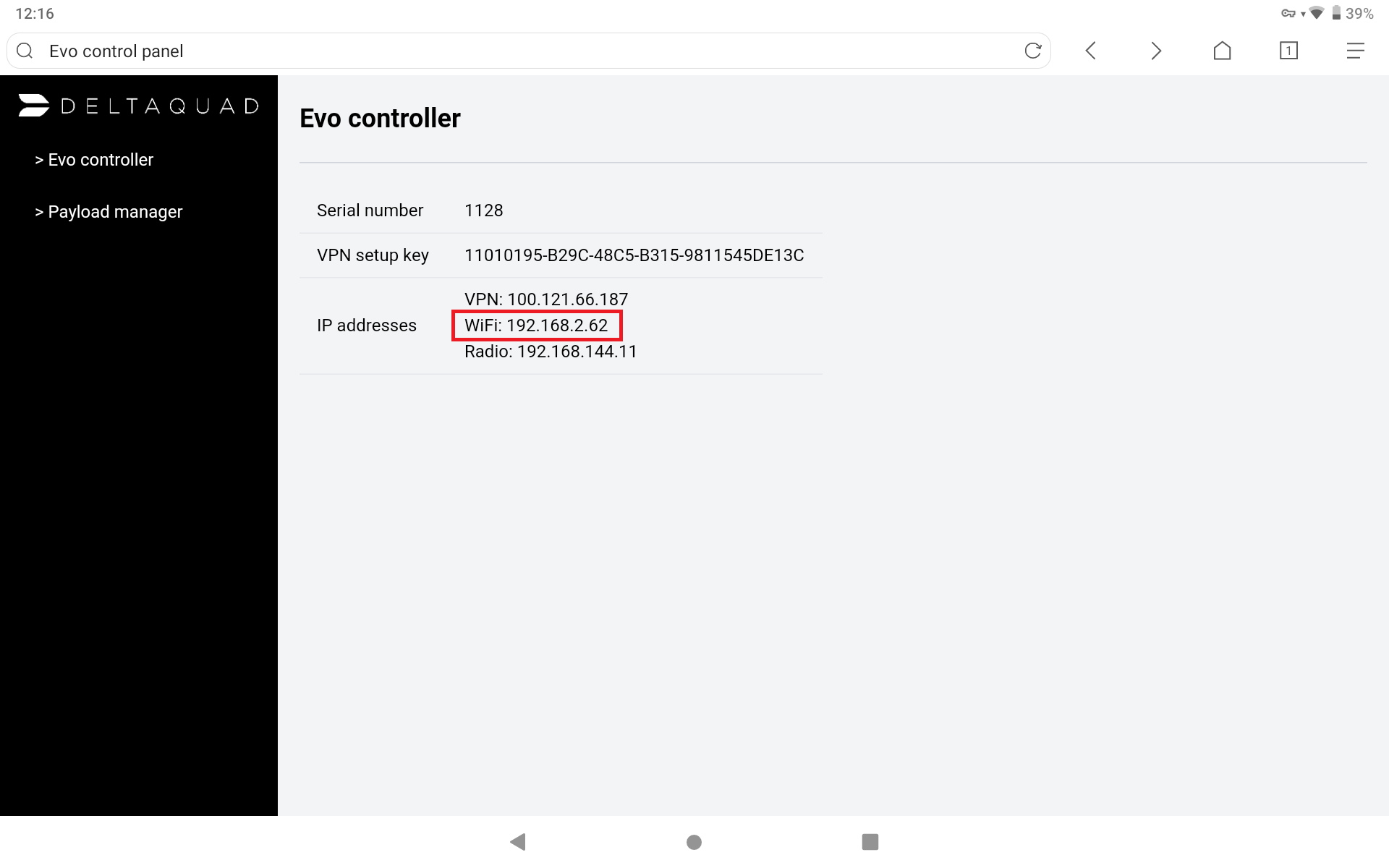
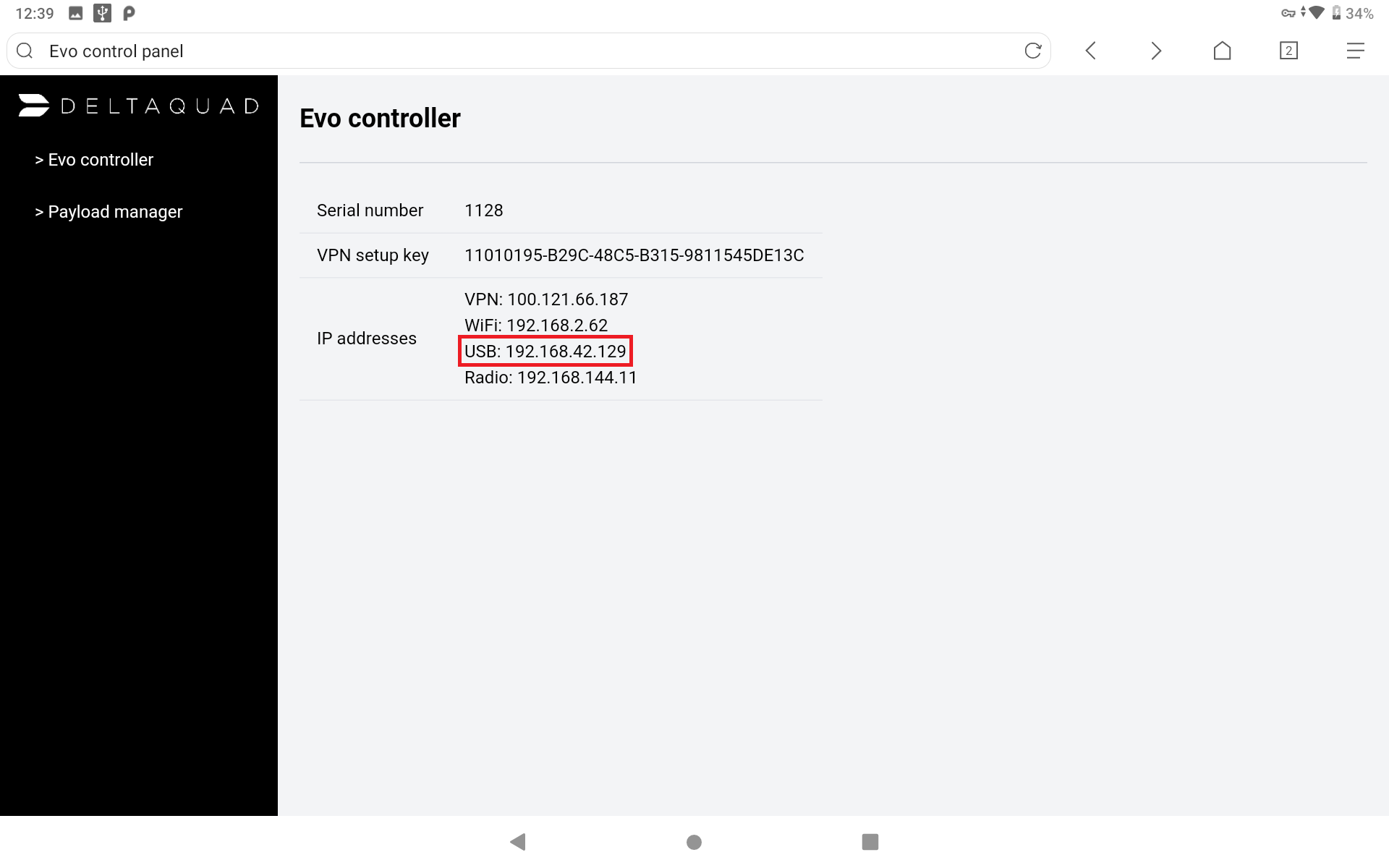
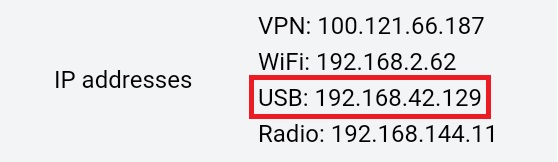
Remember the WiFi: IP address.
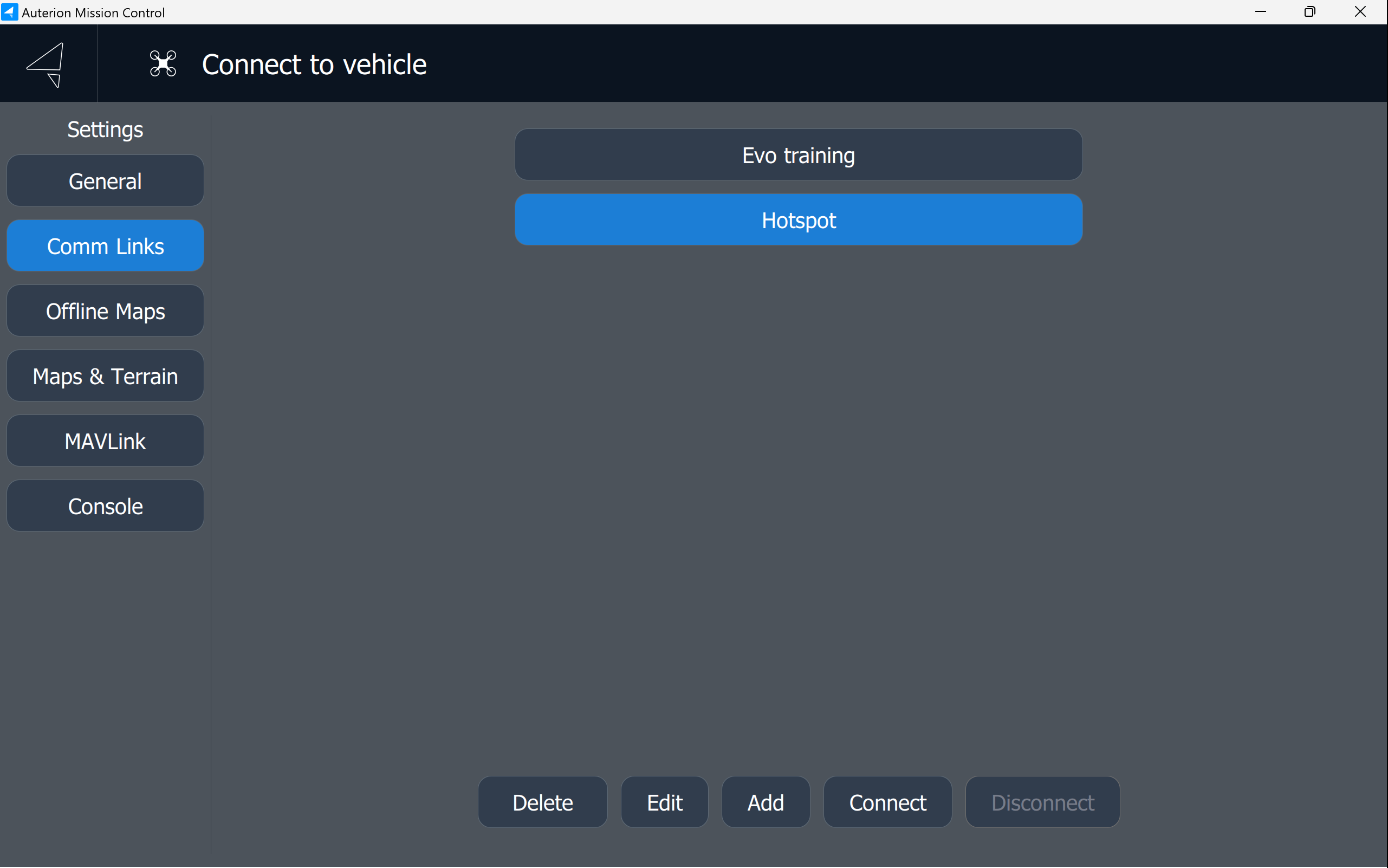
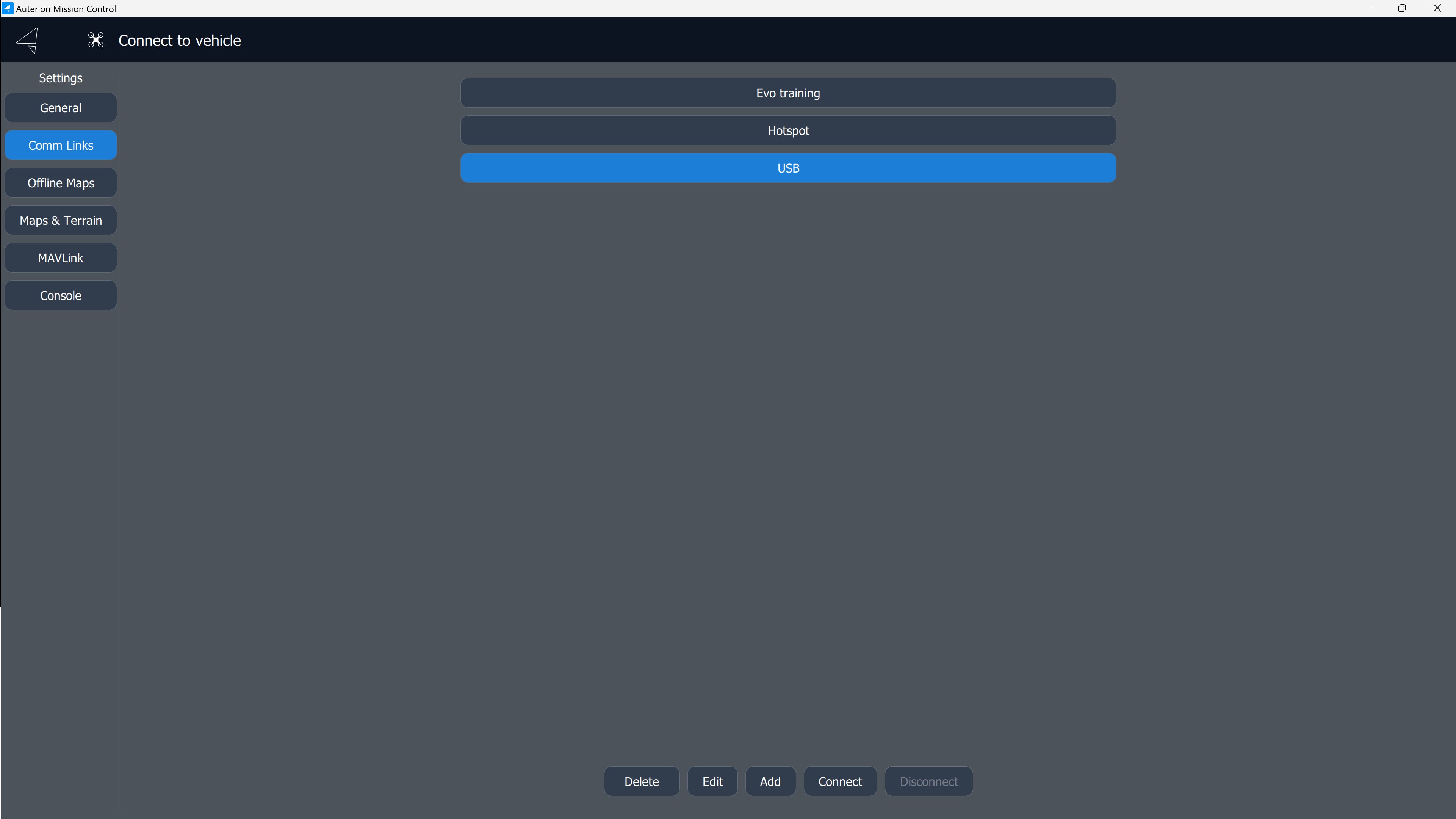
4. On your secondary device, open AMC. Go to the AMC menu in the upper left corner of the screen and open the Comm Links tab. Click on *Add* in the lower bottom of the screen.
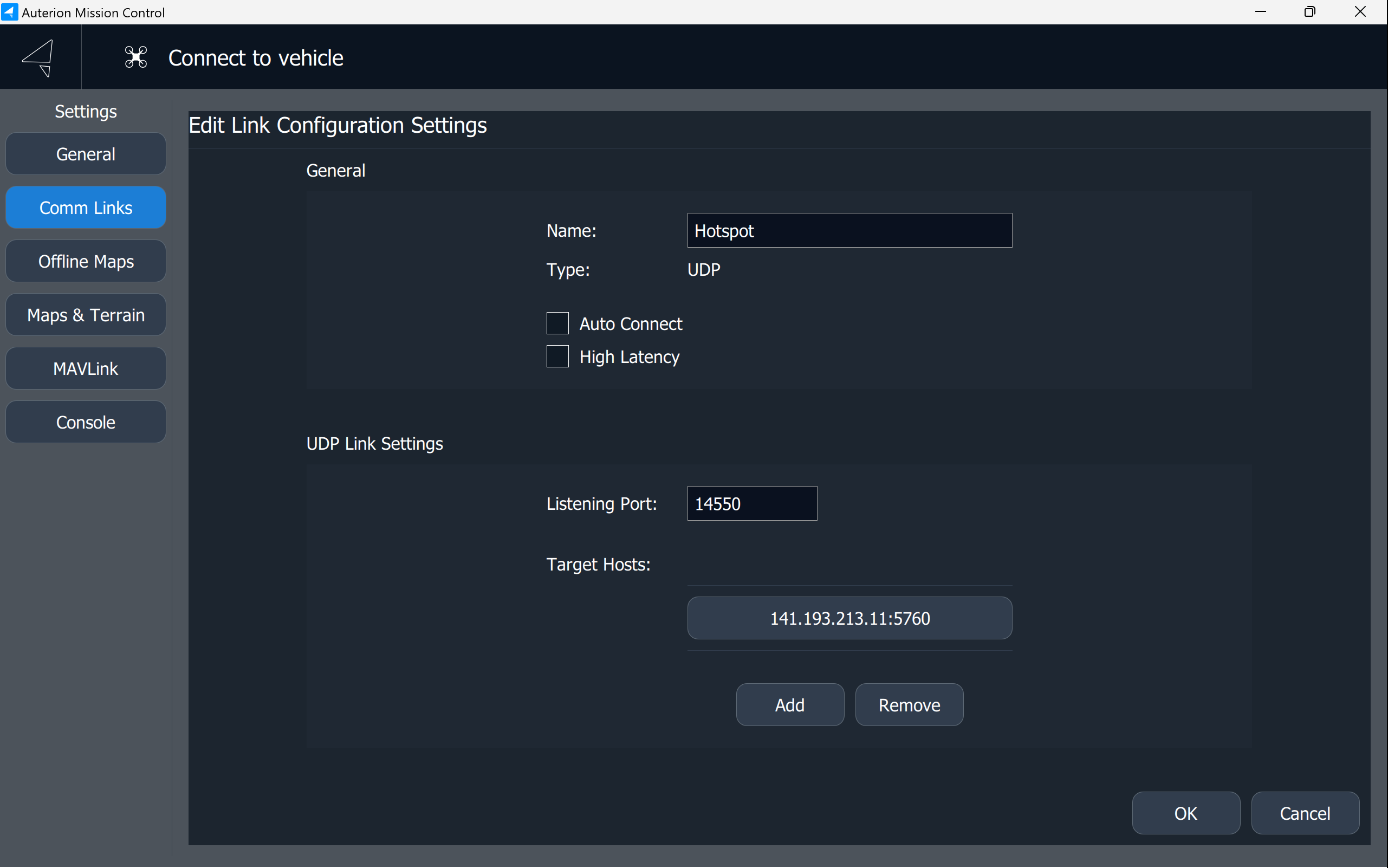
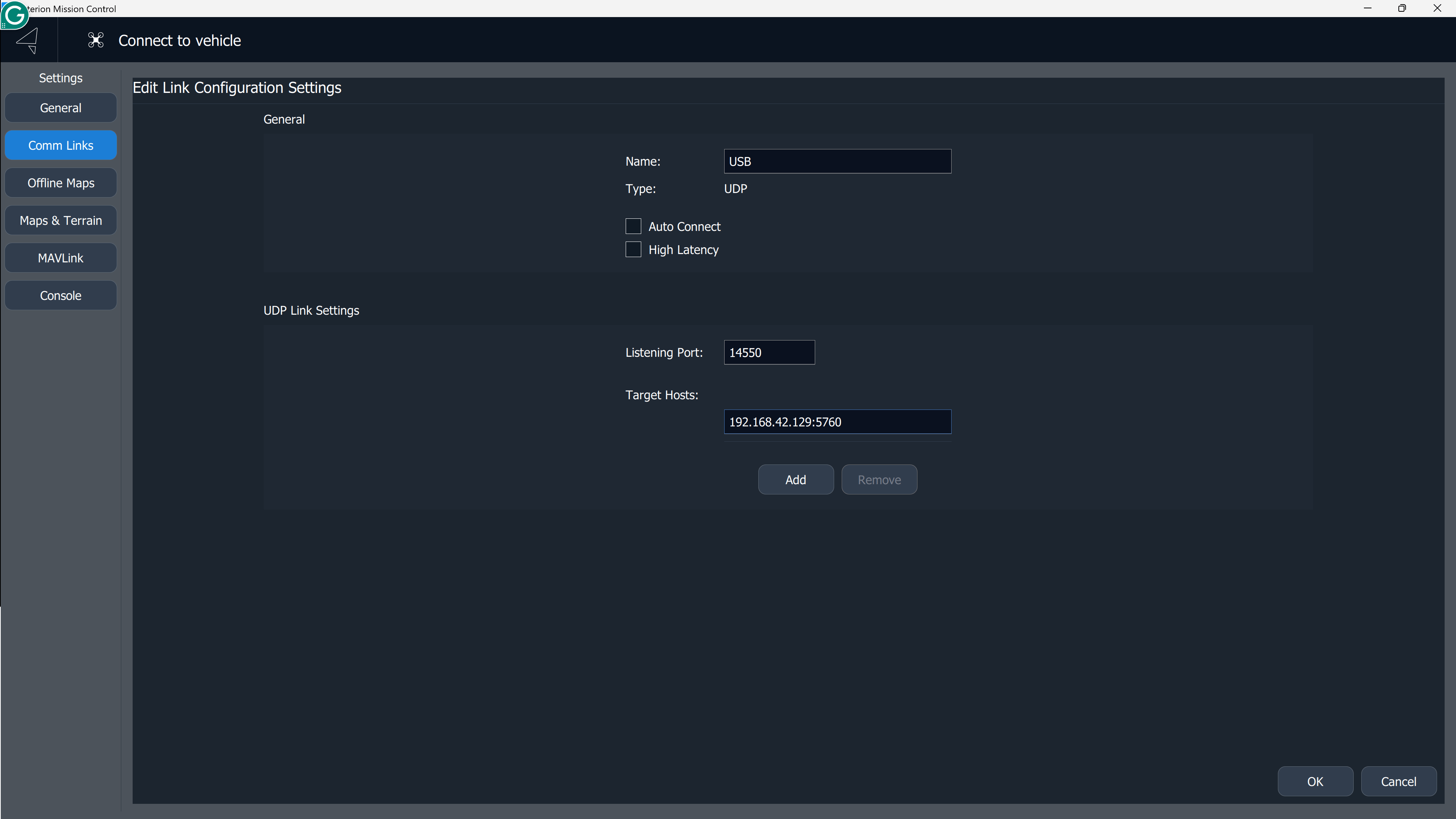
5. Name the Comm Link. Choose UDP as the Type. The listening port is 14550.
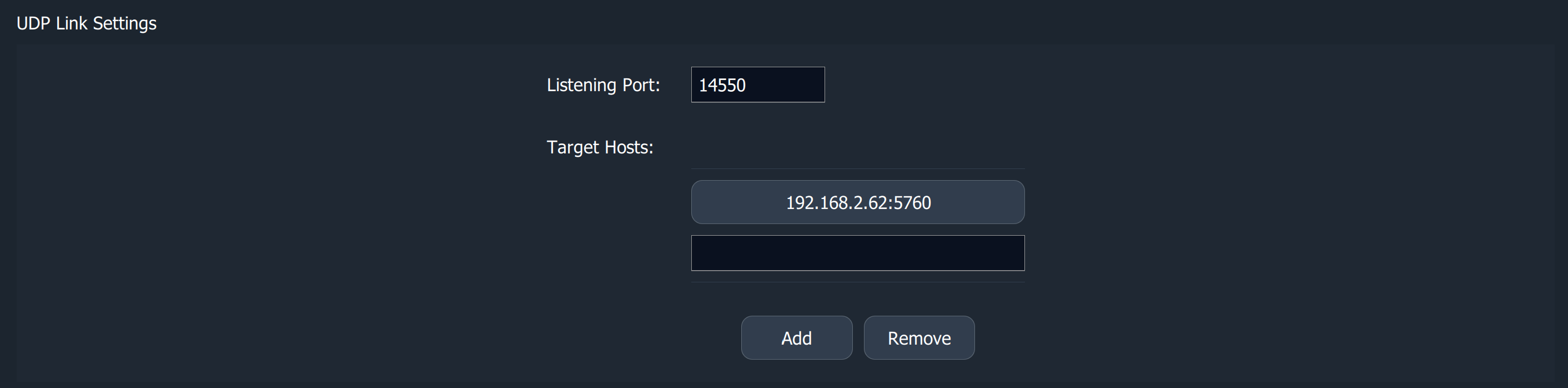
Add a target host which is the WiFi IP address displayed in the Evo Control Panel on the DeltaQuad Controller.
It consists of 4 numbers divided by three dots. At the end of the IP address type a colon and the 5760 which is the port. See the example below.
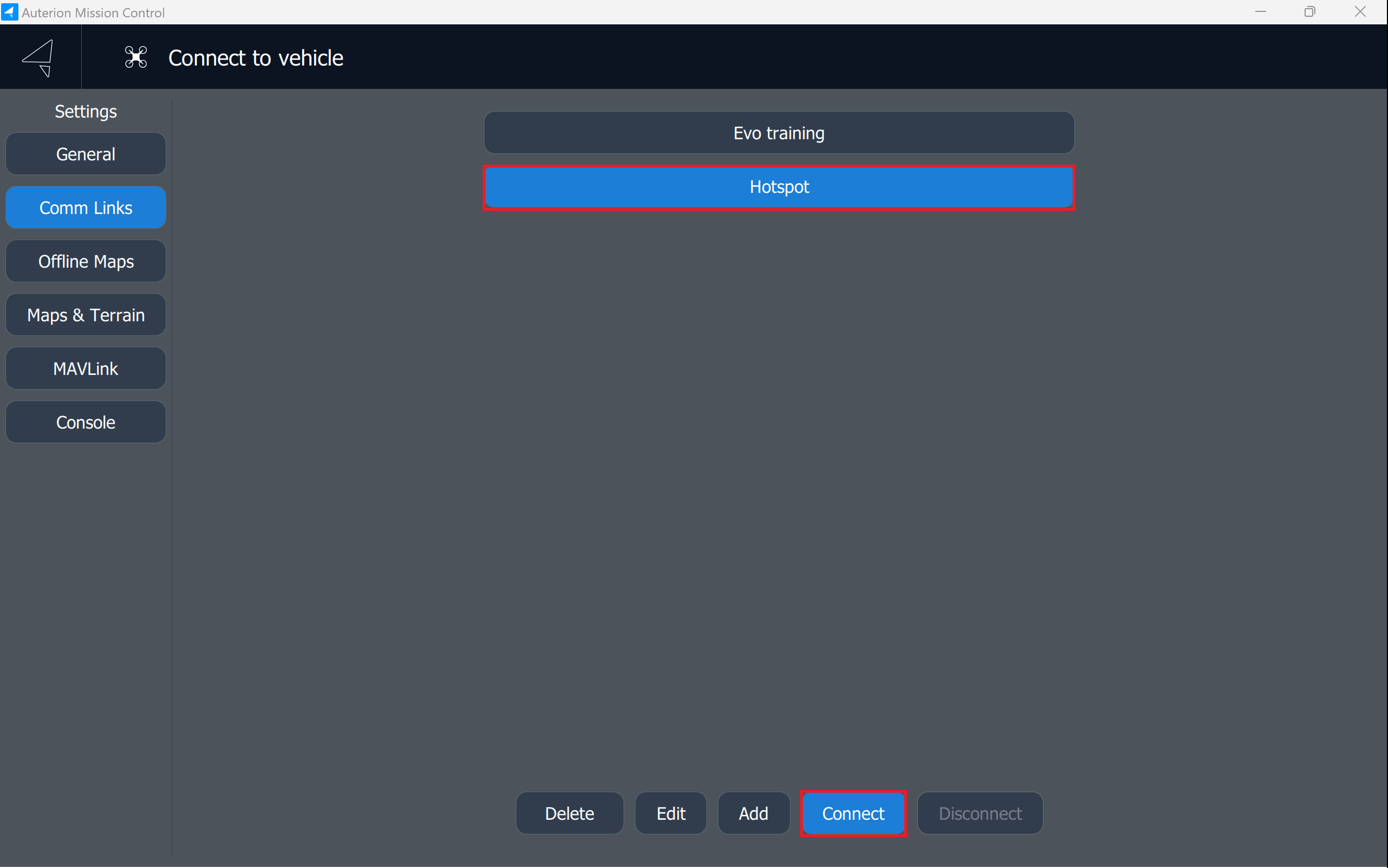
Click on *OK*. Choose the Comm Link you want to connect with and click on *Connect* at the lower part of the screen.
A connection should be established within seconds. Switch to Fly View to see the telemetry and data link.
#### Connect to the DeltaQuad Controller via USB.
1. Power up your DeltaQuad Evo system (UAV and Ground Control Station). Make sure a radio connection has been established.
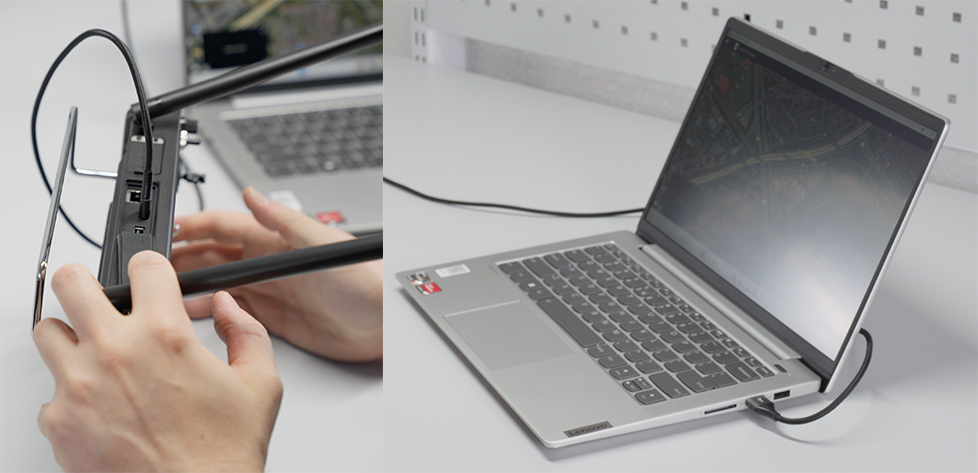
2. Connect the secondary device to the DeltaQuad Controller via USB by using the USB-C connection on top of the DeltaQuad Controller.
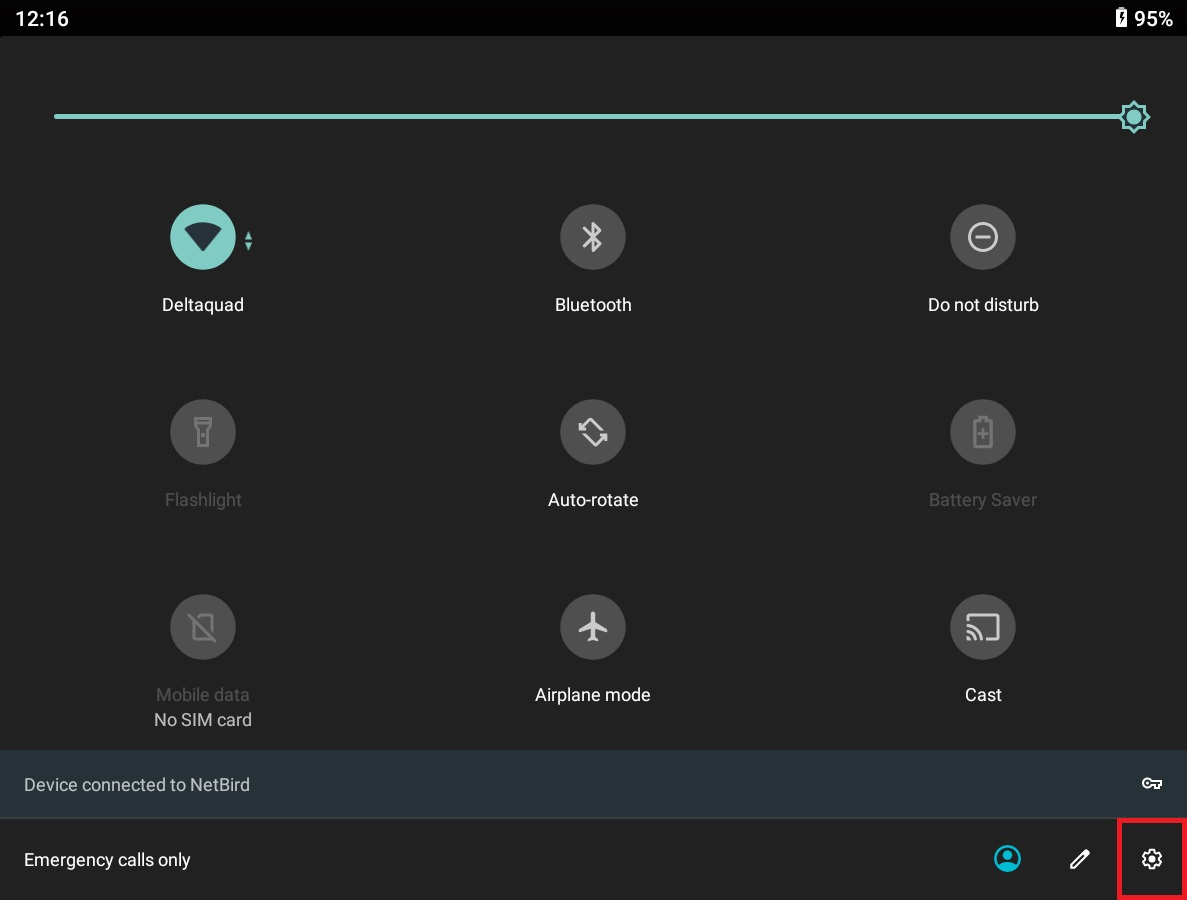
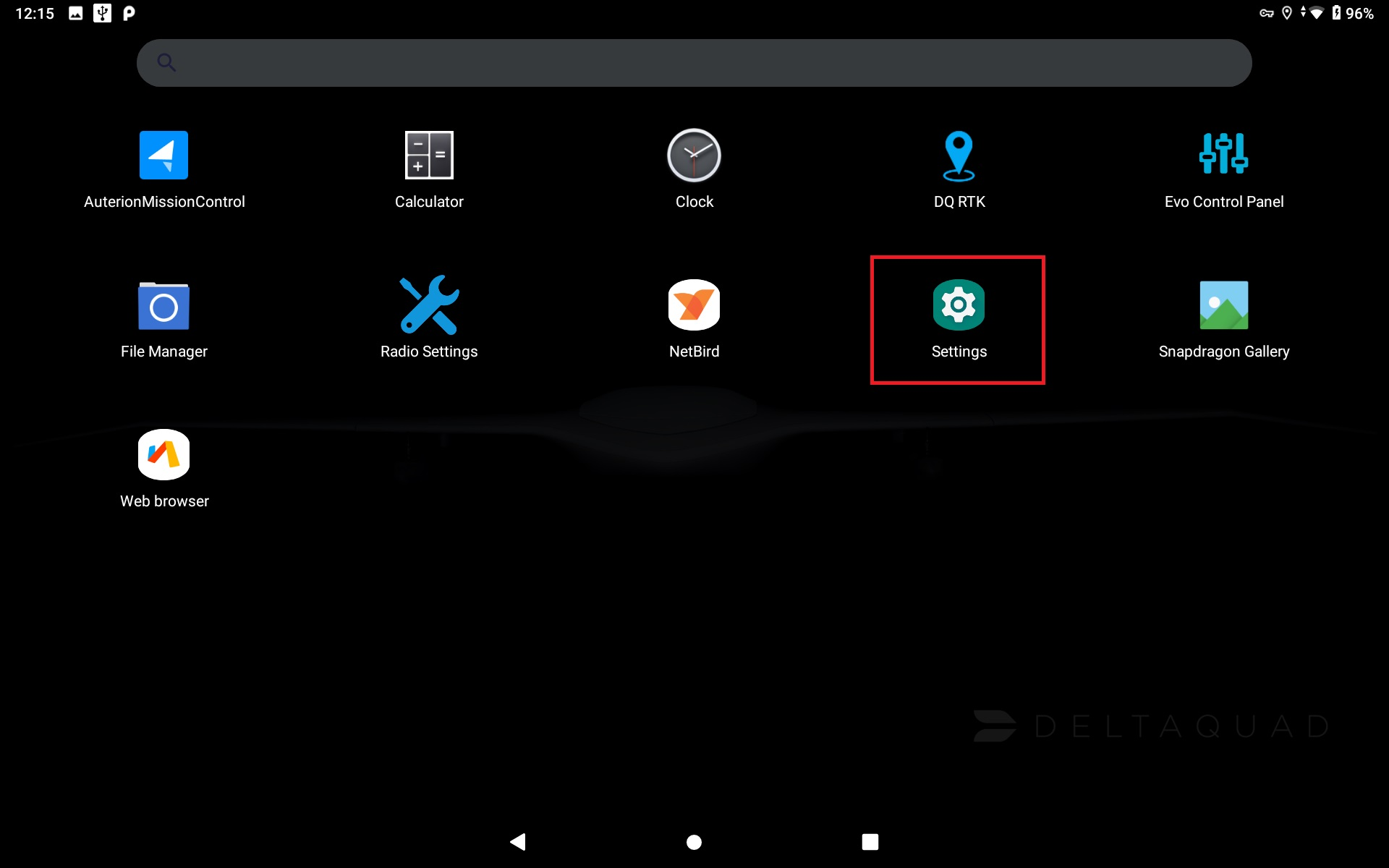
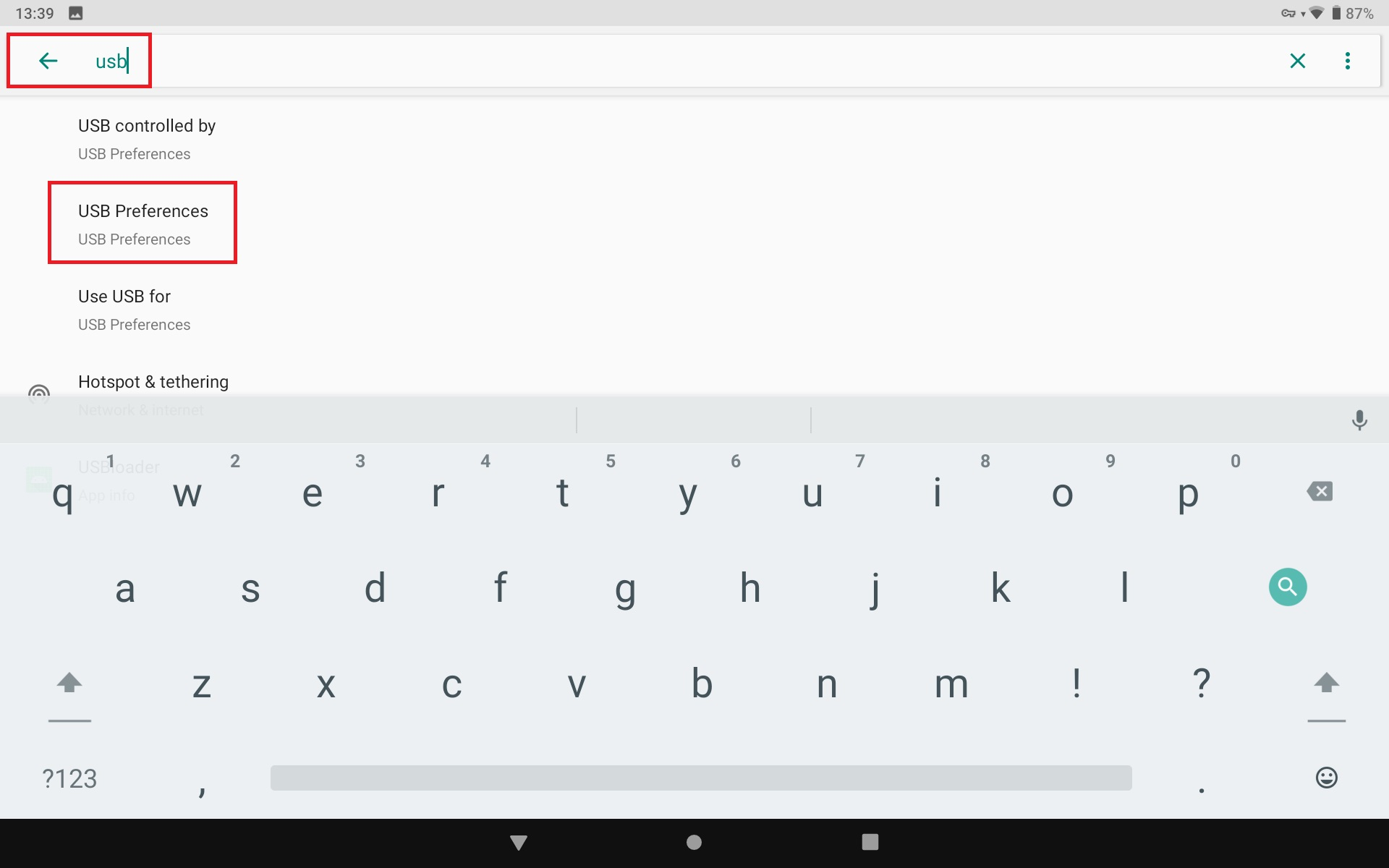
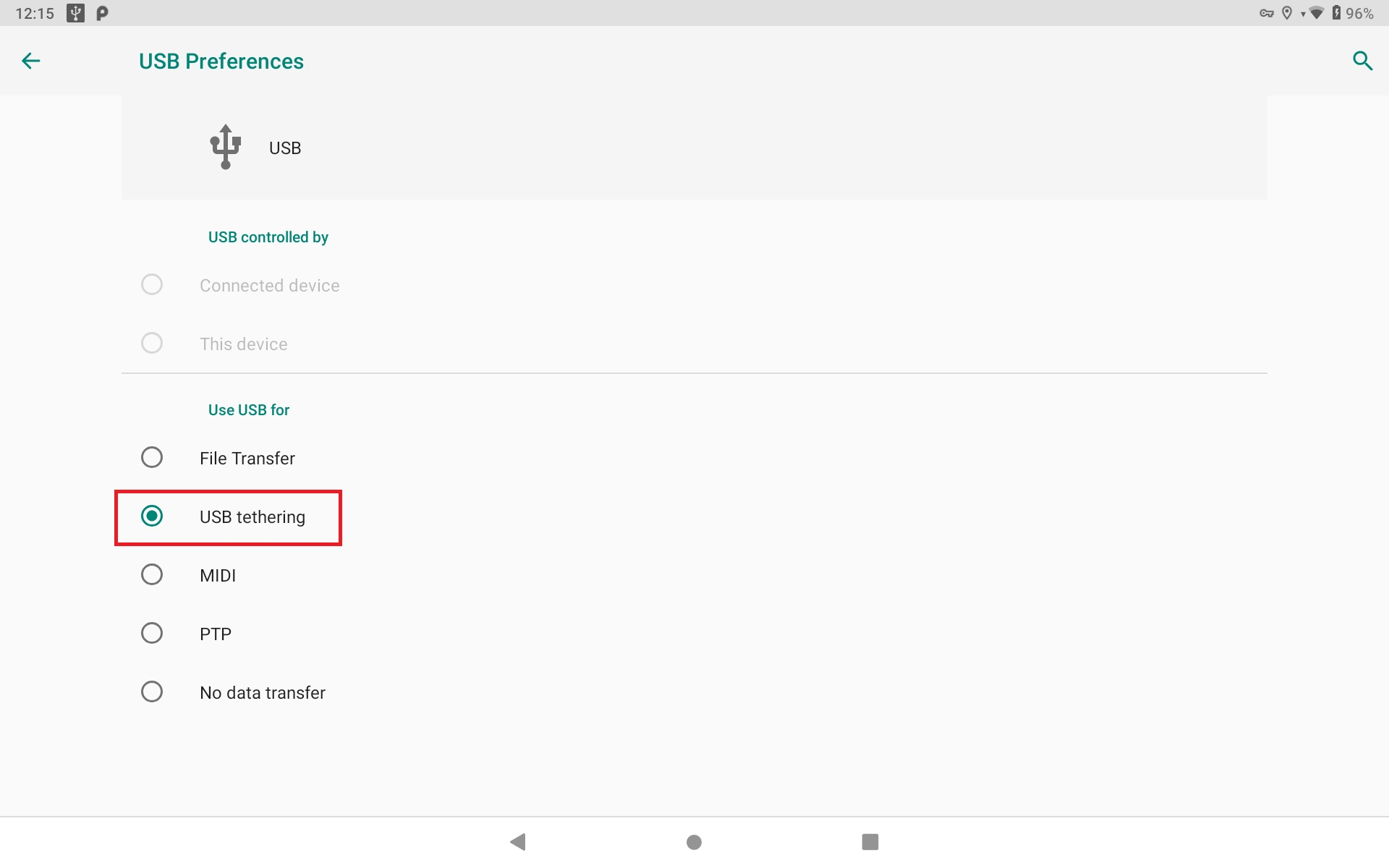
3. If not automatically done, USB Tethering must be enabled on the DeltaQuad Controller. You need to navigate to the settings menu (cogwheel).
* You can do that by sliding your fingers from the top of the screen downwards. A quick menu will open. Click on the small cogwheel.
* Another way to navigate to the settings is by sliding your fingers from the bottom of the screen upwards. A menu with all apps will be displayed. Select the *Settings* app (cogwheel).
* In the settings menu, search for USB and select USB Preferences.
* Enable *USB tethering*.
4. On the DeltaQuad Controller, open the Evo Control Panel.
Remember the USB: IP address.
5. On your secondary device, open AMC. Go to the AMC menu in the upper left corner of the screen and open the Comm Links tab. Click on *Add* in the lower bottom of the screen.
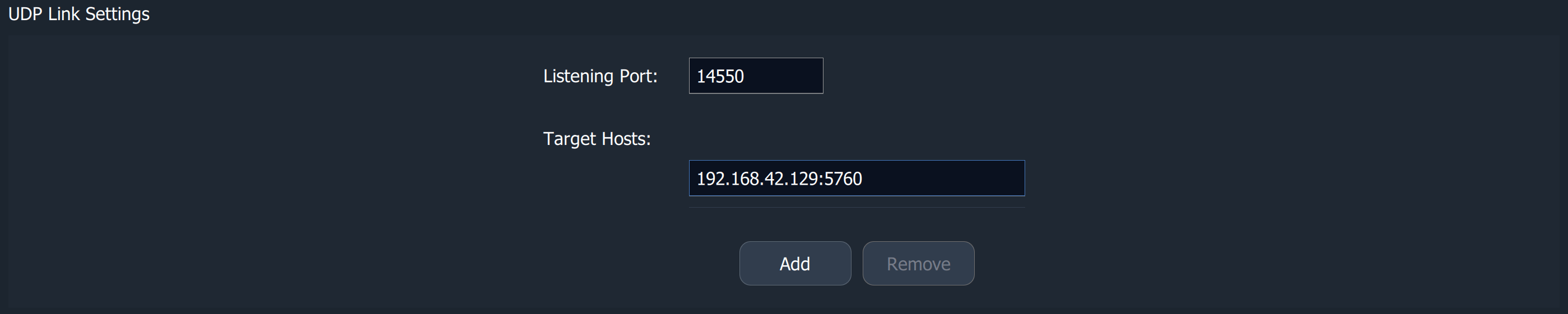
6. Name the Comm Link. Choose UDP as the Type. The listening port is 14550.
Add a target host, which is the USB IP address displayed in the Evo Control Panel on the DeltaQuad Controller.
It consists of 4 numbers divided by three dots. At the end of the IP address type a colon and the 5760 which is the port. See the example below.
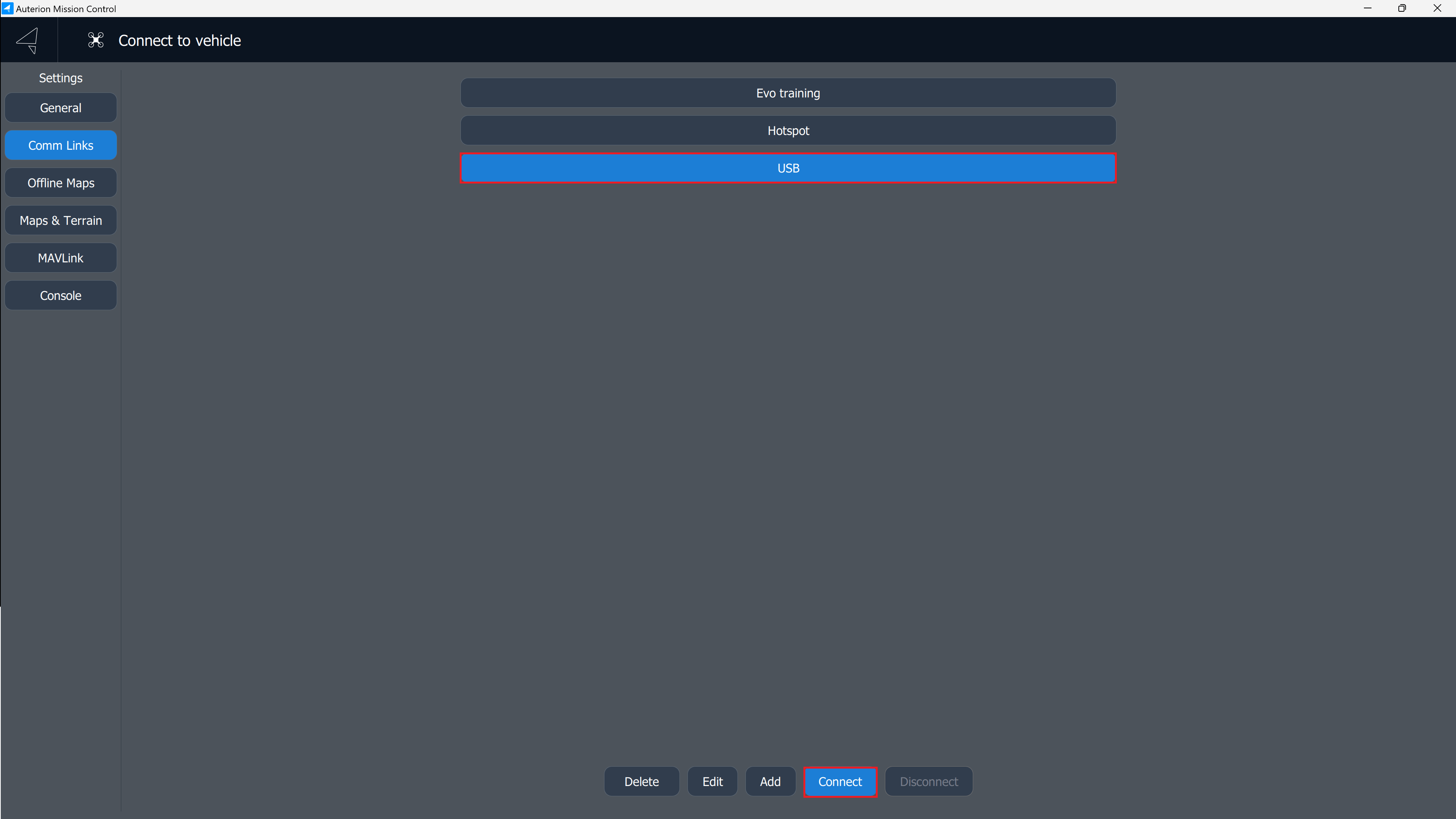
7. Click on *OK*. Choose the Comm Link you want to connect with and click on *Connect* at the lower part of the screen.
A connection should be established within some seconds. Switch to Fly View to see the telemetry and data link.
---
# Agent Instructions
This documentation is published with GitBook. GitBook is the documentation platform designed so that both humans and AI agents can read, navigate, and reason over technical content effectively. Learn more at gitbook.com.
## Querying This Documentation
If you need additional information that is not directly available in this page, you can query the documentation dynamically by asking a question.
Perform an HTTP GET request on the current page URL with the `ask` query parameter, and the optional `goal` query parameter:
```
GET https://docs.deltaquad.com/sth/flight/deltaquad-controller/connecting-a-secondary-control-and-command-terminal.md?ask=&goal=
```
`ask` is the immediate question: it should be specific, self-contained, and written in natural language.
`goal` is optional and describes the broader end goal you are ultimately trying to accomplish on behalf of the user. GitBook uses it to tailor the answer towards what is most useful for that goal.
The response will contain a direct answer to the question and relevant excerpts and sources from the documentation.
Use this mechanism when the answer is not explicitly present in the current page, you need clarification or additional context, or you want to retrieve related documentation sections.