> For the complete documentation index, see [llms.txt](https://docs.deltaquad.com/gov/llms.txt). Markdown versions of documentation pages are available by appending `.md` to page URLs; this page is available as [Markdown](https://docs.deltaquad.com/gov/setup/ground-control-station-gcs/silvus-streamcaster-gui.md).
# Silvus StreamCaster GUI
This section will explain how to access the Silvus StreamCaster GUI for optional changes.
{% hint style="warning" %}
All Silvus radios come preconfigured and are ready for immediate use. **Changing the settings is recommended only for advanced users.**
{% endhint %}
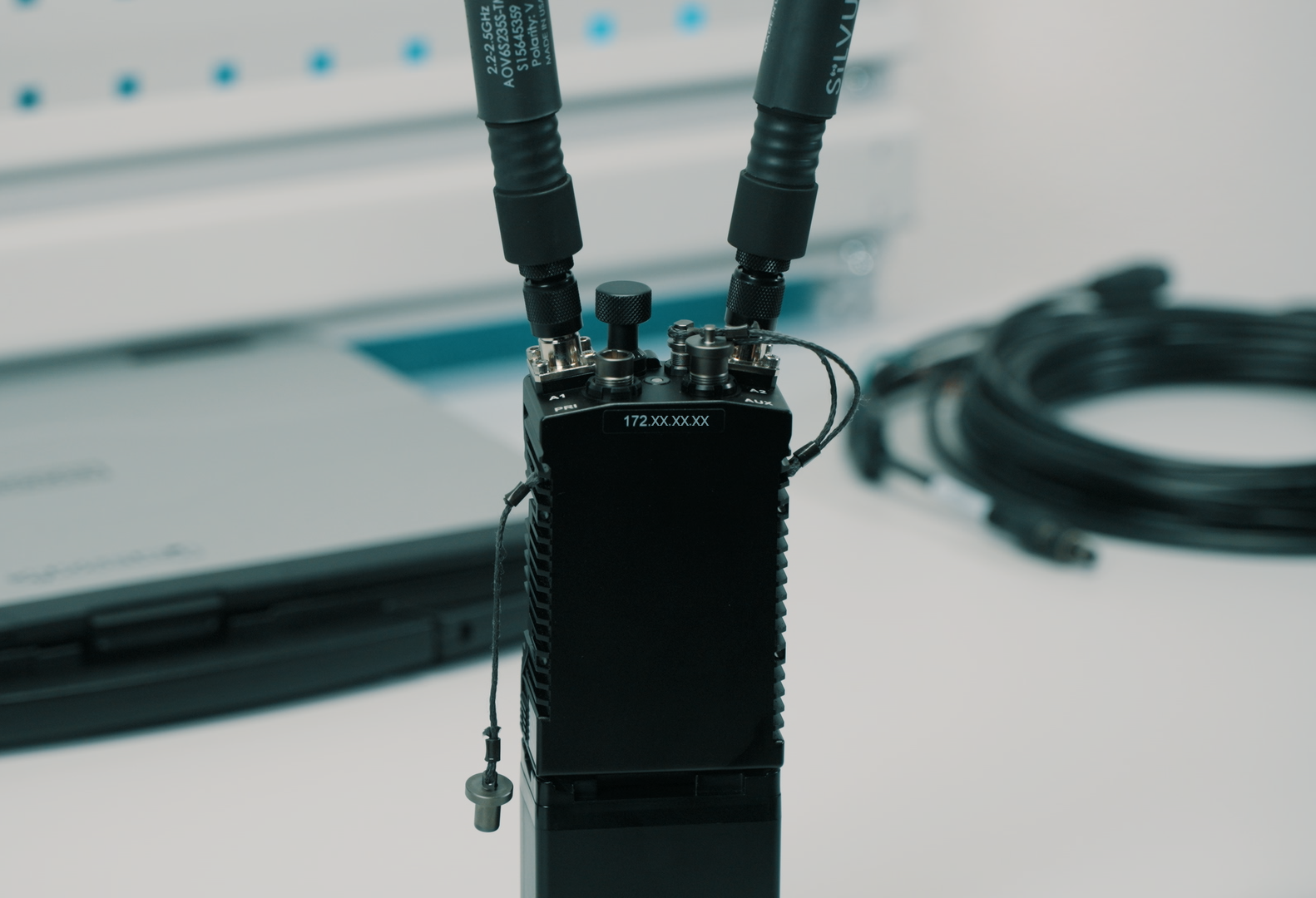
Each Silvus radio modem has a dedicated IP address consisting of four octets separated by periods. For example 172.20.123.123.
{% hint style="info" %}
The individual IP address of each Silvus StreamCaster is marked on the back of the radio module.
{% endhint %}
{% hint style="info" %}
To access the Silvus StreamCaster GUI, ensure that the Toughbook is connected to the Silvus StreamCaster and both units are powered on.
{% endhint %}
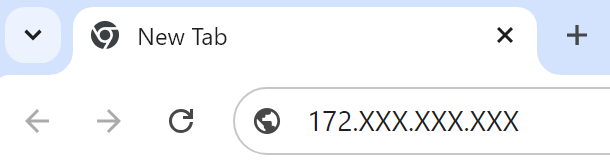
1. On the Toughbook, open a browser. In the address bar, enter the IP address of the radio modem and press **Enter**.
{% hint style="info" %}
If you encounter issues with the Google Chrome browser while using the GUI, try switching to an **incognito** window, which may help resolve the problem.
{% endhint %}
2. The battery level of the radio modem is displayed in the top right corner of the GUI's menu bar.
{% hint style="warning" %}
Critical battery levels are indicated by the radio modem's LED. For more information, please refer to the following [section](/gov/setup/ground-control-station-gcs/connecting-the-gcs-to-the-deltaquad-evo.md).
{% endhint %}
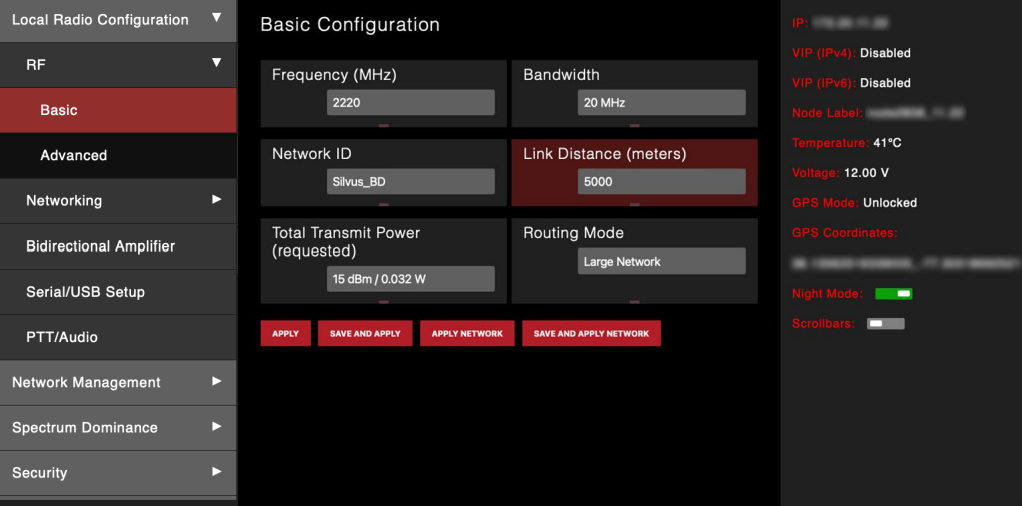
3. After a few seconds, the browser should display the Silvus StreamCaster GUI. Navigate to the tab **Local Radio Configuration** -> **RF** -> **Basic** to access the basic radio frequency settings. Here, you can configure parameters such as **Frequency**, **Bandwidth**, and **Total Transmission Power**.
{% hint style="danger" %}
To ensure proper functionality, all changes must be applied to both the handheld radio and the DeltaQuad Evo. To save and apply changes to both devices, make sure they are powered on and connected. Selecting **SAVE AND APPLY TO NETWORK** will store the changes in both devices, preserving them even after a reboot. **Using APPLY will only apply the changes temporarily until the next reboot.**
{% endhint %}
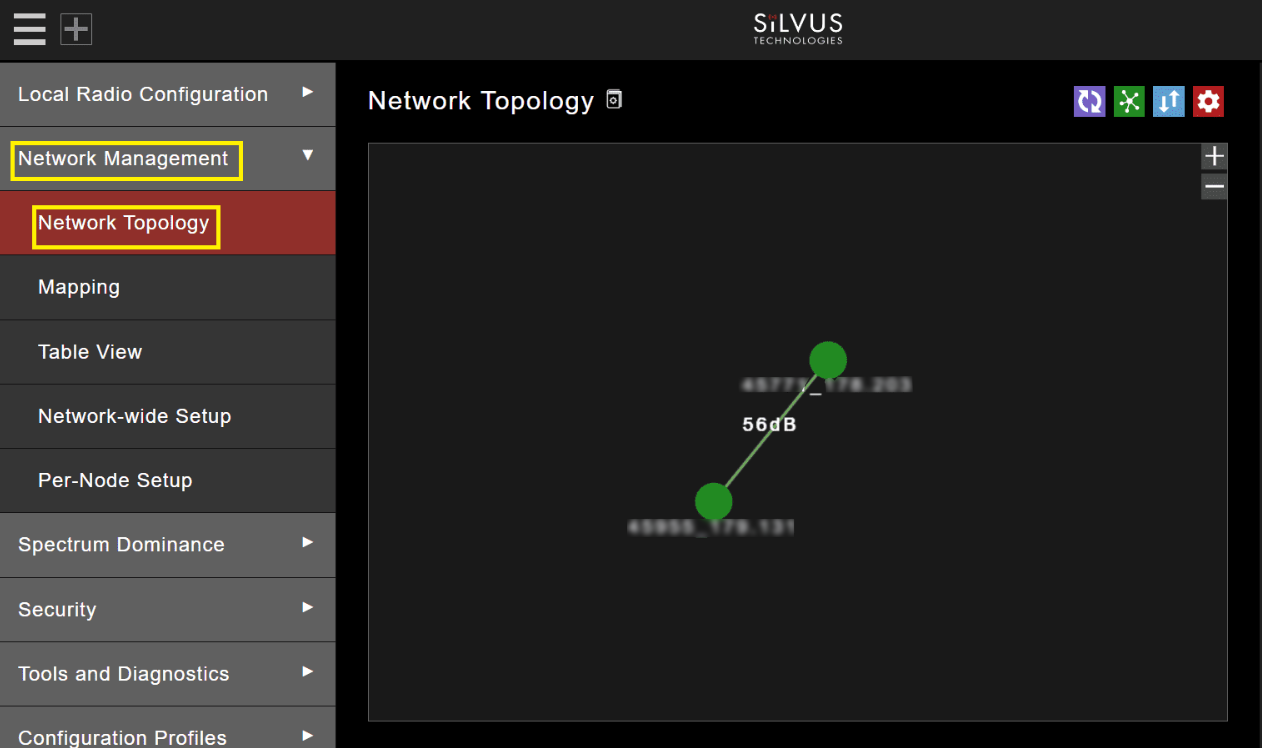
4. Under the tab **Network Management** -> **Network Topology**, you can view the individual nodes along with their signal strength.
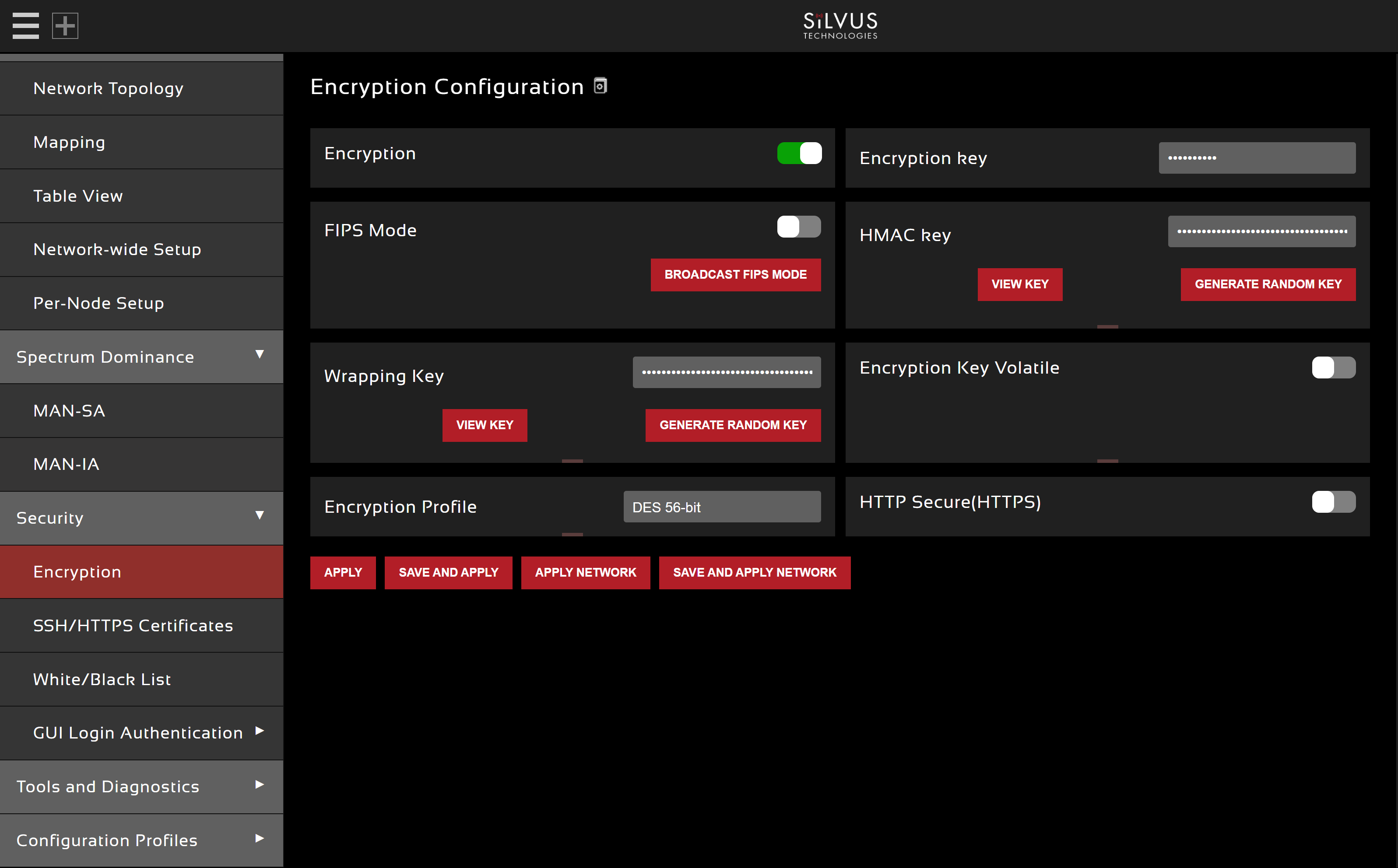
5. Under the tab **Security** -> **Encryption**, you can configure the security keys.
{% hint style="info" %}
During factory setup, we generate random keys that are not stored for security reasons. **When changing these keys, ensure you save and apply the changes to both the handheld radio and the DeltaQuad Evo.**
{% endhint %}
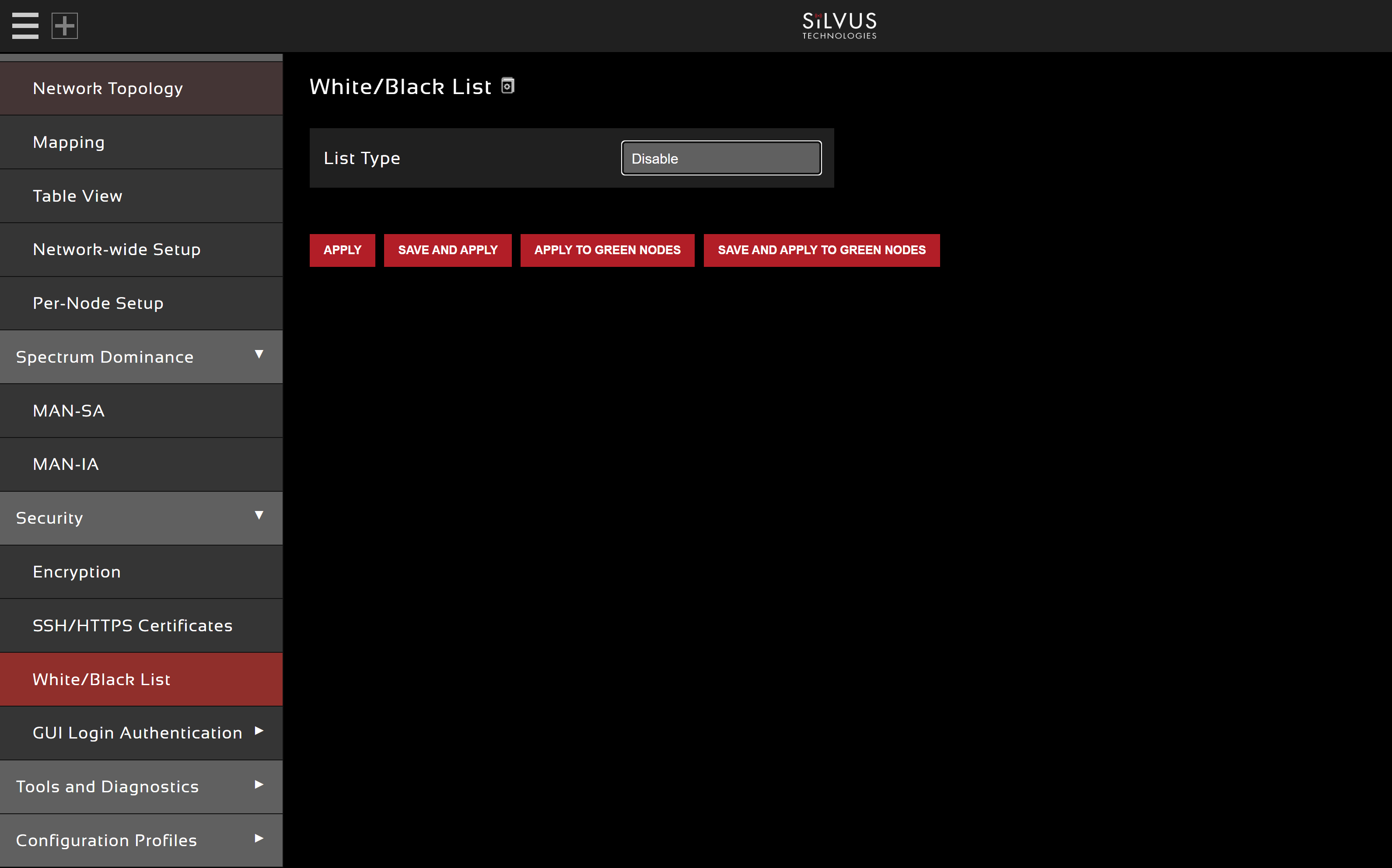
6. Under the tab **Security** -> **White/Black List**, you can create either a white list or a black list. A black list can block specific nodes from accessing the network, while a white list specifies which nodes are allowed to access the network.
{% hint style="info" %}
For more information, please follow this [link](https://silvustechnologies.com/).
{% endhint %}
---
# Agent Instructions
This documentation is published with GitBook. GitBook is the documentation platform designed so that both humans and AI agents can read, navigate, and reason over technical content effectively. Learn more at gitbook.com.
## Querying This Documentation
If you need additional information that is not directly available in this page, you can query the documentation by asking a question.
Perform an HTTP GET request on the following URL with the `ask` and `goal` query parameters:
```
GET https://docs.deltaquad.com/gov/setup/ground-control-station-gcs/silvus-streamcaster-gui.md?ask=&goal=
```
`ask` is the immediate question: it should be specific, self-contained, and written in natural language.
`goal` is what the user is ultimately trying to achieve, the reason they need the answer. Sharing it helps GitBook give you a better, more relevant answer. A goal is most helpful when it describes the outcome the user wants rather than restating the question. For example, with `ask=how do I create an API token`, a goal like `automate deployments from our CI pipeline` lets GitBook tailor the answer to that use case.
The response will contain a direct answer to the question and relevant excerpts and sources from the documentation.
Use this mechanism when the answer is not explicitly present in the current page, you need clarification or additional context, or you want to retrieve related documentation sections.