# Geofences

{% hint style="info" %}
A **geofence** is a virtual boundary set around a specific geographic area. It restricts where the UAV can fly, often for safety, regulatory compliance, or privacy reasons. If a UAV approaches this boundary, it can trigger automated actions, like alerting the operator, pausing, or returning to a safe area. Geofencing helps prevent UAVs entering restricted zones, such as airports, military areas, or other sensitive locations.
{% endhint %}

## Setting a Geofence in the Safety Tab

{% hint style="success" %}
One or more **geofences** can be placed in the **Plan View** and uploaded to the vehicle. This is possible with or without a takeoff, waypoint, or landing item being present. This is beneficial when operating the vehicle with the Quick Takeoff functionality while requiring complex geofencing.&#x20;

A faster and simpler way to create a geofence is to use the **Geofence** **Failsafe Trigger** option in the **Safety** tab, as explained in the following section.
{% endhint %}

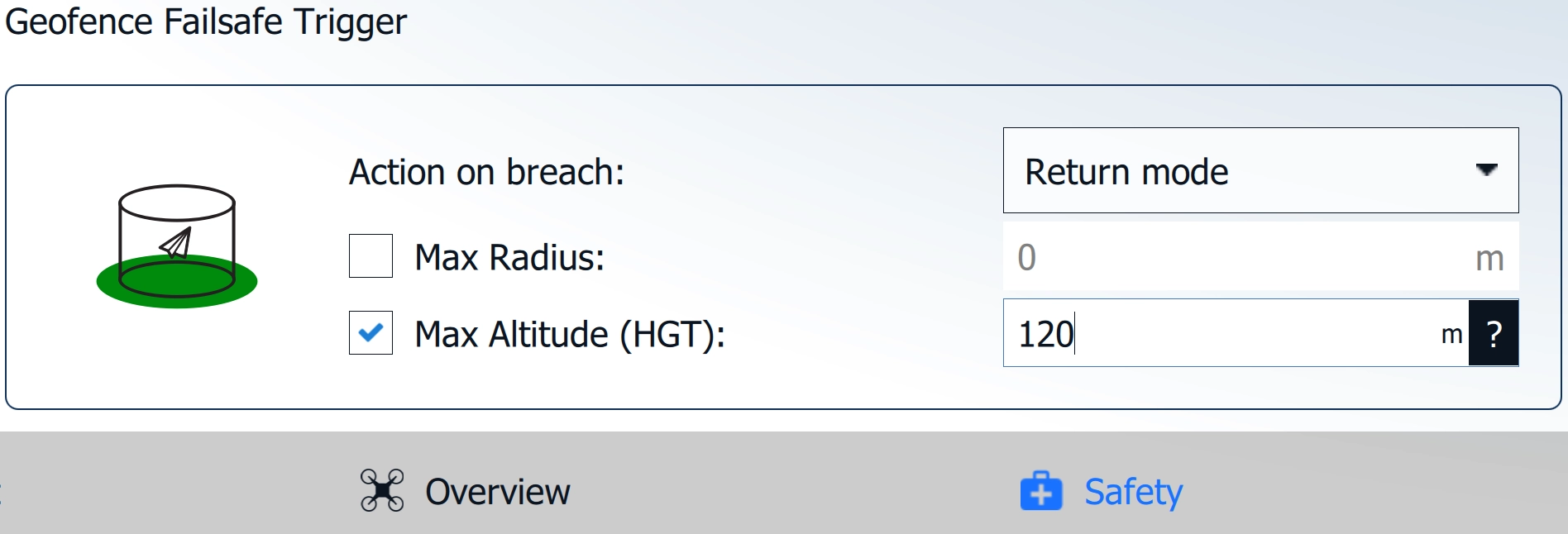
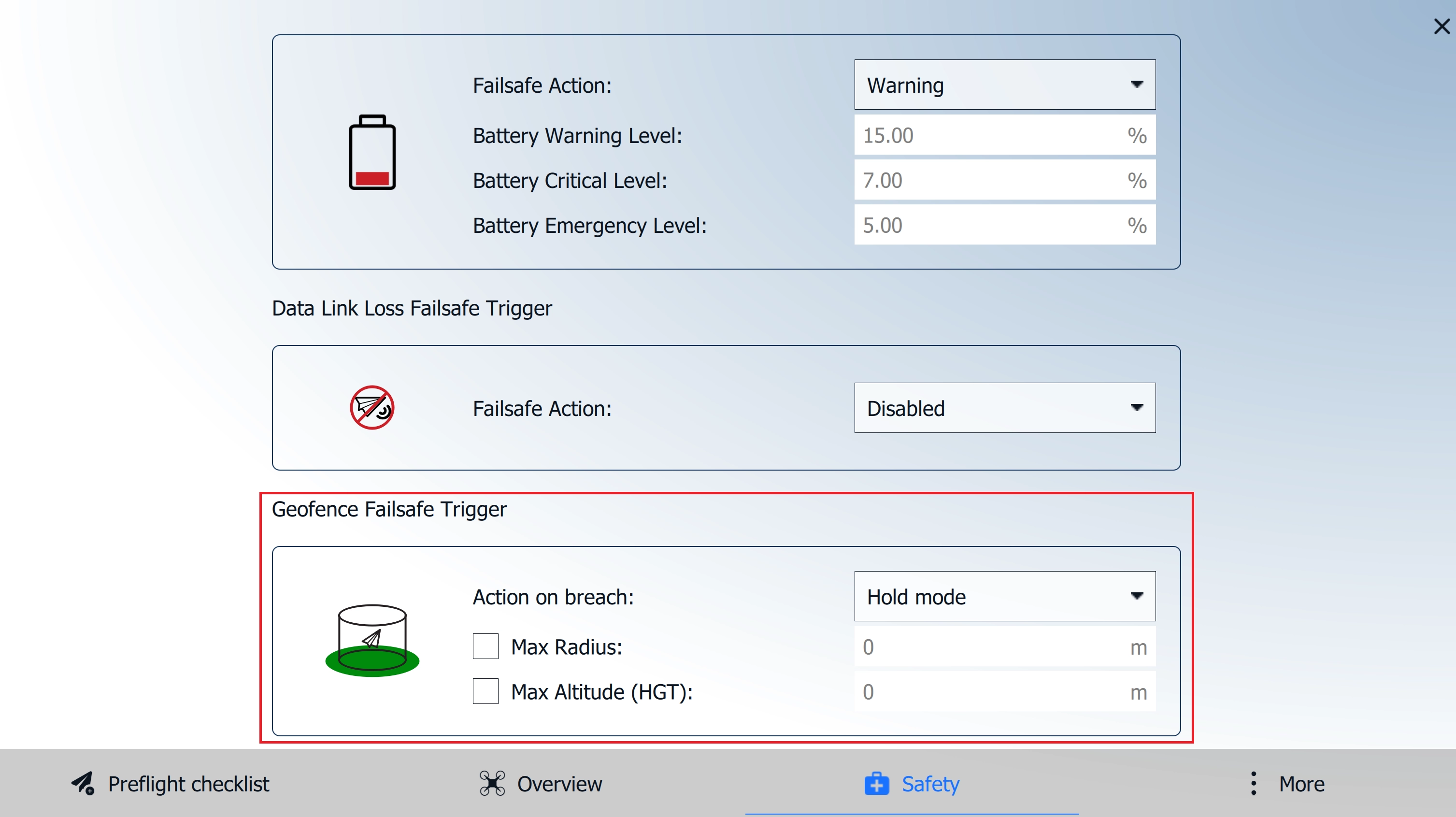
1. Navigate to the Geofence option in the Safety tab: **AMC Menu -> Vehicle Overview -> Safety -> Geofence Failsafe Trigger.**

<figure><img src="https://content.gitbook.com/content/KBsYYYTTfla4fXzYBpU6/blobs/dgPSQUeMGMz6J9nOzh0m/Geofence%201.webp" alt=""><figcaption></figcaption></figure>

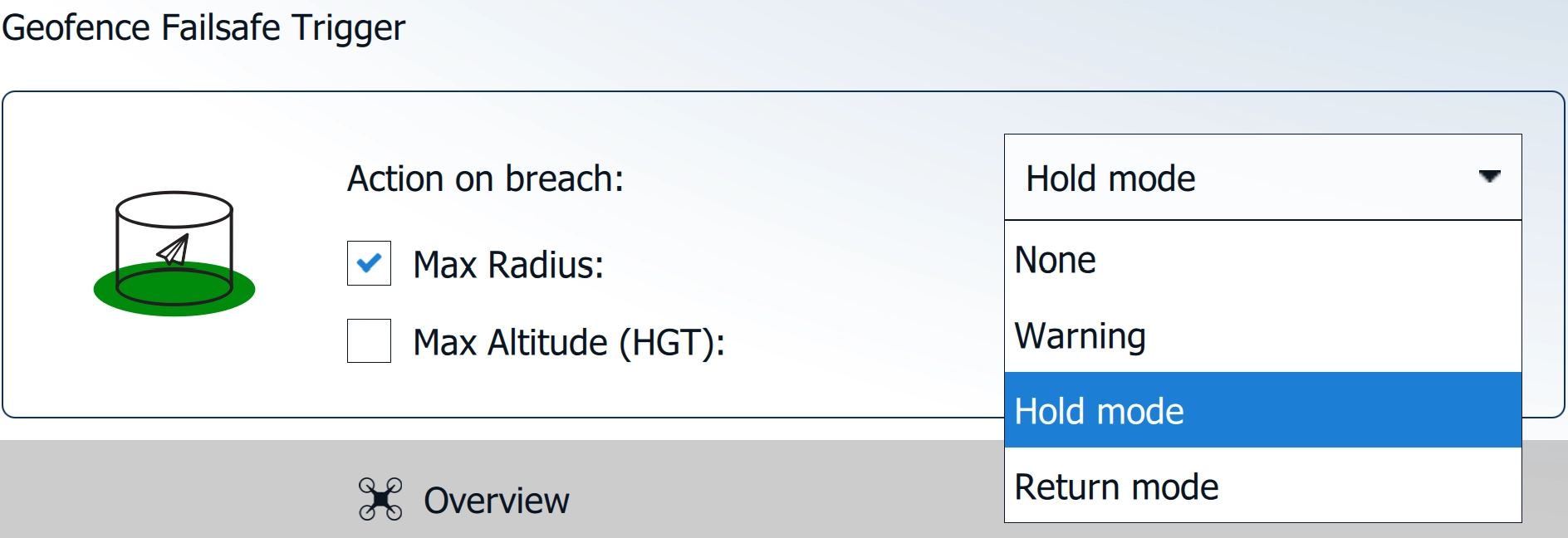
2. When **AMC** is running in **Normal Mode**, the **Action on breach** tab provides the following four options to choose from. Set the action required for the planned operation.

<figure><img src="https://content.gitbook.com/content/KBsYYYTTfla4fXzYBpU6/blobs/45VwGznec18hL5gyQRgZ/Geofence%202.webp" alt=""><figcaption></figcaption></figure>

<table><thead><tr><th width="170"></th><th></th></tr></thead><tbody><tr><td><strong>None</strong></td><td>No action</td></tr><tr><td><strong>Warning</strong></td><td>A warning message will be displayed/announced.</td></tr><tr><td><strong>Hold mode</strong></td><td>The vehicle will enter Hold mode and orbit at the location and altitude where the failsafe action was triggered.</td></tr><tr><td><strong>Return mode</strong></td><td>The vehicle will enter Return mode and fly directly to the designated landing location at the set return altitude, then land.</td></tr></tbody></table>

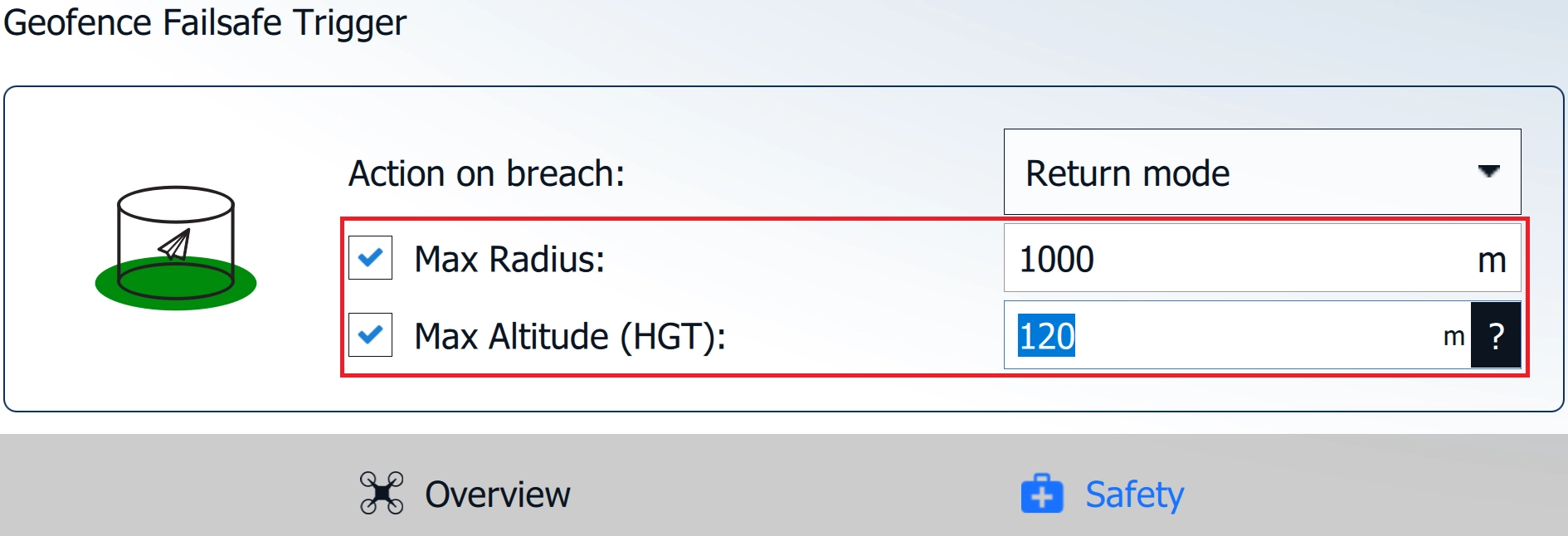
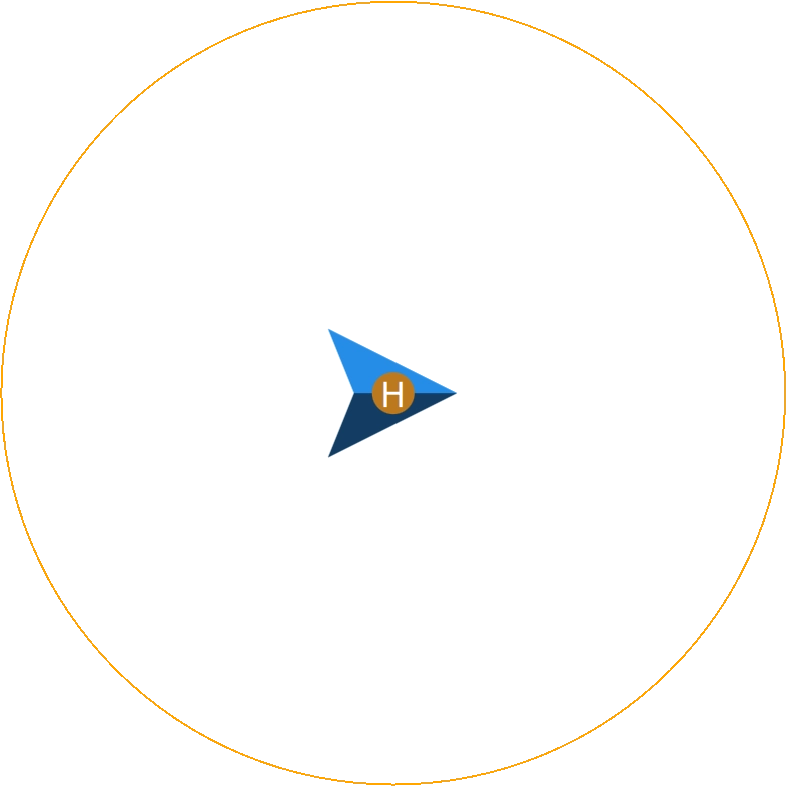
3. When enabling **Max Radius**, a geofence will be placed with the DeltaQuad Evo at its **center**. Set the values for **Max Radius** and **Max Altitude (HGT)** in the respective fields.

<figure><img src="https://content.gitbook.com/content/KBsYYYTTfla4fXzYBpU6/blobs/niTzaLDFwhR9uS9BPfYT/Geofence%203.webp" alt=""><figcaption></figcaption></figure>

<figure><img src="https://content.gitbook.com/content/KBsYYYTTfla4fXzYBpU6/blobs/K2wibgKnNM1OCBzTyeYH/Geofence%204.webp" alt="" width="375"><figcaption></figcaption></figure>

<table><thead><tr><th width="170"></th><th></th></tr></thead><tbody><tr><td><strong>Max Radius</strong></td><td>The horizontal radius of the geofence cylinder around the <strong>Home Position</strong>. Alternatively, a circle can be drawn and freely positioned in the <strong>Plan View</strong>. The horizontal geofence is disabled if set to 0.</td></tr><tr><td><strong>Max Altitude</strong></td><td>Height of geofence cylinder. Altitude geofence disabled if 0.</td></tr></tbody></table>

{% hint style="warning" %}
The **Max Altitude** is referenced to the takeoff location **(HGT)**, **not** above ground level **(AGL)**. Special care must be taken when operating in an area with varying ground elevations. For more information, please read the chapter [**Geofence Failsafe Trigger**](https://docs.deltaquad.com/gov/setup/safety-features/geofence-failsafe-trigger).
{% endhint %}

***

## Setting a Geofence in the Plan View

#### Polygon Fences

1. Go to the **Plan View** and navigate to the **Extra** tab in the **Mission Editor** on the right side of the screen: **AMC Menu → Plan View → Extra**.

<figure><img src="https://content.gitbook.com/content/KBsYYYTTfla4fXzYBpU6/blobs/fP1TYXczBpMGPipdAPRg/Geofence%20NM.webp" alt=""><figcaption></figcaption></figure>

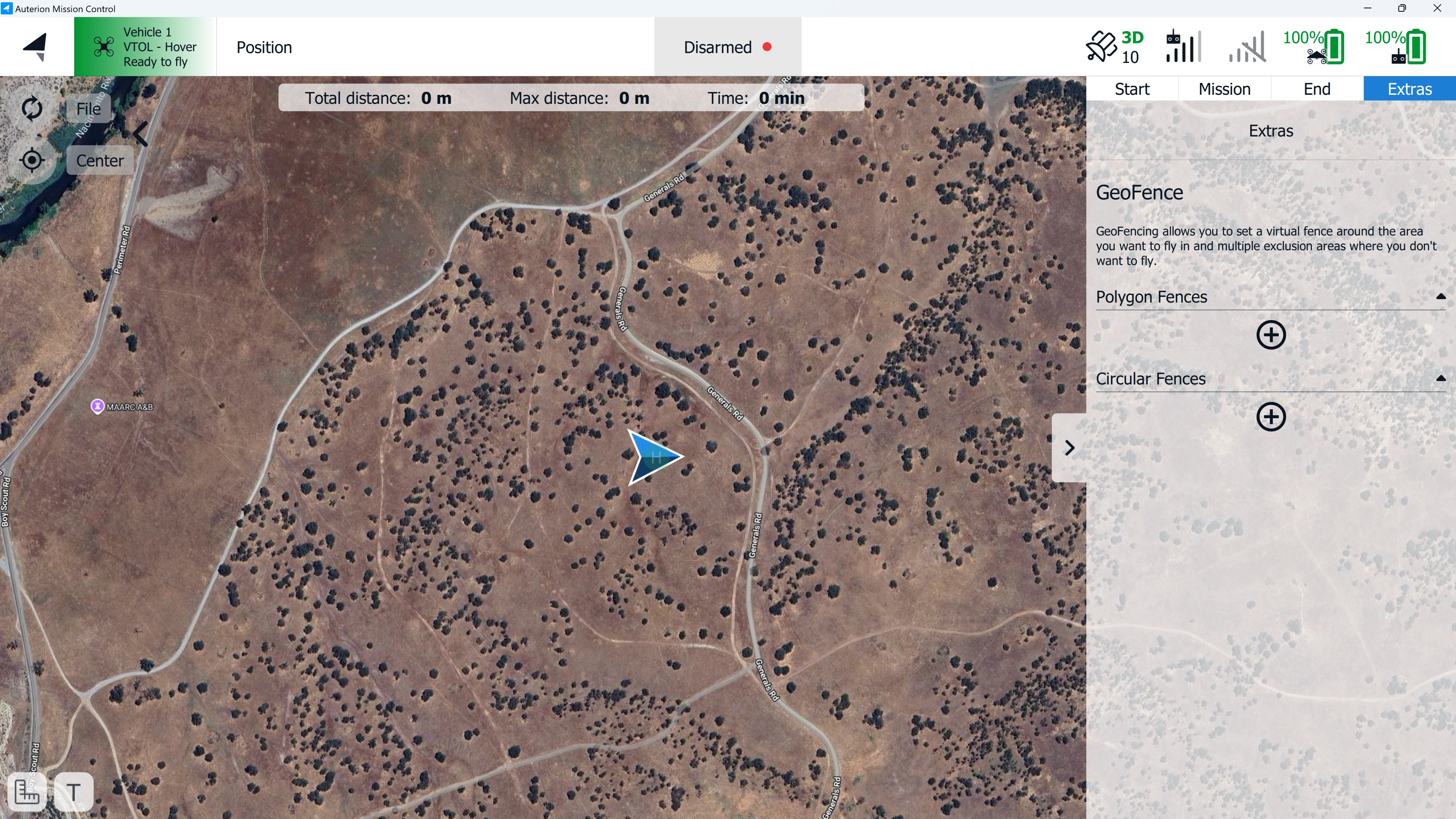
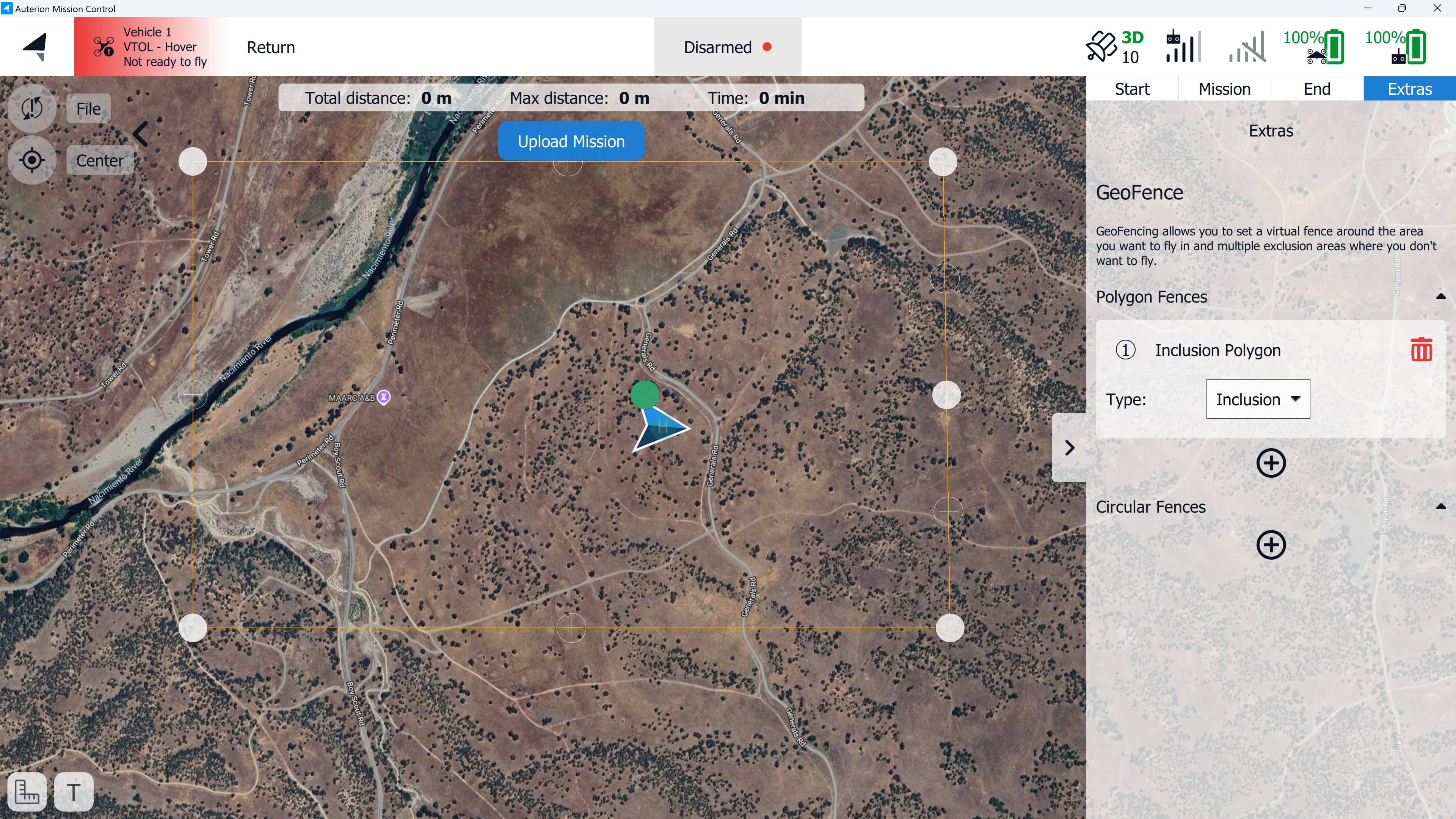
2. In the **Extra** tab, two geofence options are available: **Polygon Fences** and **Circular Fences**. Add a geofence by clicking the **plus** sign next to the desired geofence shape. A geofence will be positioned at the center of the map.

<figure><img src="https://content.gitbook.com/content/KBsYYYTTfla4fXzYBpU6/blobs/F20a5PG0ZaBFXNPmy0fc/Geofence%20NM%201.webp" alt=""><figcaption></figcaption></figure>

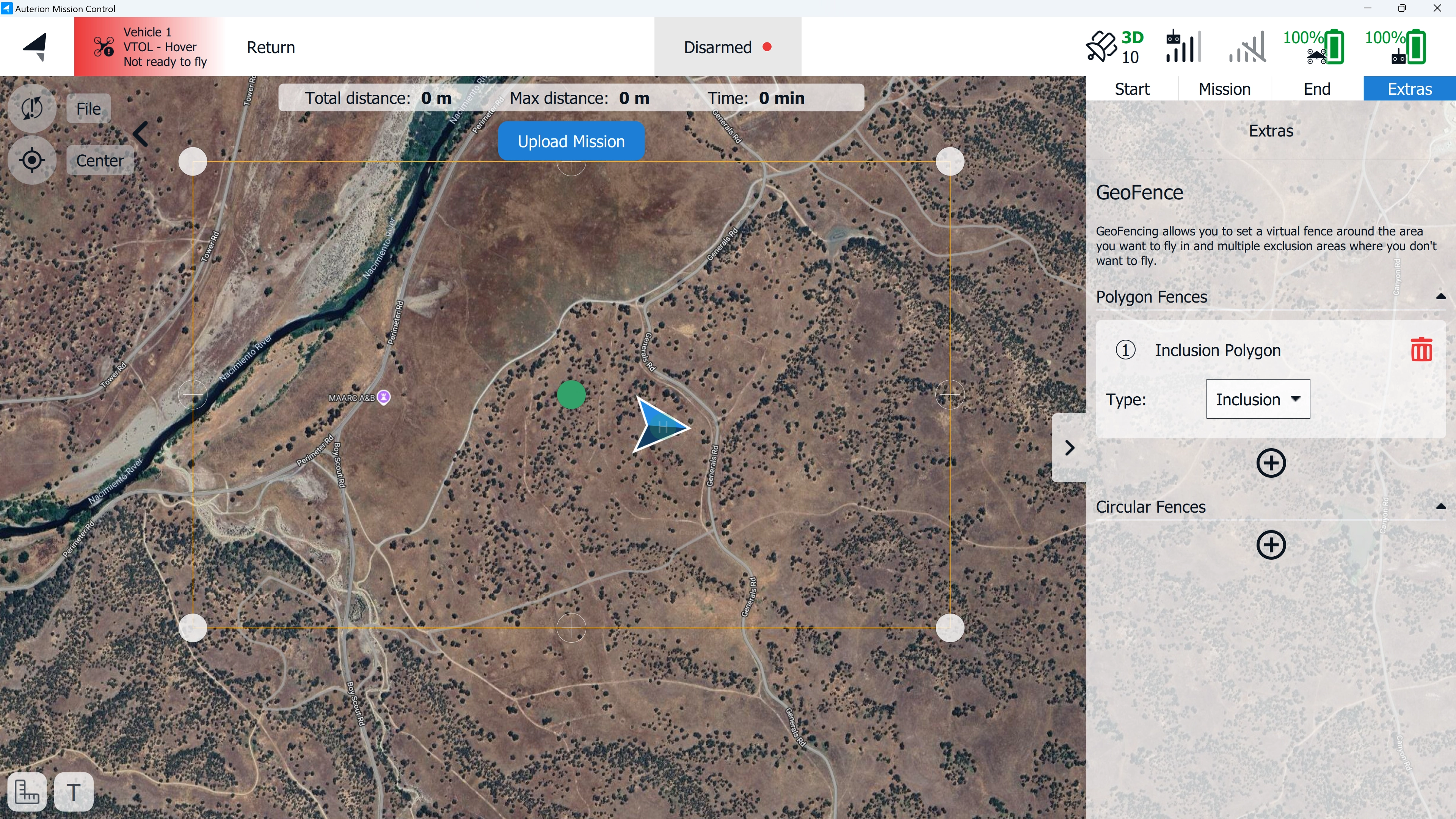
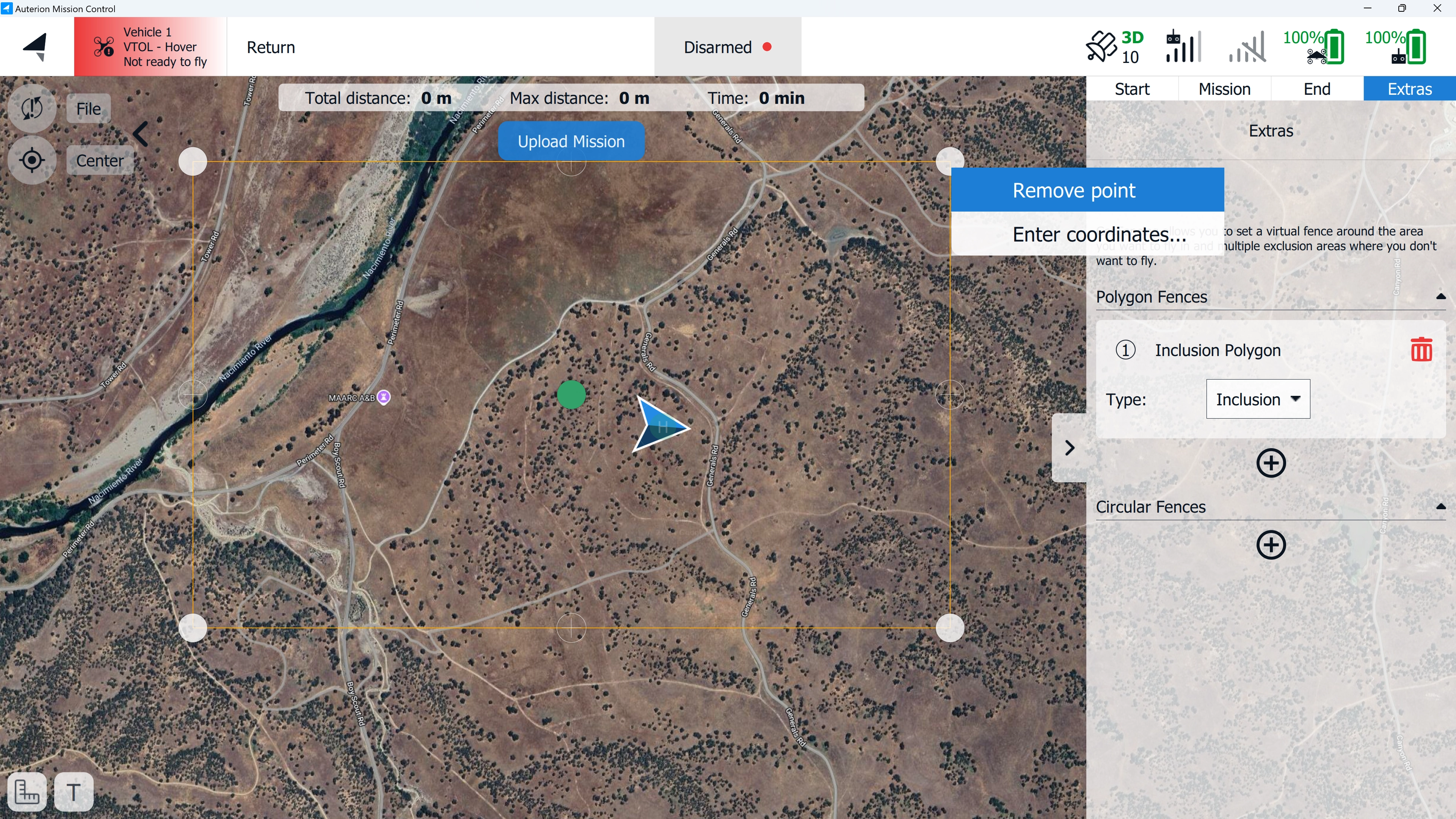
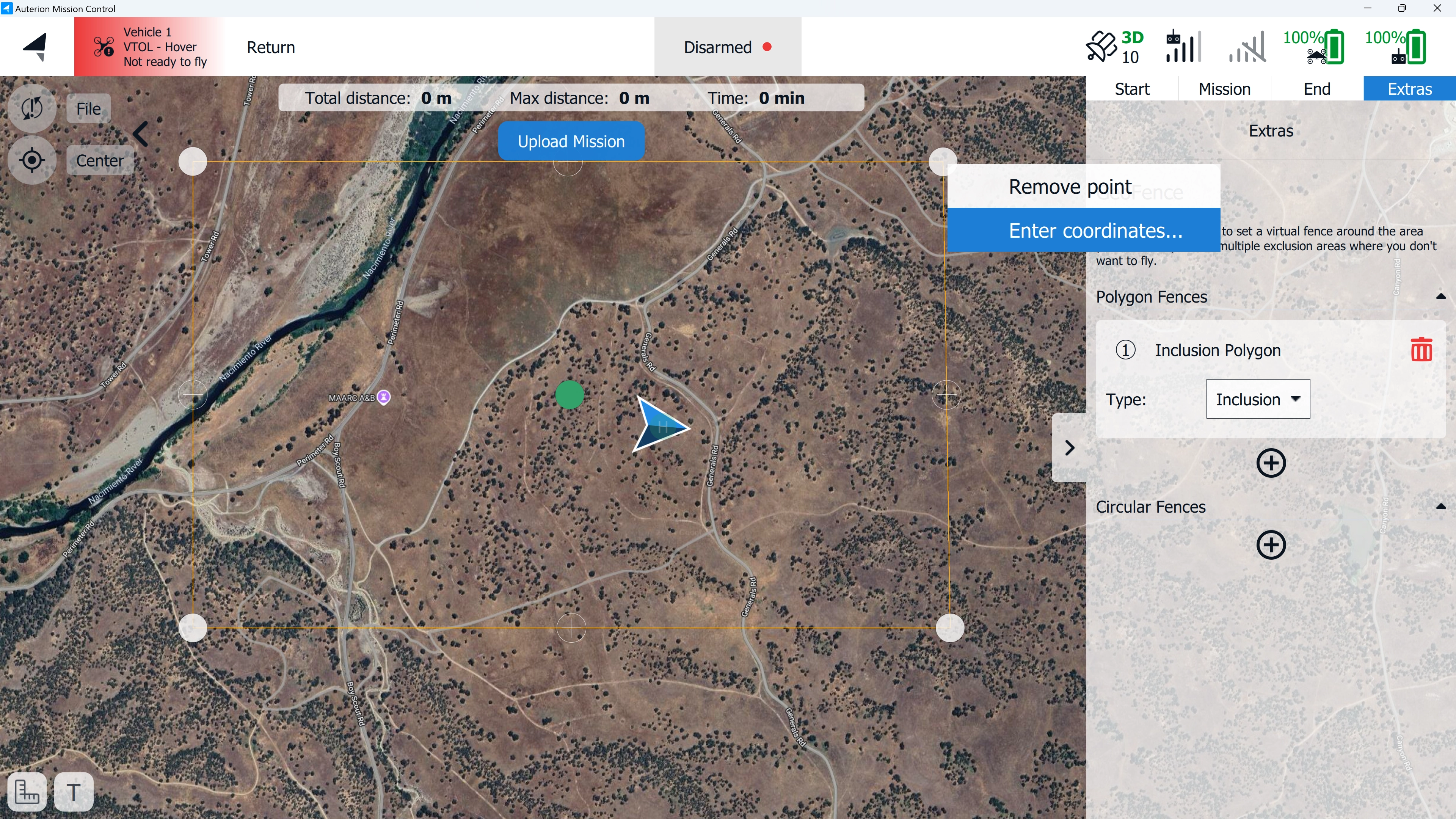
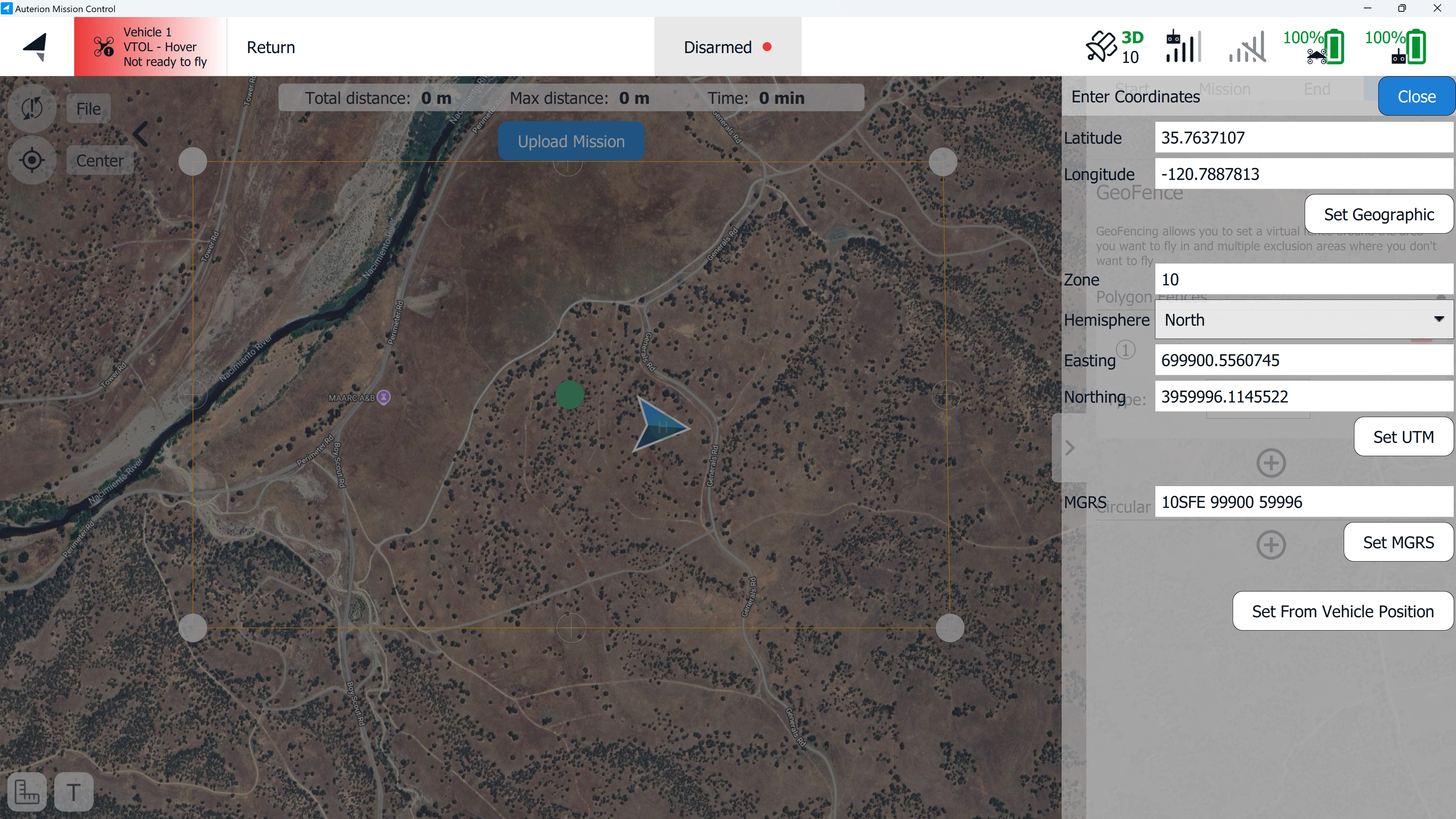
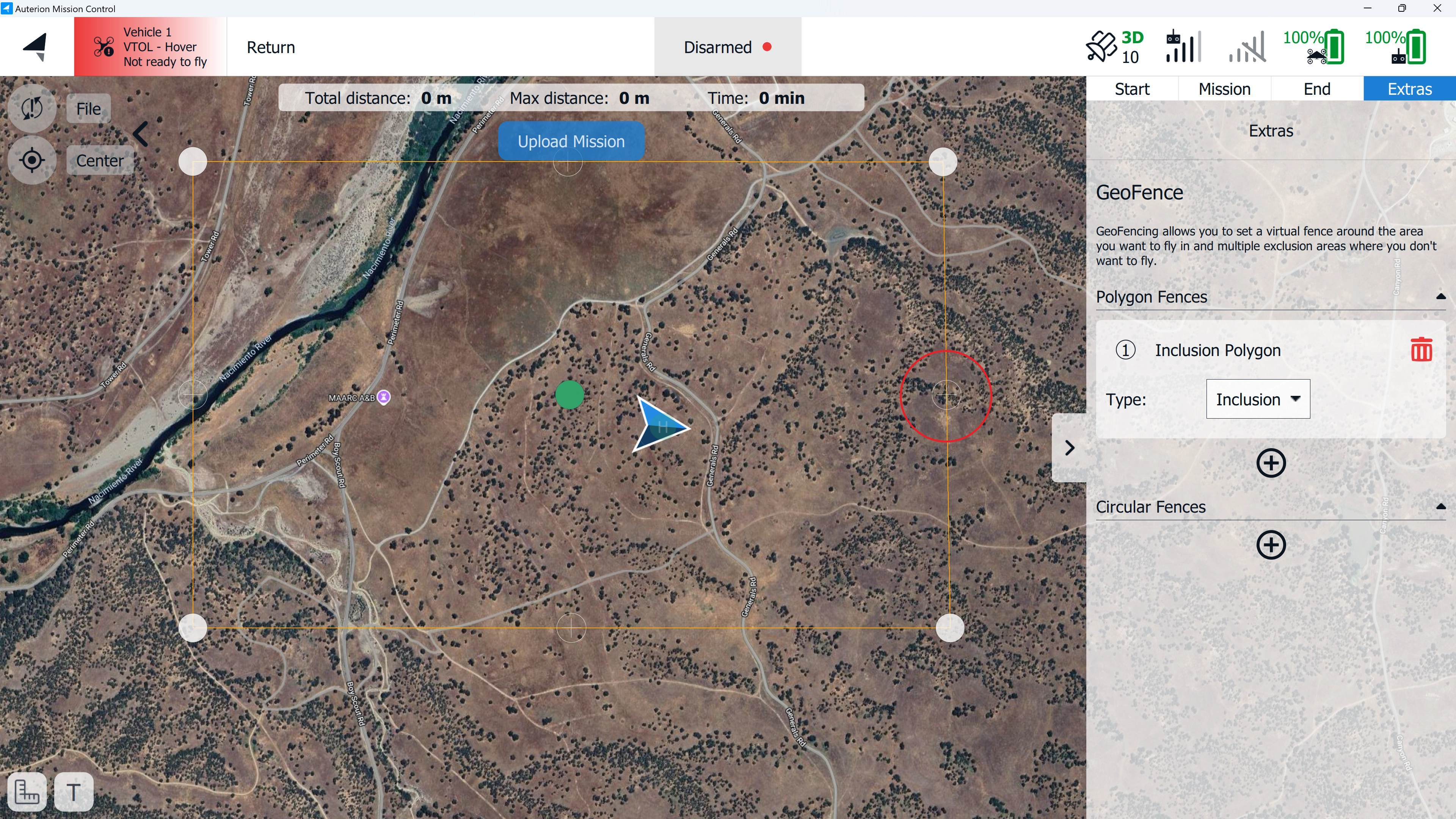
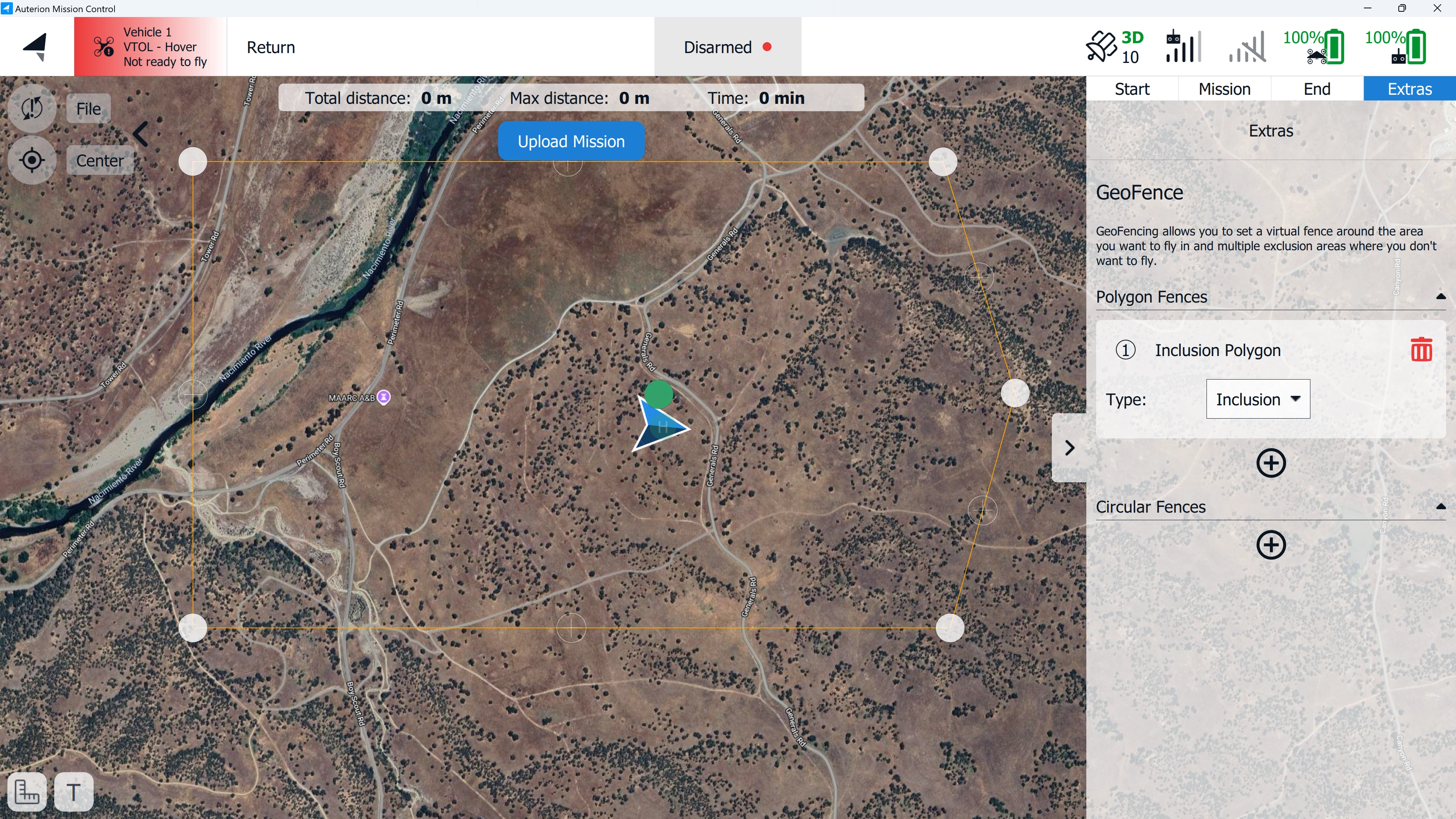
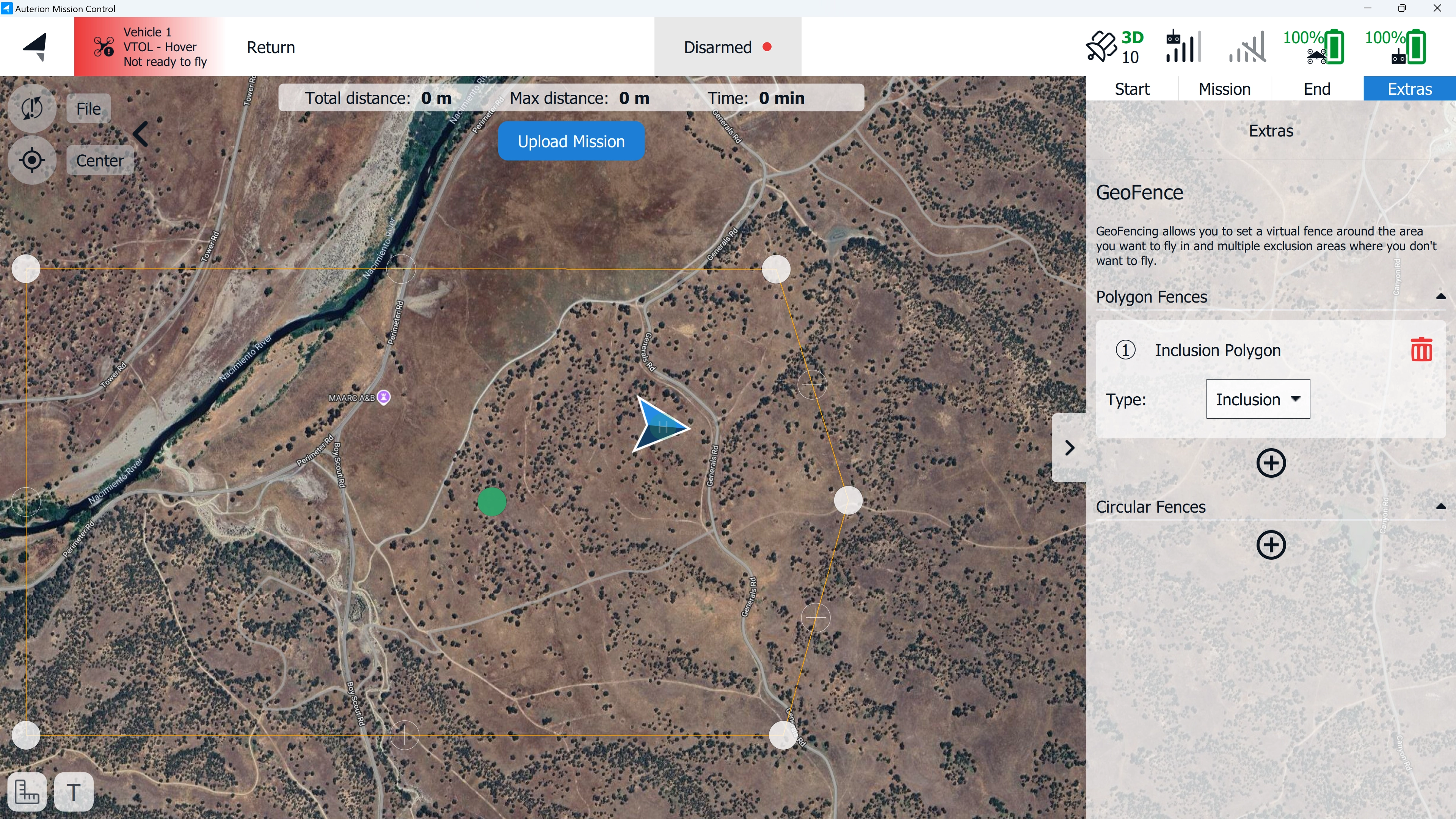
3. The **Polygon Fence** can be repositioned by dragging the geofence while holding the inner vertex (green point). Clicking on the outer (white) vertices gives the option to remove a vertex or enter the geocoordinates for that specific point. The outer vertices can also be dragged in any direction to shape the polygon into the desired form.

<figure><img src="https://content.gitbook.com/content/KBsYYYTTfla4fXzYBpU6/blobs/Ci5yB44UQekv7ZO8SLER/Geofence%20NM%202.webp" alt=""><figcaption></figcaption></figure>

<figure><img src="https://content.gitbook.com/content/KBsYYYTTfla4fXzYBpU6/blobs/cvorJVIa4En5151pNX5u/Geofence%20NM%204.webp" alt=""><figcaption></figcaption></figure>

<figure><img src="https://content.gitbook.com/content/KBsYYYTTfla4fXzYBpU6/blobs/80tuodB42kFyf9yuMT5u/Geofence%20NM%205.webp" alt=""><figcaption></figcaption></figure>

4. Clicking any of the **plus** signs on the geofence adds another vertex.

<figure><img src="https://content.gitbook.com/content/KBsYYYTTfla4fXzYBpU6/blobs/gDDVmtlybkG2GVXzSoOq/Geofence%20NM%206b.webp" alt=""><figcaption></figcaption></figure>

<figure><img src="https://content.gitbook.com/content/KBsYYYTTfla4fXzYBpU6/blobs/ESO8d2D9CtgdJ6u16HqC/Geofence%20NM%207.webp" alt=""><figcaption></figcaption></figure>

5. Hold and drag any of the vertices to shape the polygon.

<figure><img src="https://content.gitbook.com/content/KBsYYYTTfla4fXzYBpU6/blobs/i0eozLX3mlsvMPNvVpbu/Geofence%20NM%208.webp" alt=""><figcaption></figcaption></figure>

6. Hold and drag the inner green vertex to reposition the fence in any direction.

<figure><img src="https://content.gitbook.com/content/KBsYYYTTfla4fXzYBpU6/blobs/GavwdFMzC7CMTbFBt053/Geofence%20NM%209.webp" alt=""><figcaption></figcaption></figure>

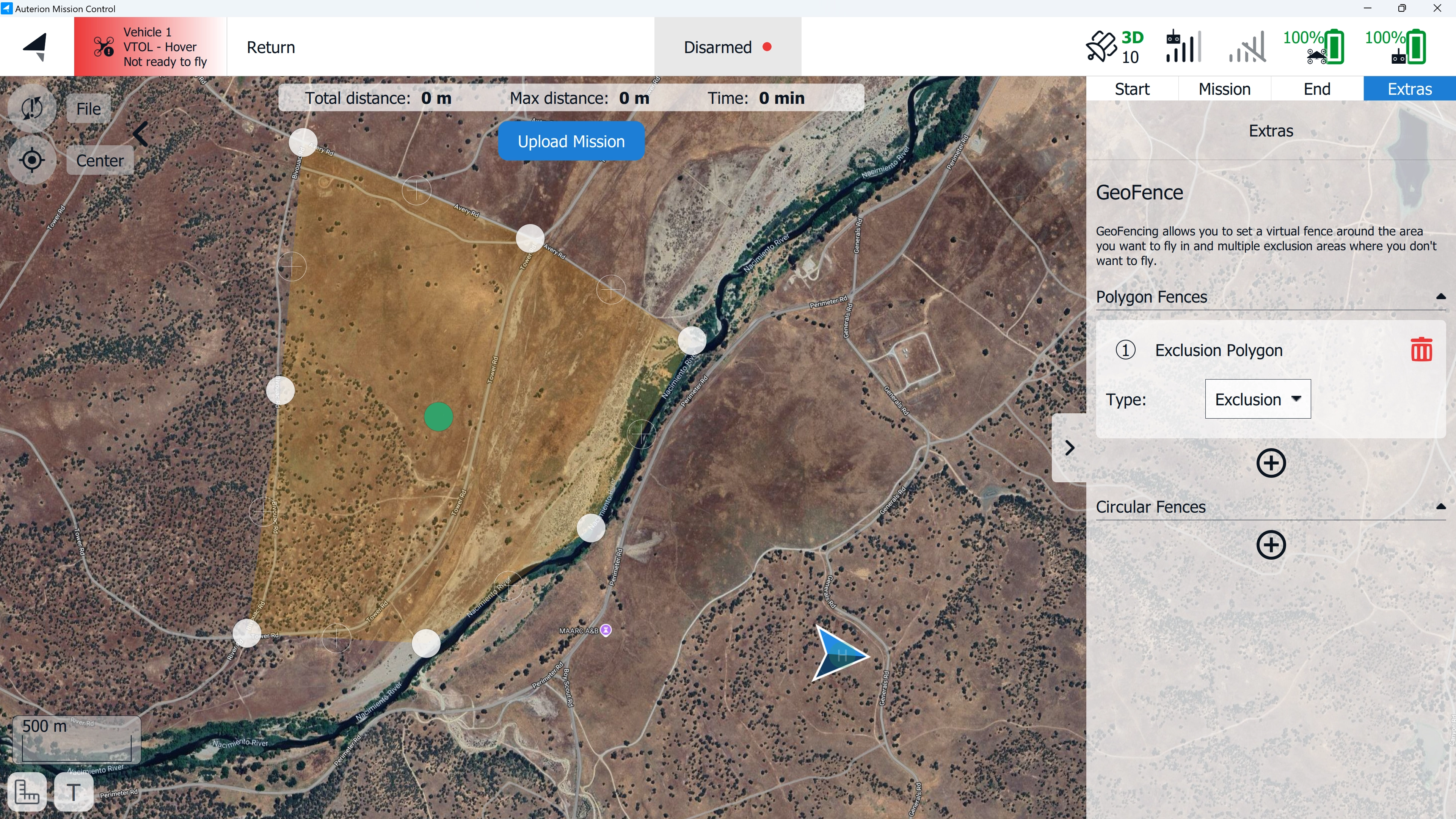
7. The geofence can be set to be **inclusive** or **exclusive**. By default, the **Type** is set to **Inclusion**. Change the Type by selecting **Exclusion** in the respective tab.

{% hint style="info" %}

* **Inclusionary geofence**: A geofence where the vehicle stays within the defined area; an action is triggered before breaching and leaving the area.
* **Exclusionary geofence**: A geofence that defines an area the vehicle shall not enter; an action is triggered before breaching and entering the area.
  {% endhint %}

<figure><img src="https://content.gitbook.com/content/KBsYYYTTfla4fXzYBpU6/blobs/o67zrZFS8y9quMi9dkwQ/Geofence%20NM%2010.webp" alt=""><figcaption></figcaption></figure>

8. If a **height limit** for the geofence is required, this can be set in the [**Geofence Failsafe Trigger**](https://docs.deltaquad.com/gov/setup/safety-features/geofence-failsafe-trigger) tab in the **Safety** settings. Enable **Max Altitude (HGT)** and set the desired value. The **Action on breach** will be triggered when the vehicle crosses the set altitude.

<figure><img src="https://content.gitbook.com/content/KBsYYYTTfla4fXzYBpU6/blobs/74QEHVBtphC8SQMjzCAl/Height.webp" alt=""><figcaption></figcaption></figure>

{% hint style="warning" %}
The **Max Altitude** is referenced to the takeoff location **(HGT)**, **not** above ground level **(AGL)**. Special care must be taken when operating in an area with varying ground elevations.
{% endhint %}

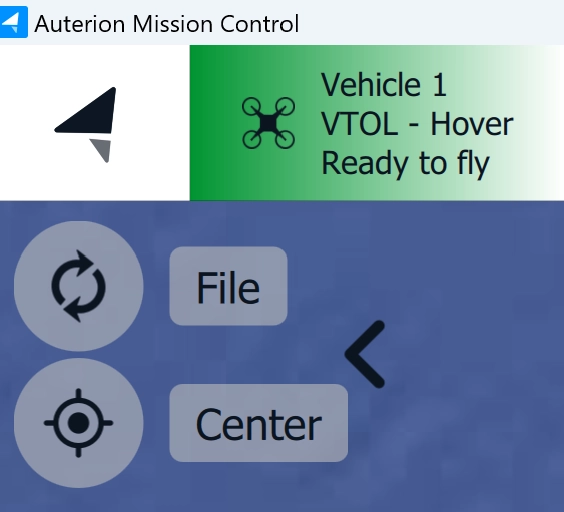
9. When the **Extra** tab (Geofences) is selected, two **Plan Tools** on the left side of the screen are available. The full functionality of these tools can be reviewed in the chapter [**Plan View**](https://docs.deltaquad.com/gov/auterion-mission-control-amc-overview/amc-menu/plan-view#plan-tools). The **File** option allows you to save the geofence(s), and the **Center** option provides multiple ways to center the view.

<figure><img src="https://content.gitbook.com/content/KBsYYYTTfla4fXzYBpU6/blobs/3KkBtGbq4wwwknMqPGgX/Geofence%20Tools%20NM.webp" alt="" width="282"><figcaption></figcaption></figure>

***

#### Circular Fences

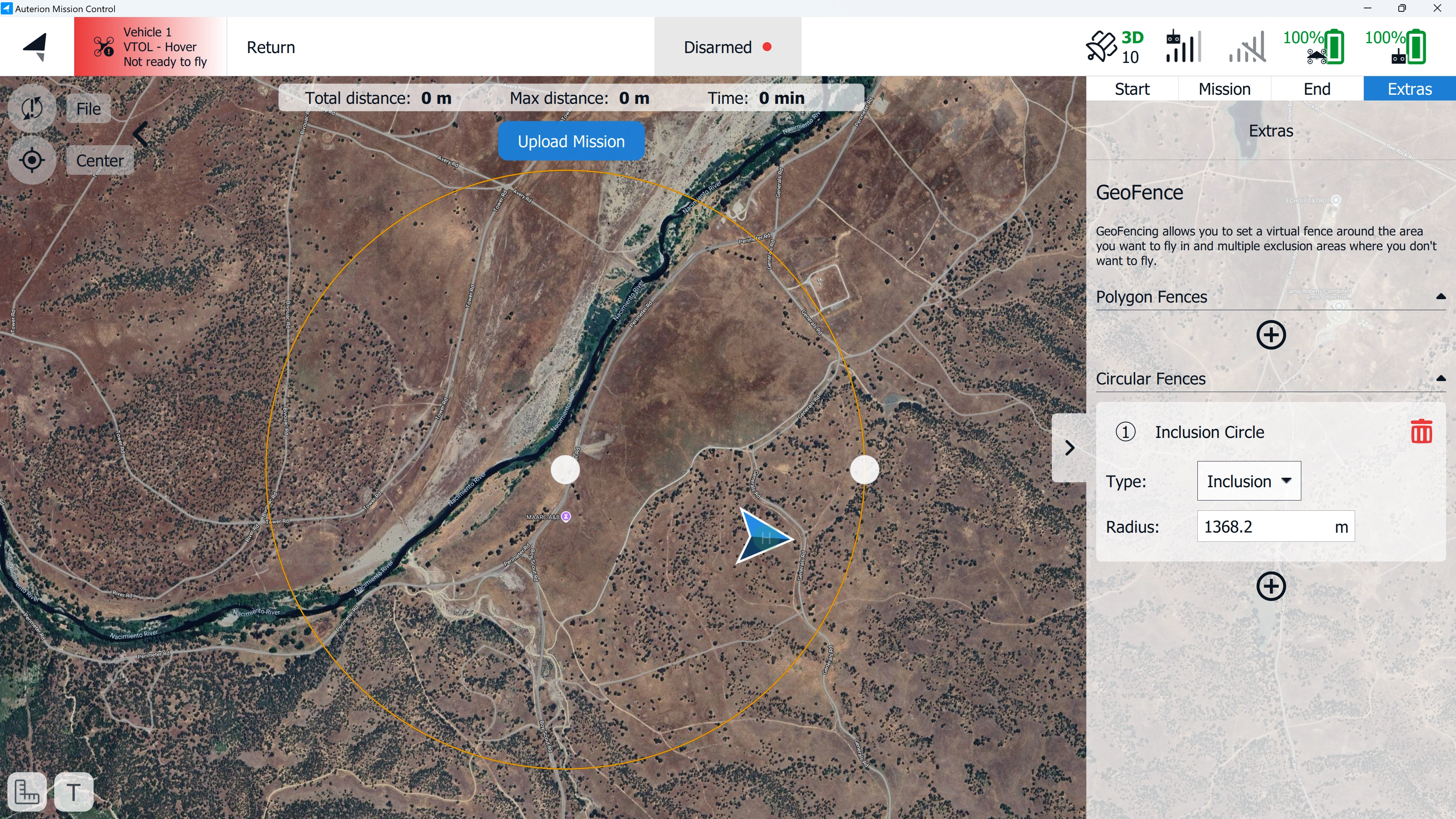
1. When adding a Circular Fence, it will be placed at the center of the map.

<figure><img src="https://content.gitbook.com/content/KBsYYYTTfla4fXzYBpU6/blobs/aZaK5nPbx8MZg5KwgIMW/Geofence%20NM%2011.webp" alt=""><figcaption></figcaption></figure>

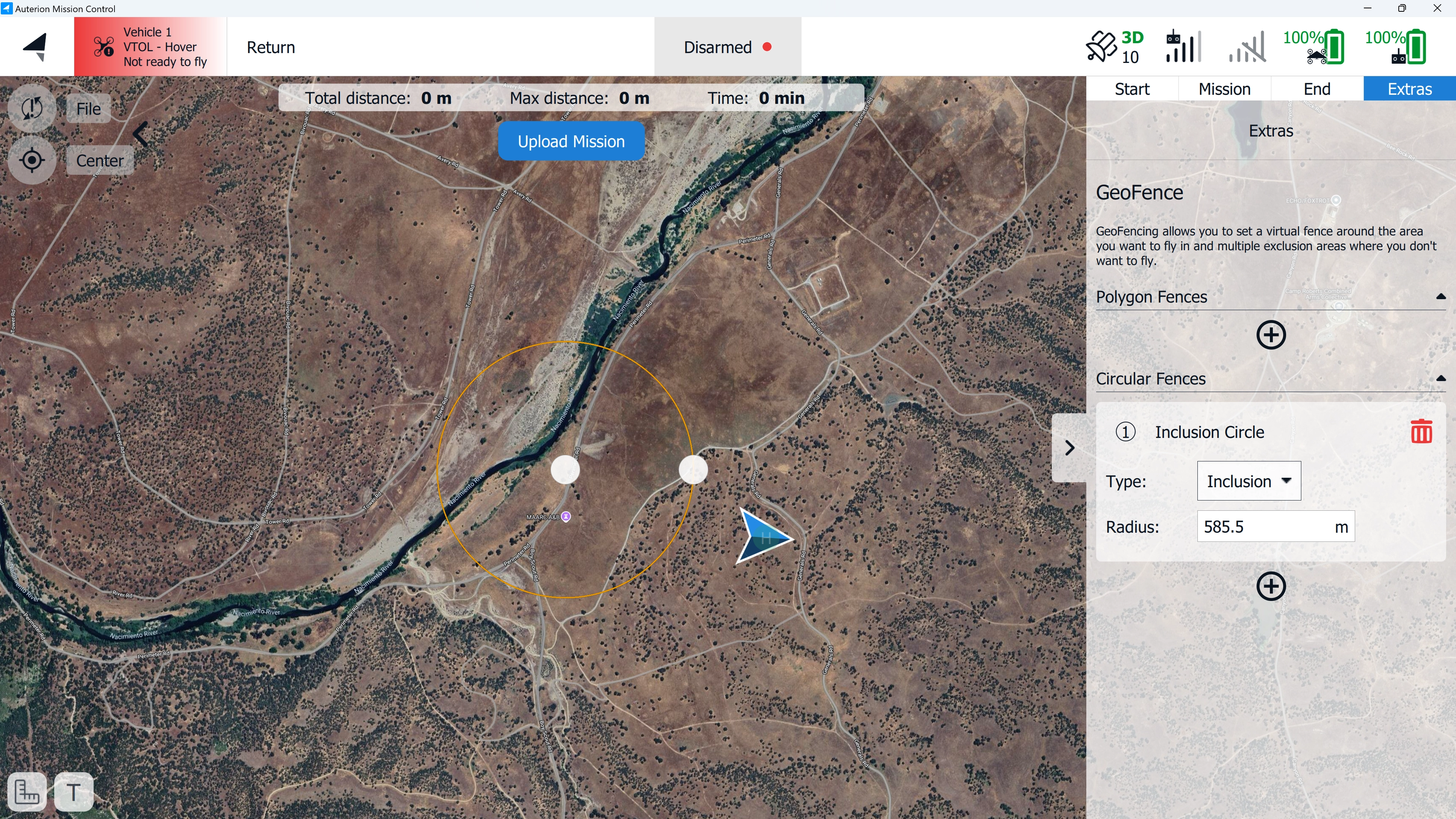
2. The **radius** can be adjusted by holding and dragging the outer vertex left or right. Alternatively, a value for the radius can be set in the **Radius** tab in the **Mission Editor** on the right side of the screen.

<figure><img src="https://content.gitbook.com/content/KBsYYYTTfla4fXzYBpU6/blobs/e1Mg4HsGprIIxIQDG9Kq/Geofence%20NM%2012.webp" alt=""><figcaption></figcaption></figure>

3. The Circular Fence can be repositioned by holding and dragging the inner vertex in any direction.

<figure><img src="https://content.gitbook.com/content/KBsYYYTTfla4fXzYBpU6/blobs/56lz20BQEjdRDmqVAGGv/Geofence%20NM%2013.webp" alt=""><figcaption></figcaption></figure>

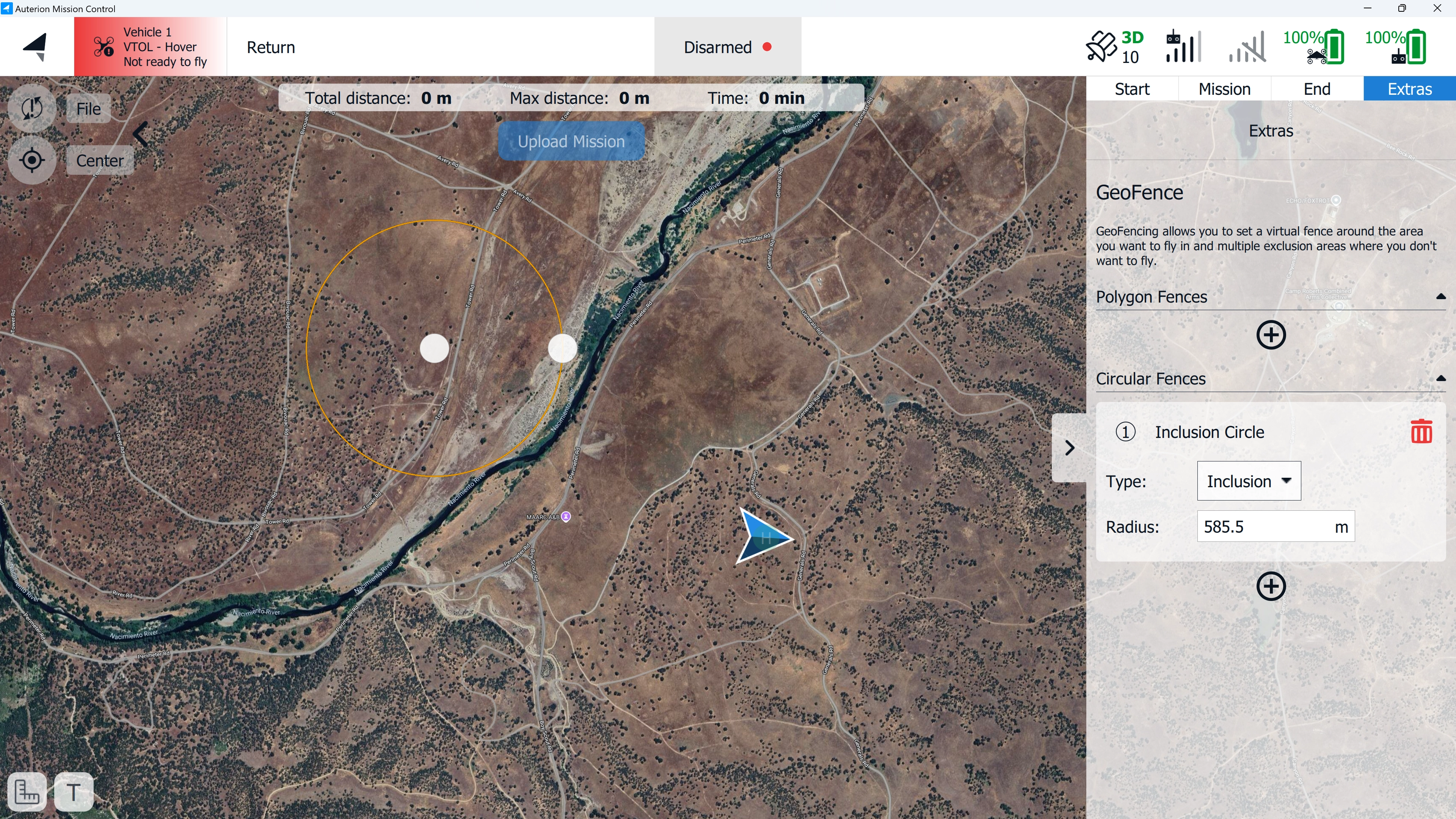
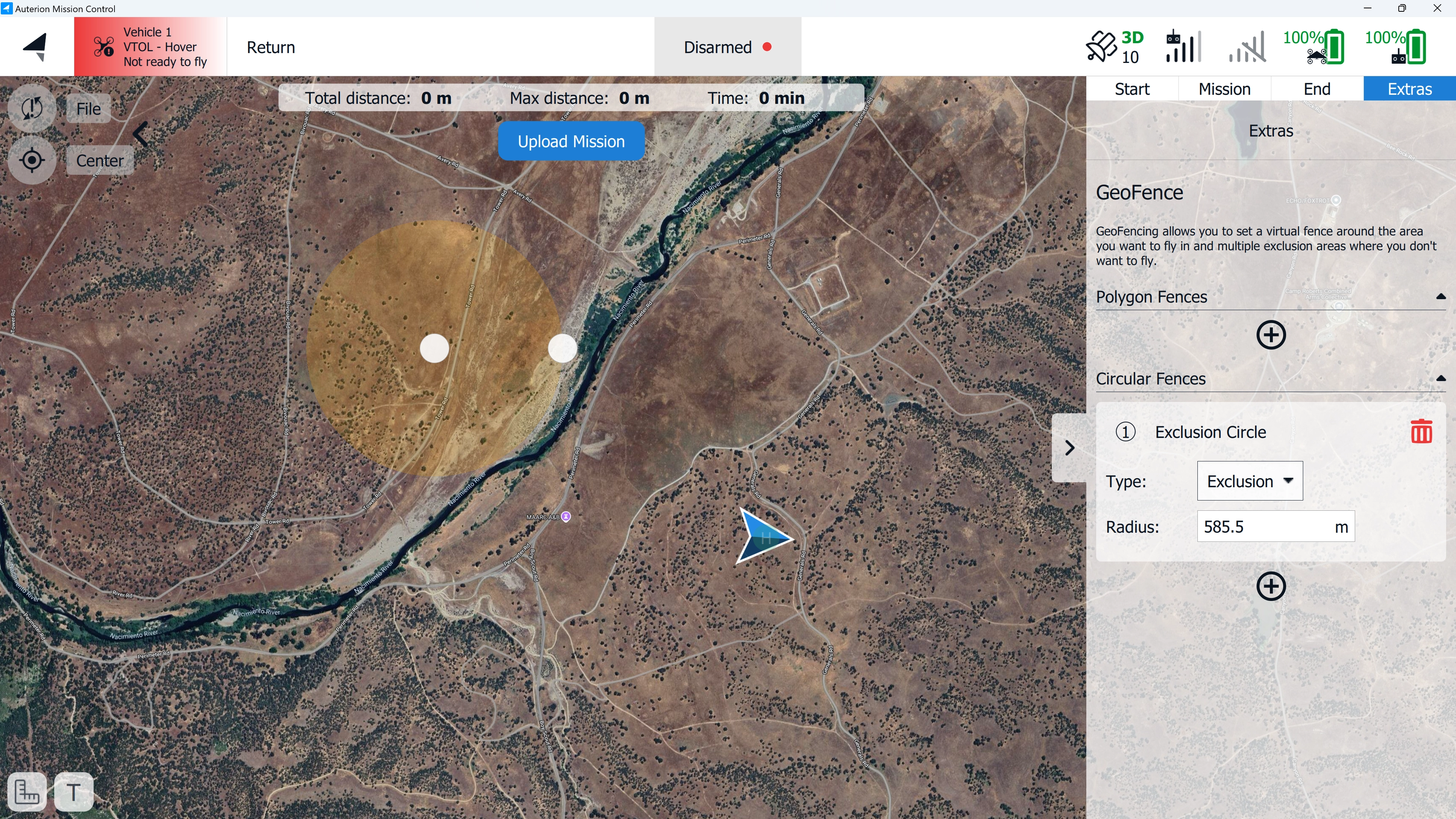
4. As with the Polygon Fence, the **Circular Fence Type** can be set to either **inclusive** or **exclusive**.

<figure><img src="https://content.gitbook.com/content/KBsYYYTTfla4fXzYBpU6/blobs/OqTsLERkTLSQPIft8aLb/Geofence%20NM%2014.webp" alt=""><figcaption></figcaption></figure>

5. If a **height limit** for the geofence is required, this can be set in the [**Geofence Failsafe Trigger**](https://docs.deltaquad.com/gov/setup/safety-features/geofence-failsafe-trigger) tab in the **Safety** settings. Enable **Max Altitude (HGT)** and set the desired value. The **Action on breach** will be triggered when the vehicle crosses the set altitude.

<figure><img src="https://content.gitbook.com/content/KBsYYYTTfla4fXzYBpU6/blobs/74QEHVBtphC8SQMjzCAl/Height.webp" alt=""><figcaption></figcaption></figure>

{% hint style="warning" %}
The **Max Altitude** is referenced to the takeoff location **(HGT)**, **not** above ground level **(AGL)**. Special care must be taken when operating in an area with varying ground elevations.
{% endhint %}

6. When the Extra tab (Geofences) is selected, two **Plan Tools** on the left side of the screen are available. The full functionality of these tools can be reviewed in the chapter [**Plan View**](https://docs.deltaquad.com/gov/auterion-mission-control-amc-overview/amc-menu/plan-view#plan-tools). The **File** option allows you to save the geofence(s), and the **Center** option provides multiple ways to center the view.

<figure><img src="https://content.gitbook.com/content/KBsYYYTTfla4fXzYBpU6/blobs/3KkBtGbq4wwwknMqPGgX/Geofence%20Tools%20NM.webp" alt="" width="282"><figcaption></figcaption></figure>

***

## Inclusive and Exclusive Geofences

{% hint style="warning" %}
When an **inclusive geofence** is planned with the DeltaQuad Evo outside the geofence, the following two scenarios can occur:

* The vehicle will not be able to arm while on the ground, as it is outside the geofence.

![](https://content.gitbook.com/content/KBsYYYTTfla4fXzYBpU6/blobs/xl4d95tspfHCQ1Zcbqn4/Not%20arming.webp)

* The vehicle will trigger the **Action on breach** when airborne, as it is outside the geofence.

![](https://content.gitbook.com/content/KBsYYYTTfla4fXzYBpU6/blobs/I9dzCGAR6bZ59j01sVFd/Not%20arming.webp)

When a **exclusive geofence** is planned with the DeltaQuad Evo inside the geofence, the following two scenarios can occur:

* The vehicle will not be able to arm while on the ground, as it is inside the geofence.

![](https://content.gitbook.com/content/KBsYYYTTfla4fXzYBpU6/blobs/baGsLV3DpV8qWFjiGlQ8/Not%20arming%20exclusionary.webp)

* The vehicle will trigger the **Action on breach** when airborne, as it is inside the geofence.

![](https://content.gitbook.com/content/KBsYYYTTfla4fXzYBpU6/blobs/TP0Uk0rhtmXHkmTzsPmL/Flying%20inside%20GF.webp)
{% endhint %}

***

## **Exceptions**

{% hint style="danger" %}

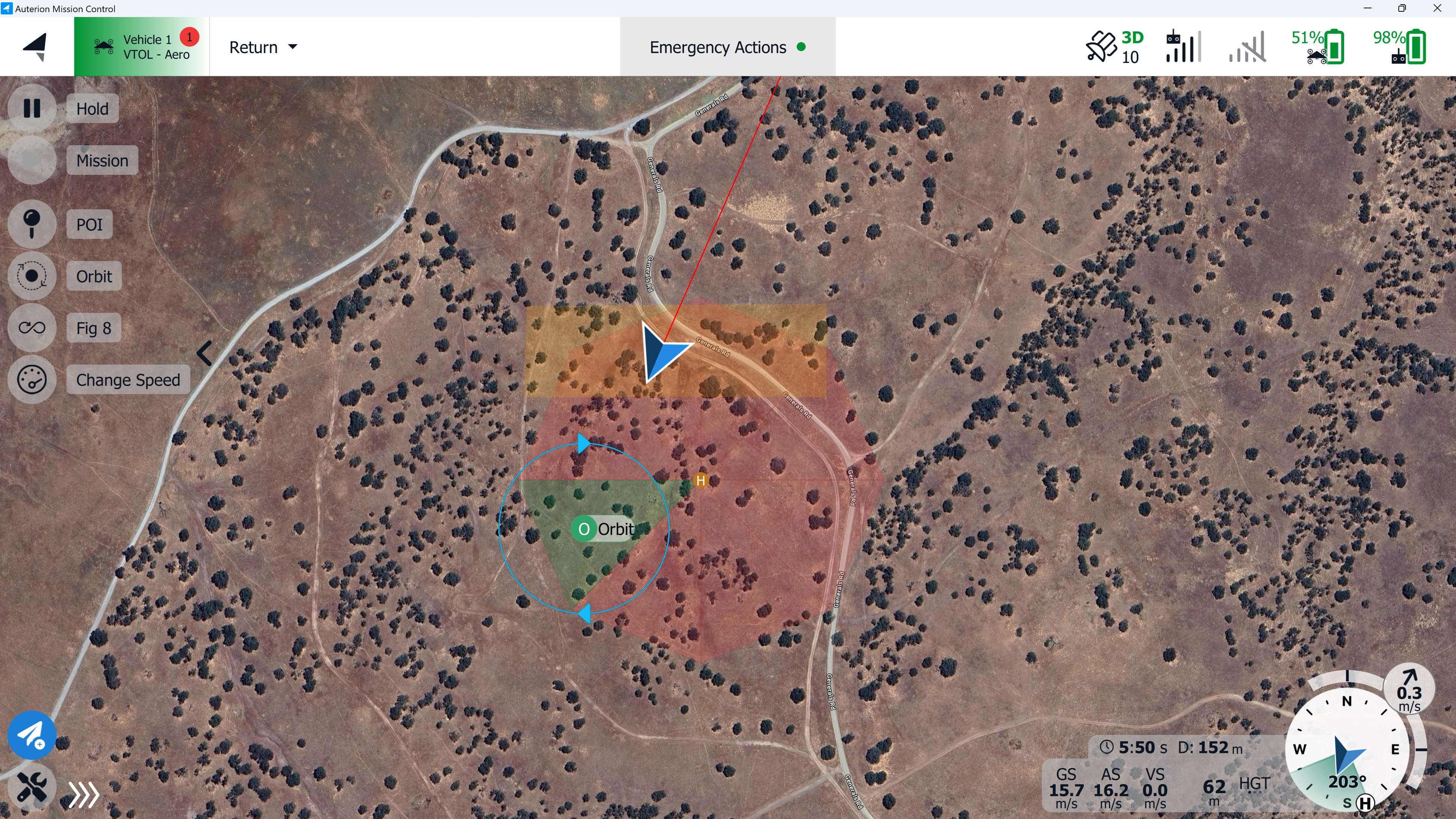
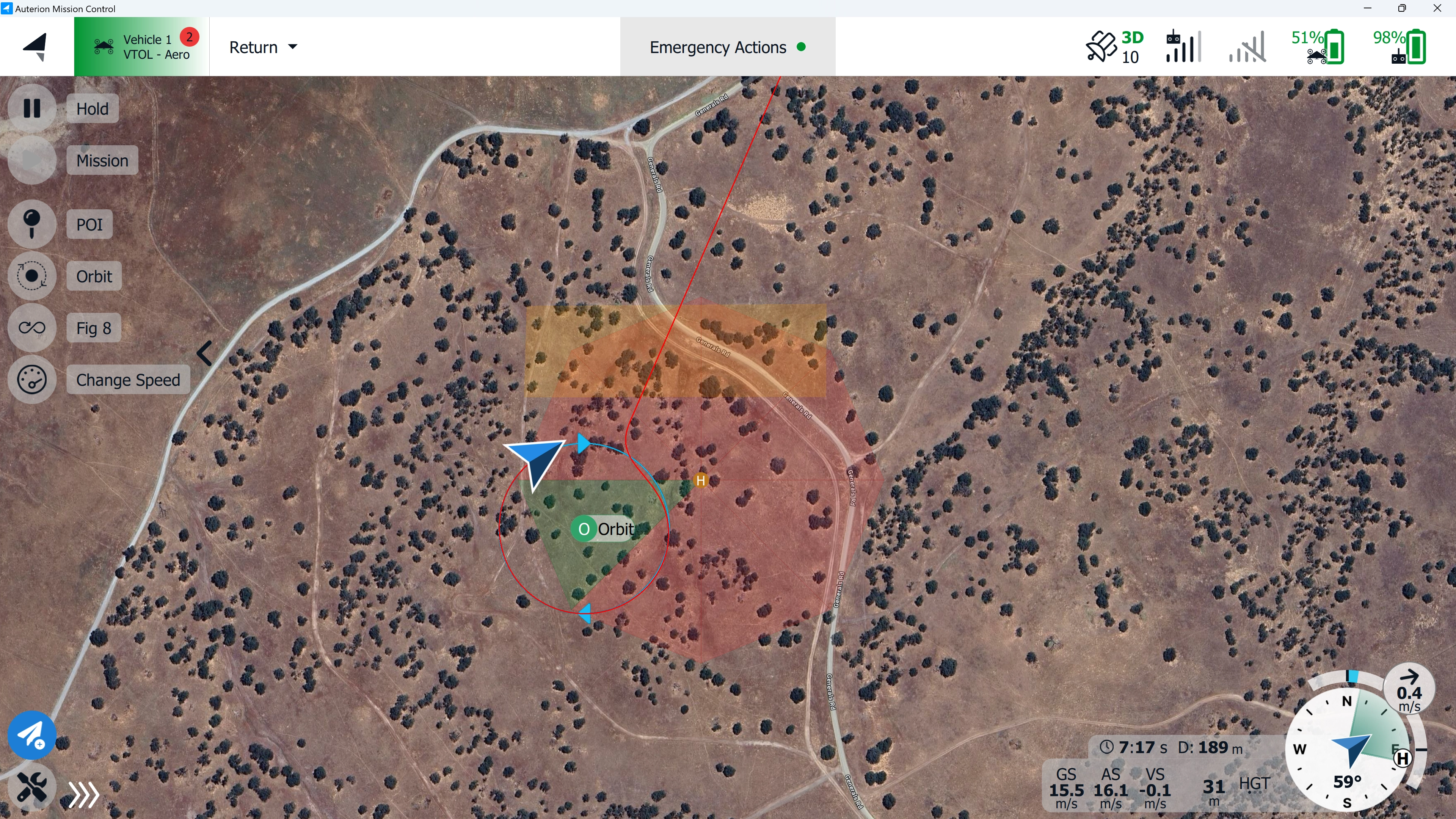
1. As stated in this [**manual**](https://docs.deltaquad.com/gov/setup/safety-features/return-to-home-settings), when an RTL command is triggered, the vehicle will return in a straight line to its designated landing point. If an **exclusionary geofence** or the boundary of a complex **inclusionary geofence** lies between the vehicle and the landing point, the vehicle will **ignore** the geofence and pass through it during its return.
   {% endhint %}

<figure><img src="https://content.gitbook.com/content/KBsYYYTTfla4fXzYBpU6/blobs/DnV5WQ4DVrEjRCFa2TZ1/Breach%201.webp" alt=""><figcaption><p>Image taken from the DeltaQuad Evo simulator. Content may differ from current software version.</p></figcaption></figure>

<figure><img src="https://content.gitbook.com/content/KBsYYYTTfla4fXzYBpU6/blobs/cFGeyUdVBJ8D73AoenFF/Breach%202.webp" alt=""><figcaption><p>Image taken from the DeltaQuad Evo simulator. Content may differ from current software version.</p></figcaption></figure>

{% hint style="danger" %}
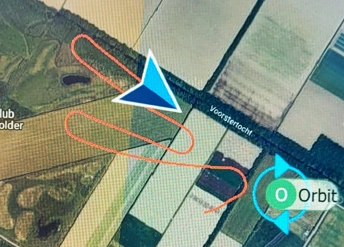
2\. In **Altitude** and **Position Mode**, the vehicle will **breach** both inclusionary and exclusionary **geofences** for a small distance until the RTL command is triggered. The system has a delay in responding to a geofence in these modes because the system needs to verify for a longer period that it has breached the geofence.
{% endhint %}

<figure><img src="https://content.gitbook.com/content/KBsYYYTTfla4fXzYBpU6/blobs/sd1zhpxfKq4THQ7evIIo/In.webp" alt="" width="258"><figcaption></figcaption></figure>

{% hint style="danger" %}
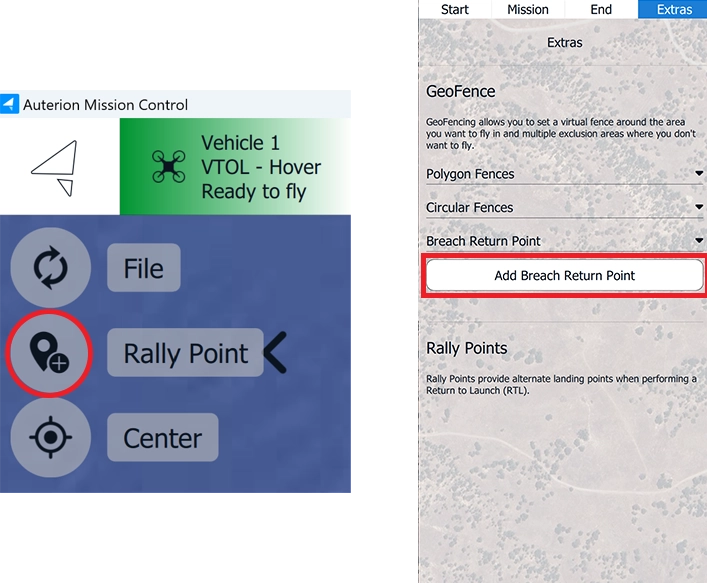
3\. **Rally Point and Breach Return Point are not supported by the DeltaQuad Evo.**&#x20;

(When **AMC** is running in **Advanced** mode, **Rally Points** are available in the **Plan Tools** on the left side of the screen, and the option to set a **Breach Return Point** is available in the Mission Editor on the right side of the screen. These options are not supported on the DeltaQuad Evo.)
{% endhint %}

<figure><img src="https://content.gitbook.com/content/KBsYYYTTfla4fXzYBpU6/blobs/JpMqVWrCdx8x0AN9xB11/No.webp" alt="" width="354"><figcaption></figcaption></figure>