> For the complete documentation index, see [llms.txt](https://docs.deltaquad.com/gov/llms.txt). Markdown versions of documentation pages are available by appending `.md` to page URLs; this page is available as [Markdown](https://docs.deltaquad.com/gov/deltaquad-evo-payloads/nextvision-isr-payloads/connecting-a-second-screen.md).
# Connecting a Second Screen
This section describes how to connect a second screen to the GCS.
## Introduction
The second screen function streams the video feed to a local device via an **RTSP-based video stream** from the **GCS**.
The second screen connects to the GCS, not directly to the UAV, to avoid doubling the UAV's bandwidth usage.
The video feed displayed on the second screen is the direct feed from the camera.
## Using a WiFi hotspot
A second device can connect to the same network if your GCS is connected to a WiFi network or hotspot.
To stream the video feed locally to a second screen, you need the following:
* The **IP address** of the **GCS**.
* [**VLC Media Player**](https://www.videolan.org/vlc/) (recommended software) for viewing the video stream on the second screen device. The VLC Media Player is cross-platform compatible and can be installed on many devices.
* The GCS and the second screen device need to be connected to the same Wi-Fi network or hotspot.
* The DeltaQuad Evo and the GCS need to be powered on and connected.
{% hint style="warning" %}
When ground-testing the video feed with an infrared-capable camera it is important to provide **active cooling**. We recommend a **USB fan** pointed directly towards the camera.
{% endhint %}
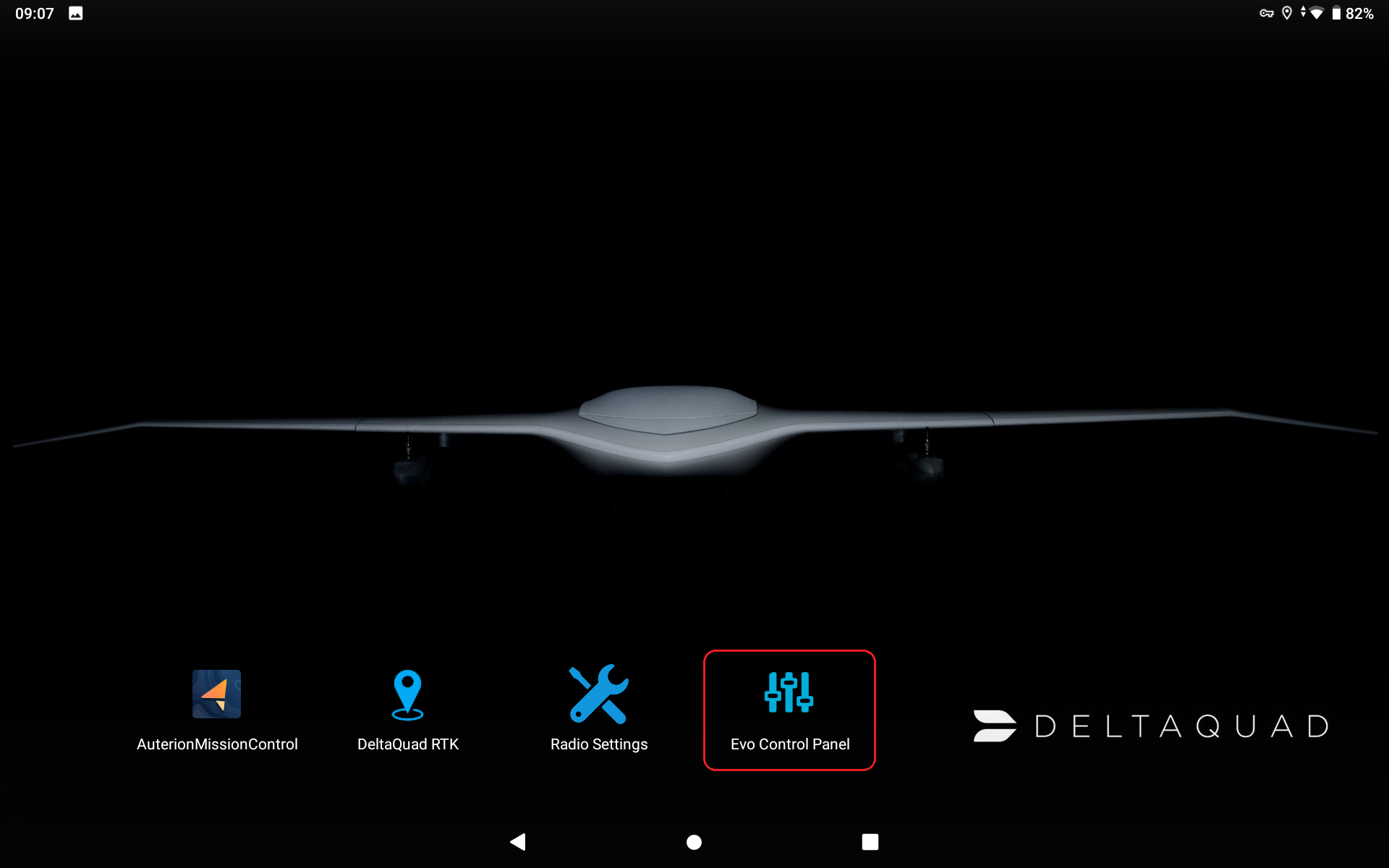
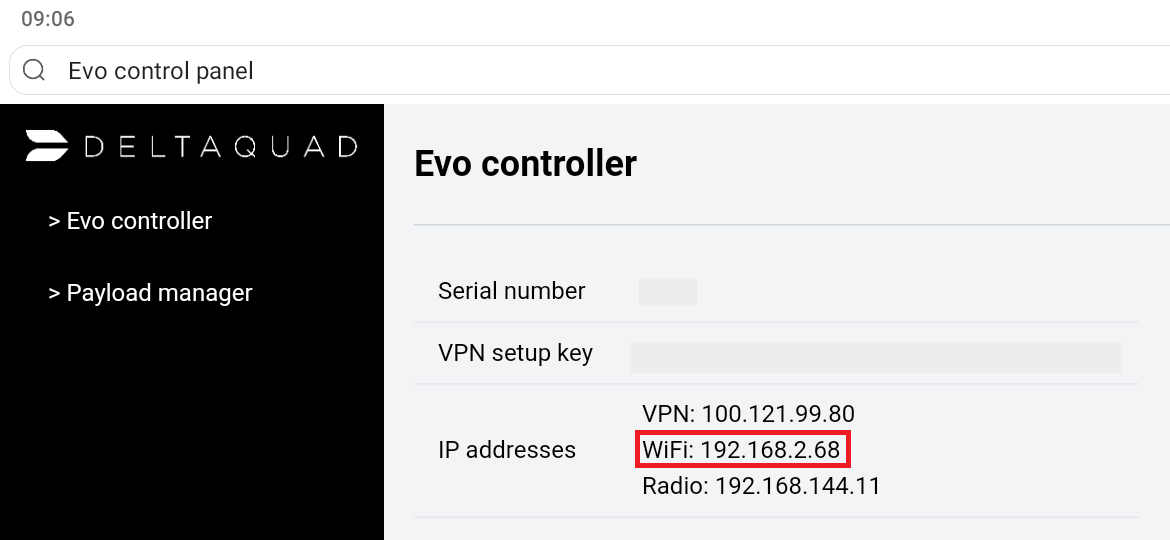
1. Once the GCS is connected to the Wi-Fi network or hotspot, you can determine the **Wi-Fi IP address** assigned to the GCS by opening the **Evo Control Panel**.
2. Here you will find the **Wi-Fi IP address** which shows the values for the IP address assigned by the Wi-Fi network or hotspot. The value required is the sequence of 4 numbers separated by a dot, in our example: 192.168.2.68
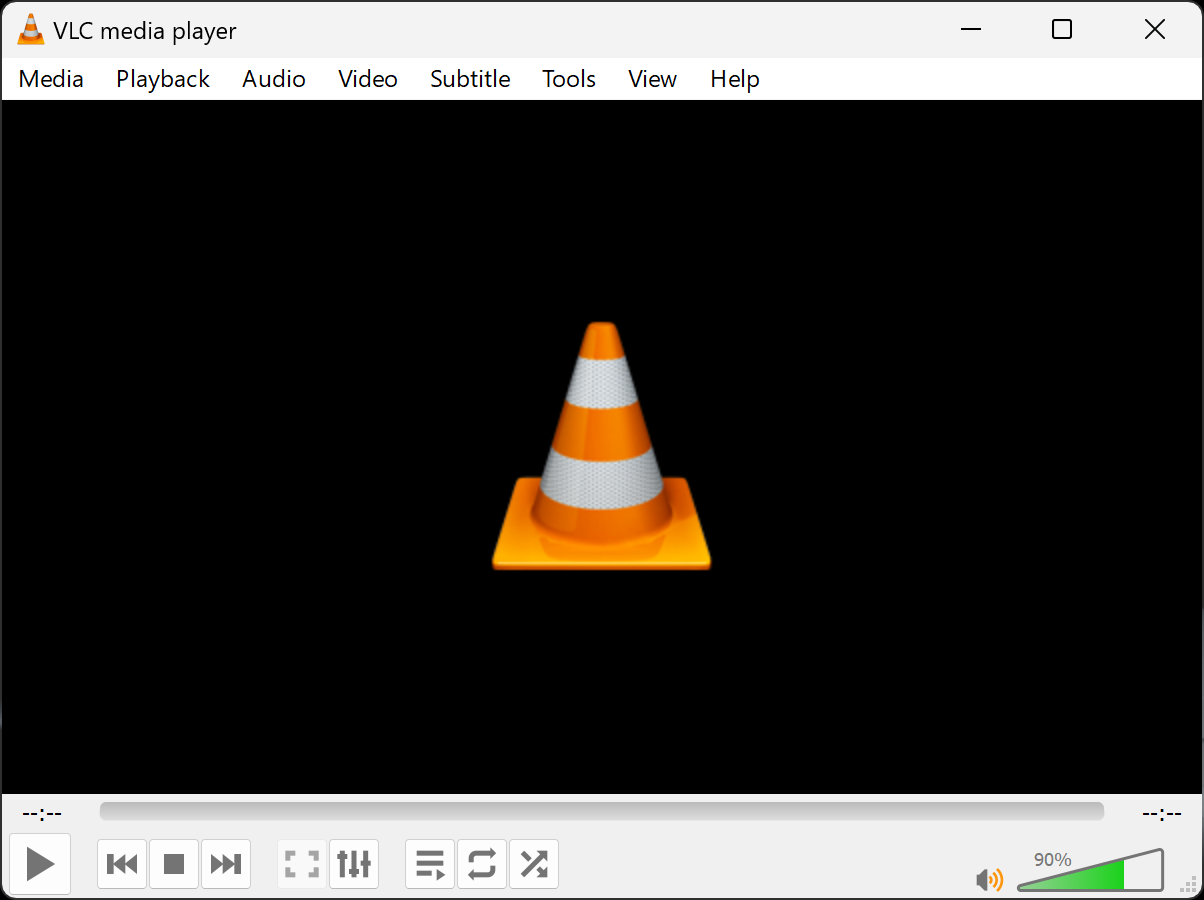
3. Make sure that the second screen device is connected to the same Wi-Fi network or hotspot as the GCS and open the [VLC Media Player](https://www.videolan.org/).
The VLC user interface might look different depending on the platform in use.
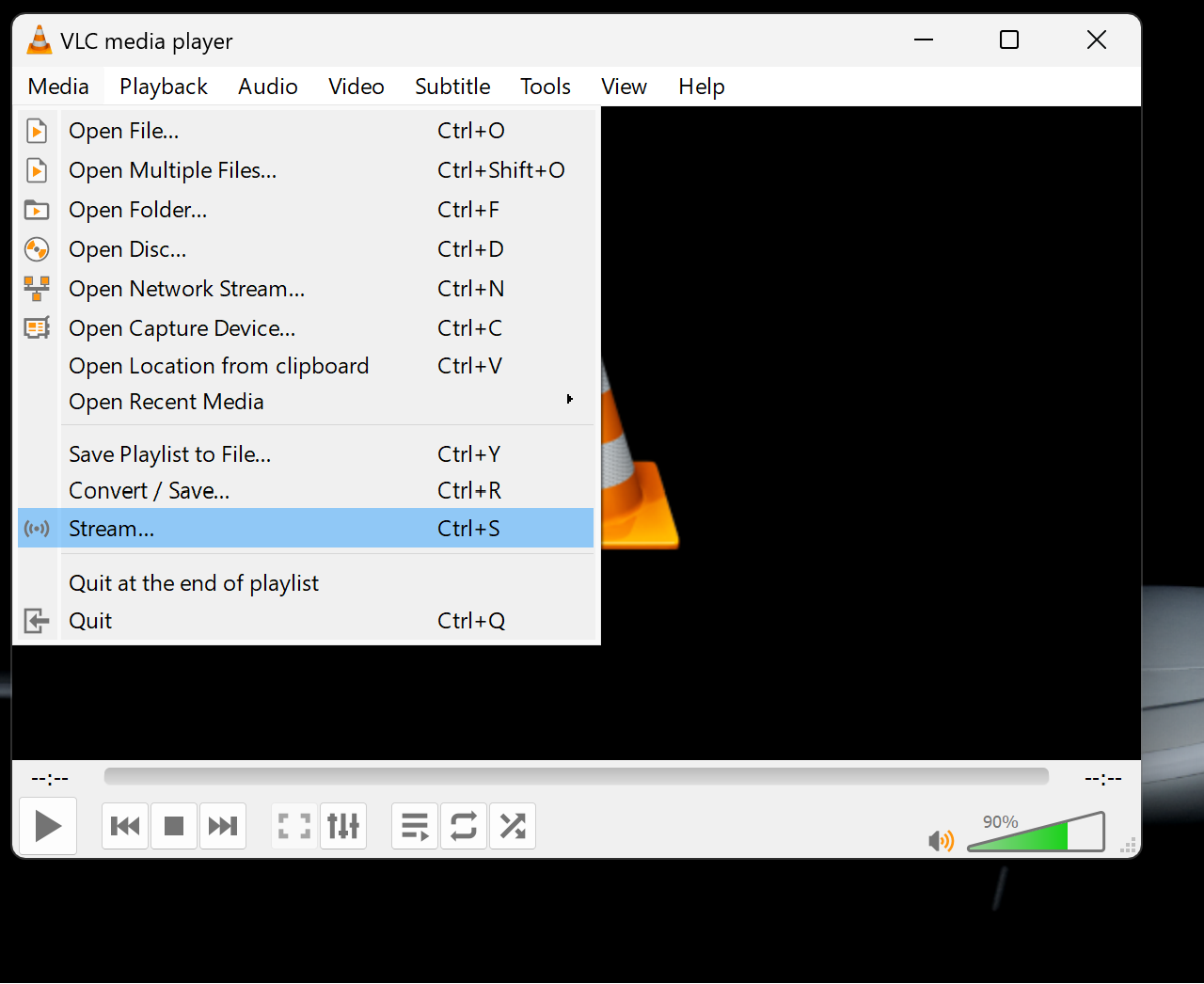
4. Go to **Media** and open the **Stream...** function.
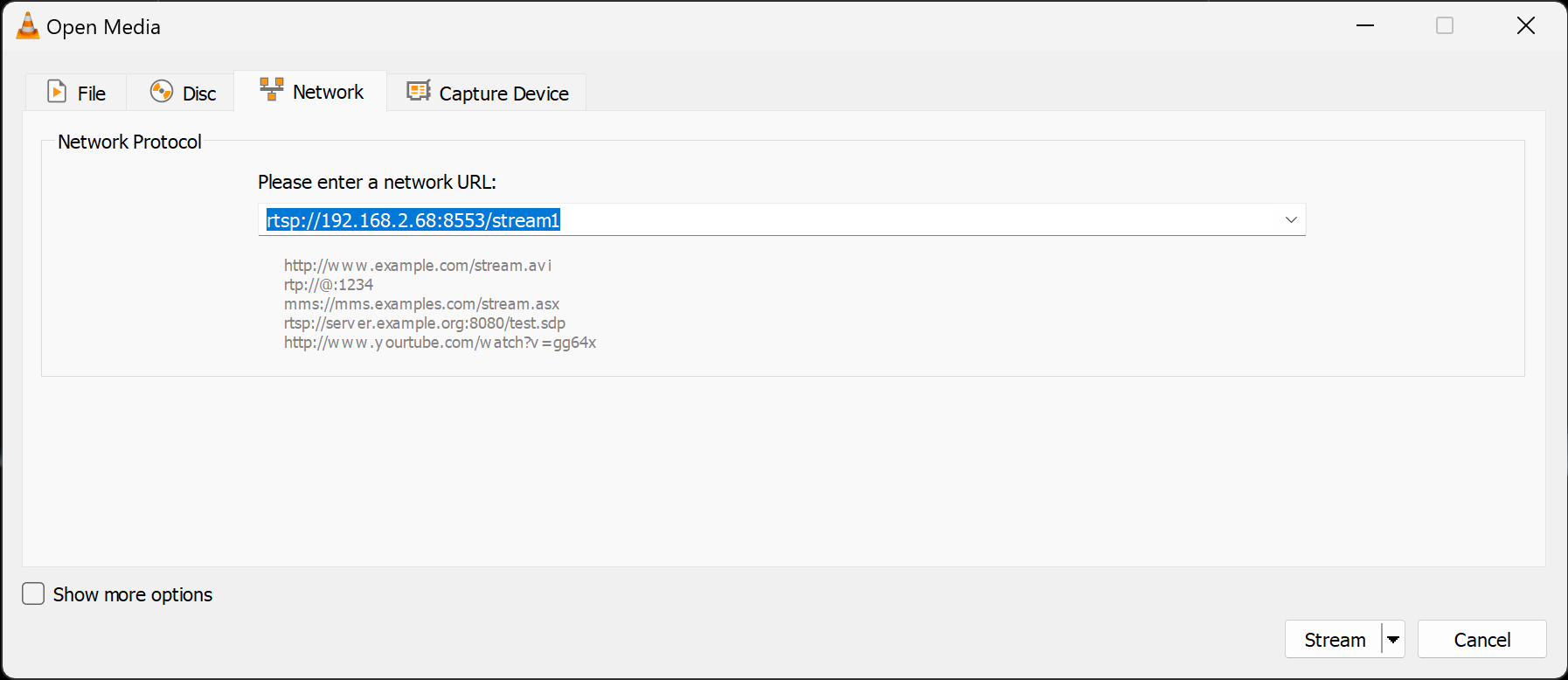
5. Go to the **Network** tab.
6. In the **network URL** field enter the following address:
```
rtsp://[IP-ADDRESS]:8553/stream1
```
In our example, it is rtsp\://192.168.2.68:8553/stream1.
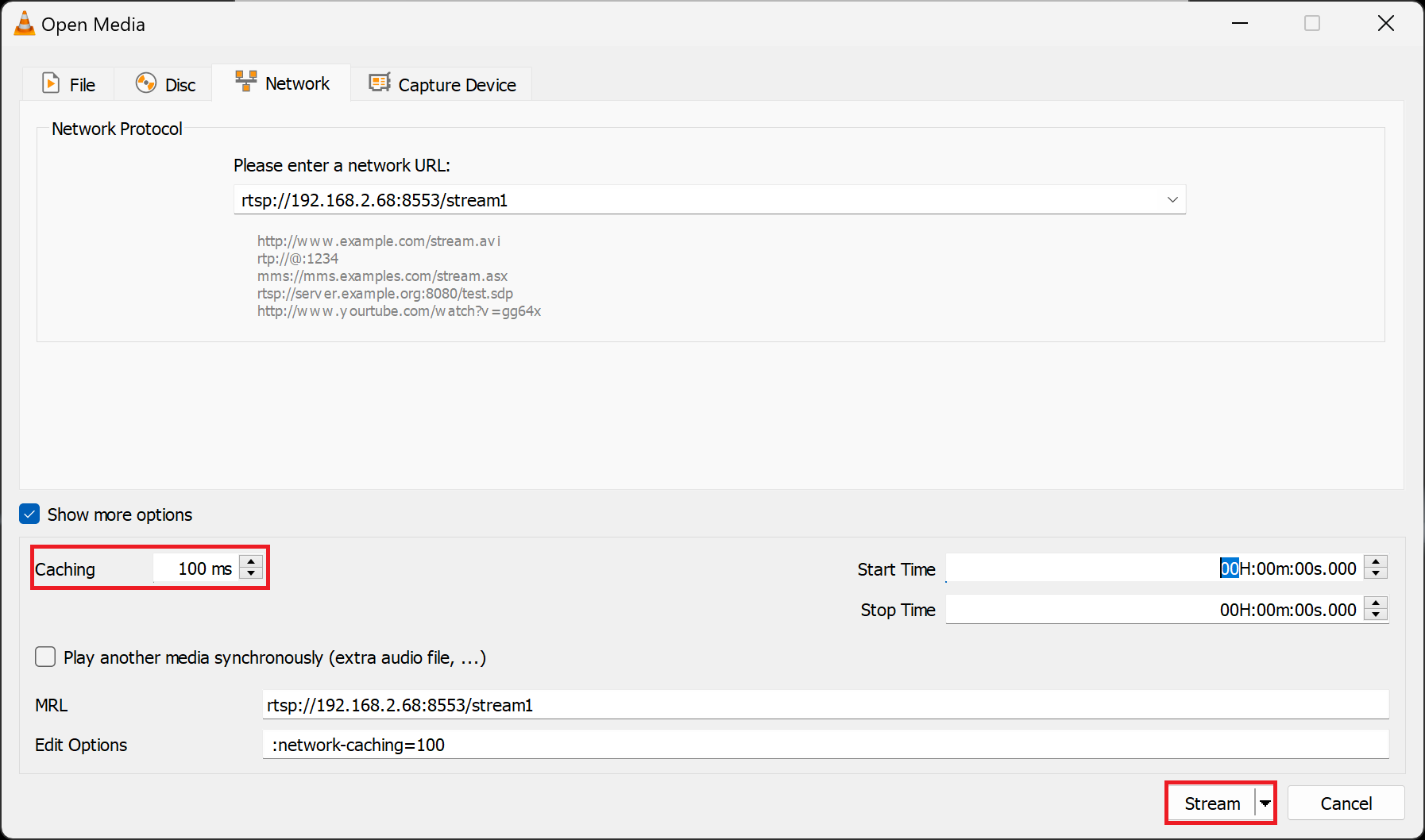
7. Check **Show more options** and set the value for **Caching** to **100ms**. Click on **Stream** in the lower right corner of the window.
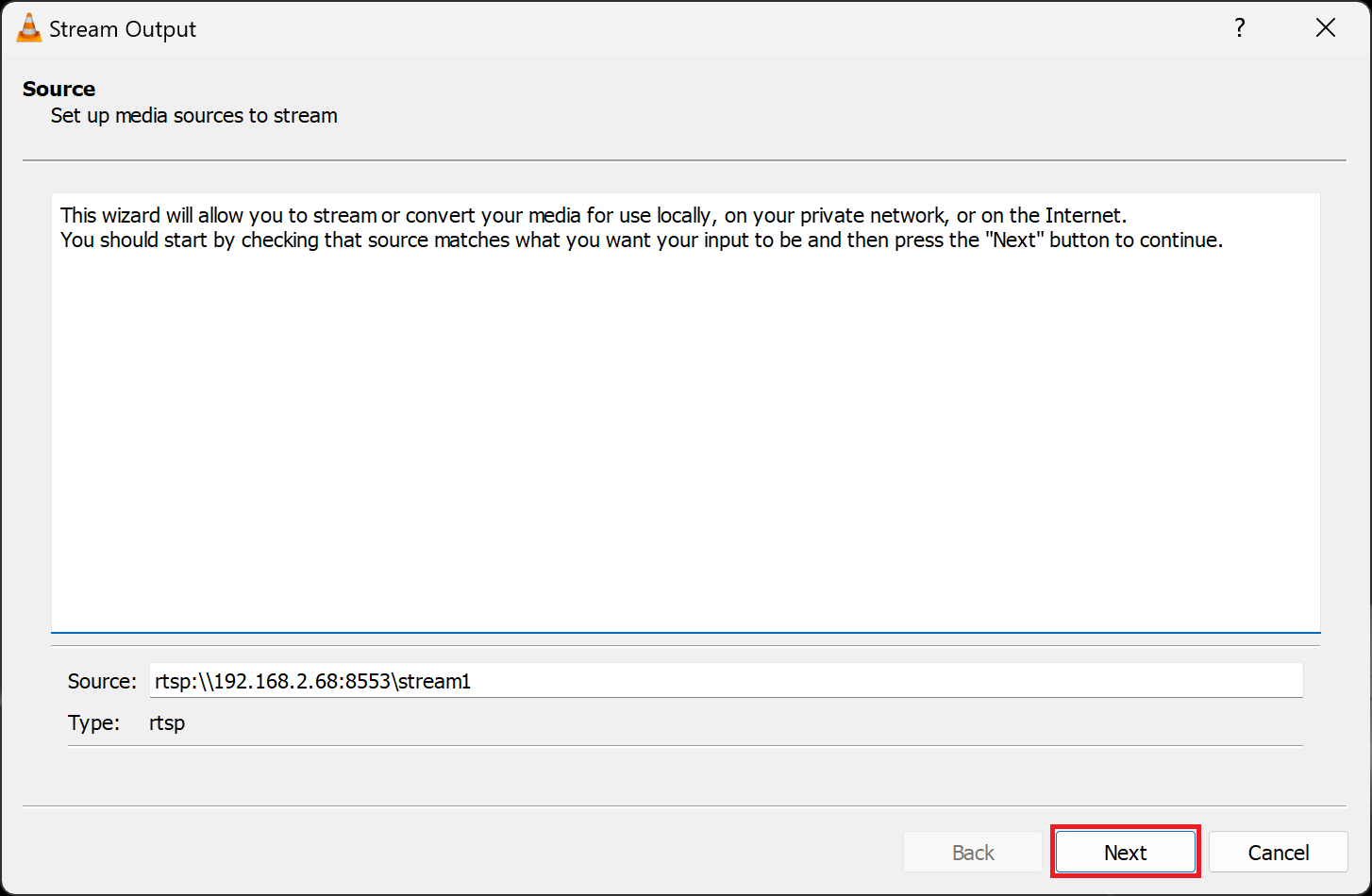
8. Click **Next** in the **Source** window.
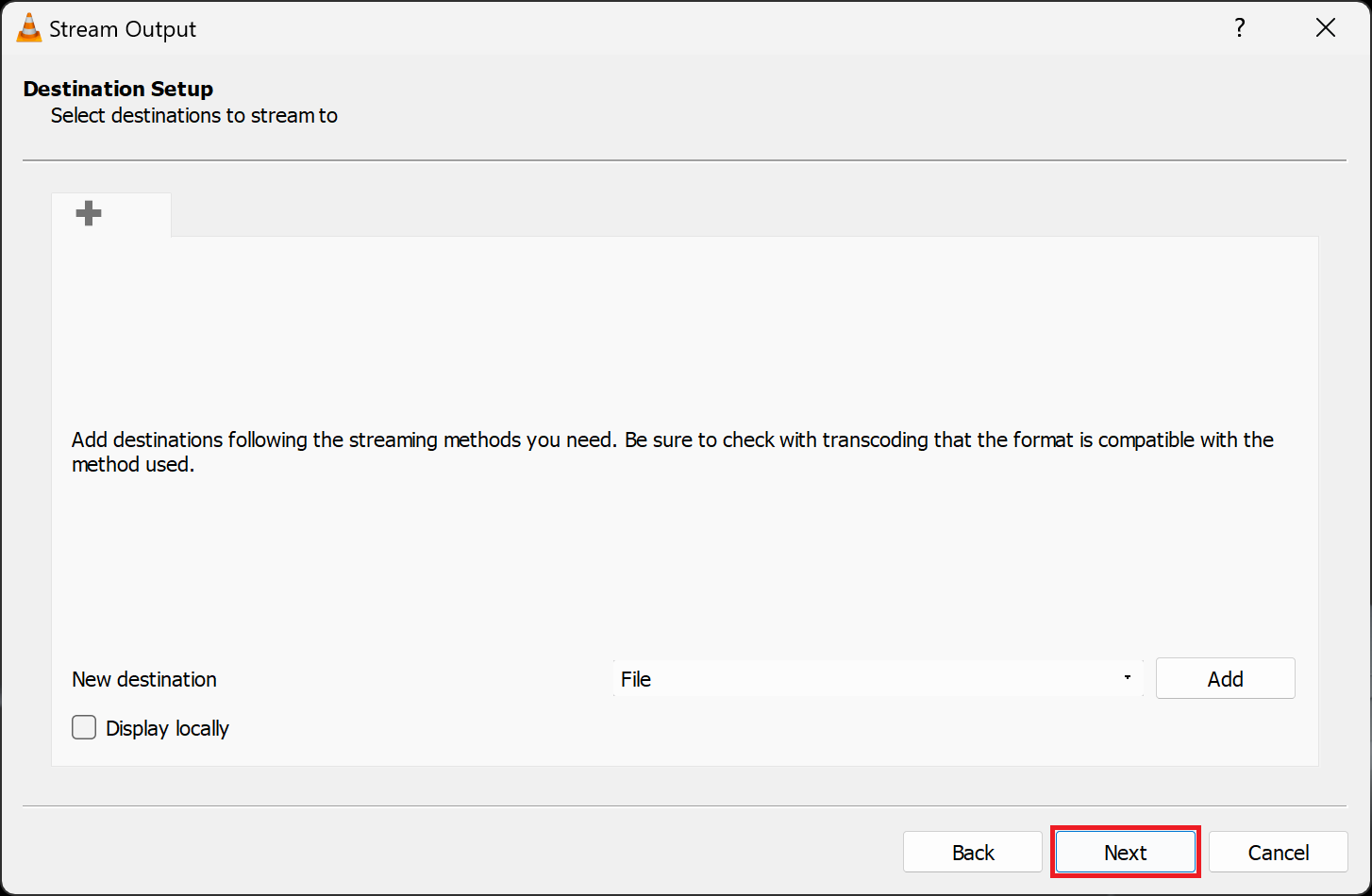
9. Click **Next** in the **Destination Setup** window.
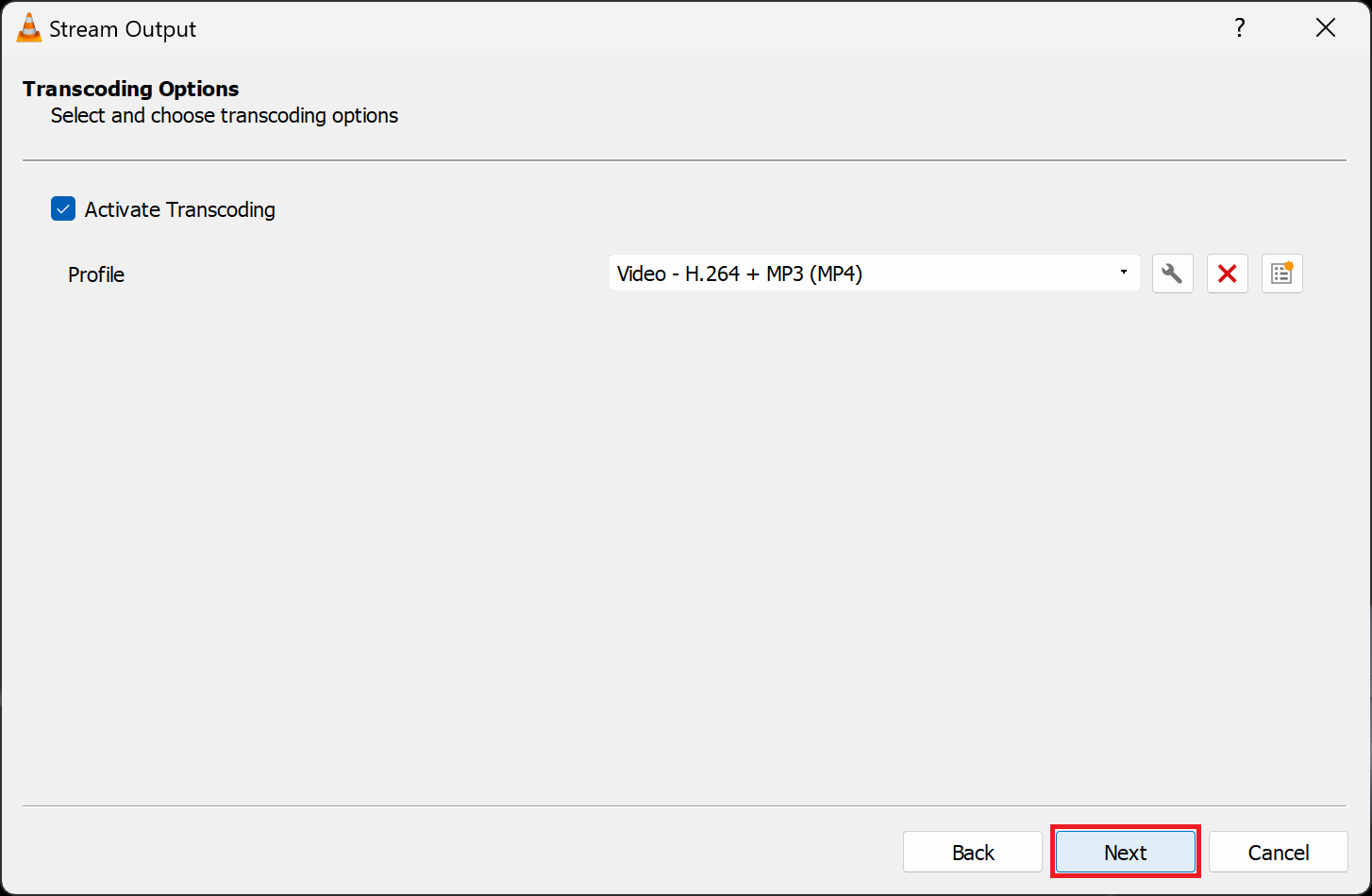
10. Click **Next** in the **Transcoding Options** window.
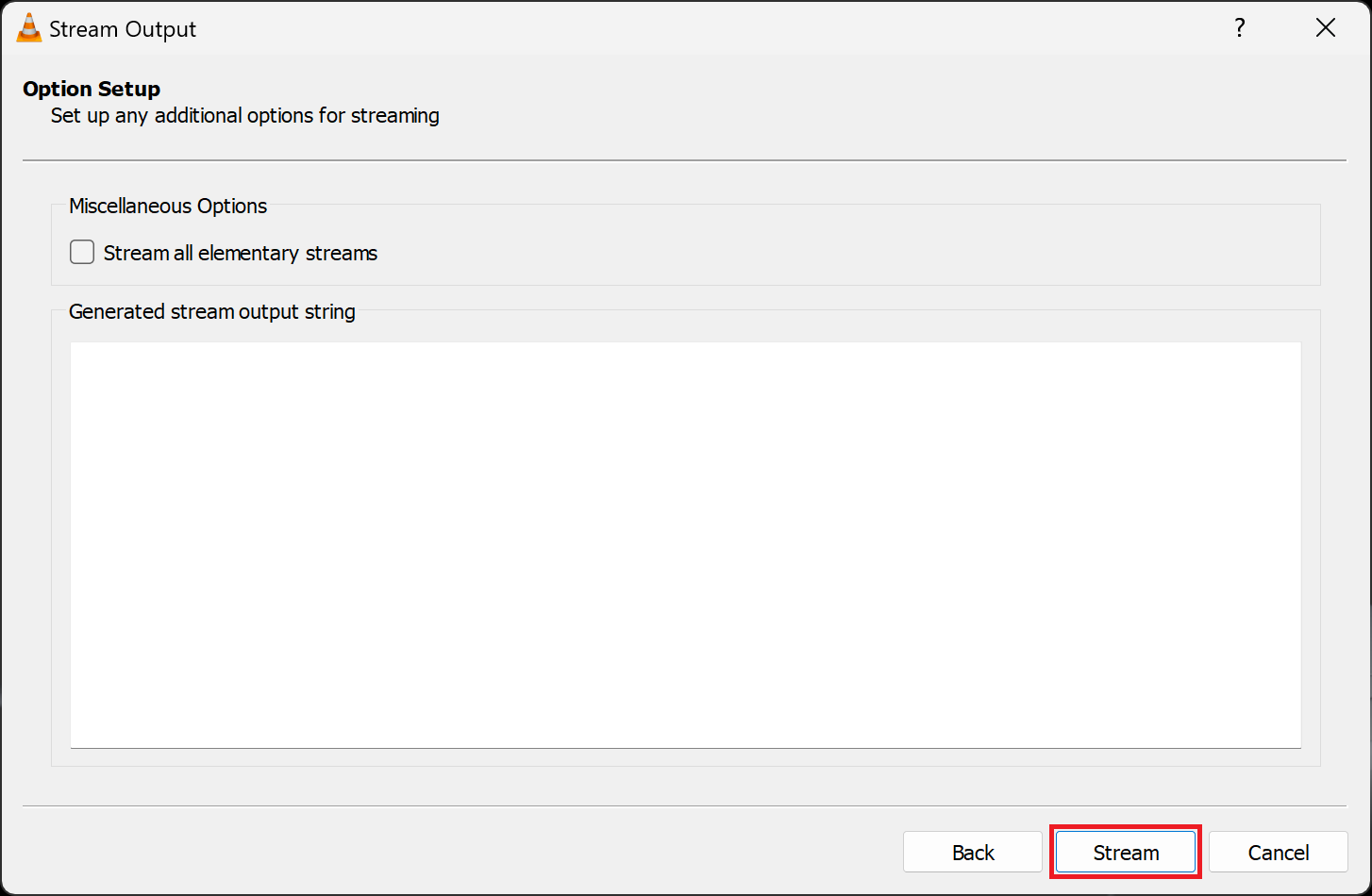
11. Click **Stream** in the **Option Setup** window.
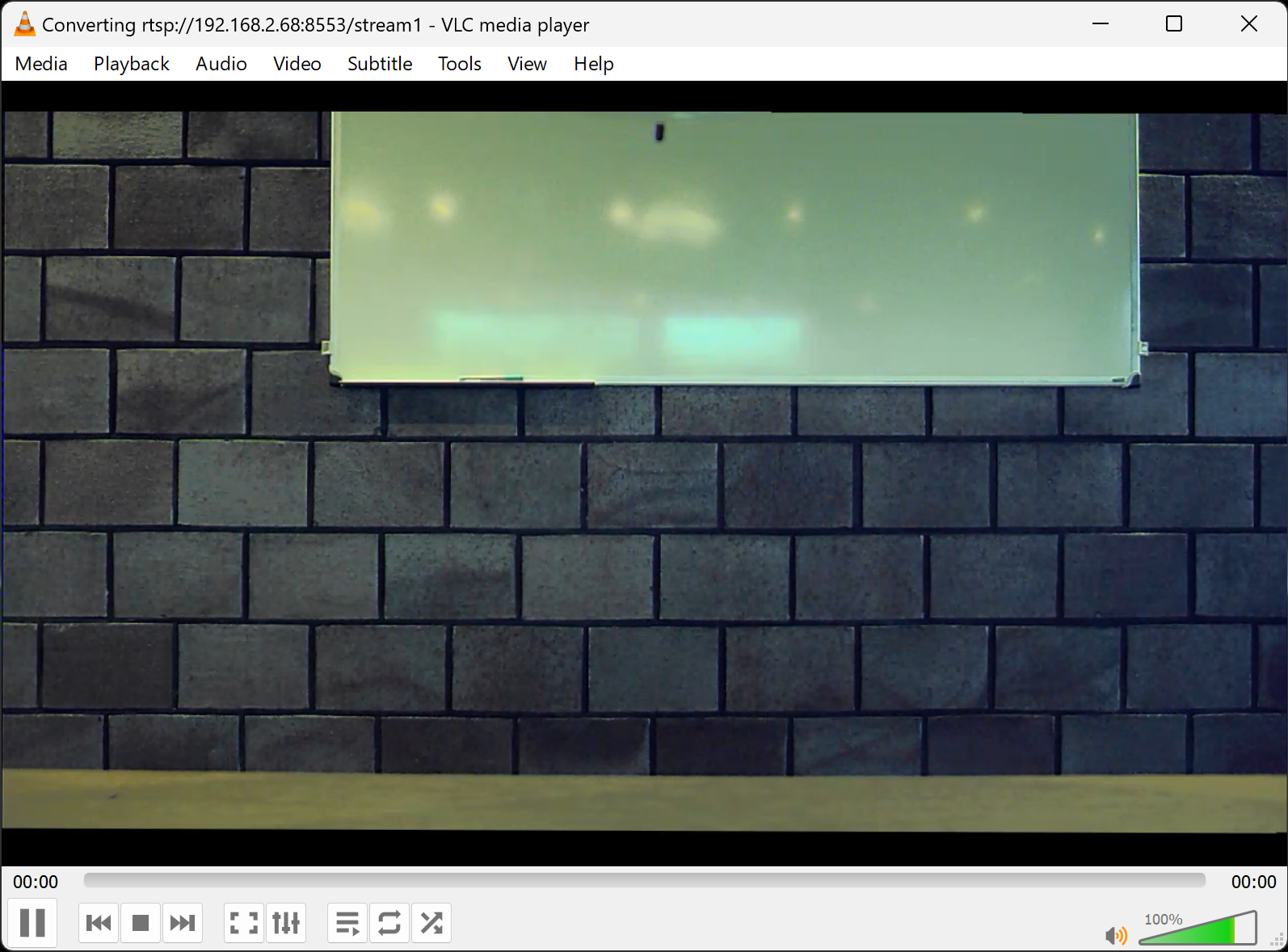
12. After a few seconds, the video feed should appear in the VLC Media Player.
---
# Agent Instructions
This documentation is published with GitBook. GitBook is the documentation platform designed so that both humans and AI agents can read, navigate, and reason over technical content effectively. Learn more at gitbook.com.
## Querying This Documentation
If you need additional information that is not directly available in this page, you can query the documentation by asking a question.
Perform an HTTP GET request on the following URL with the `ask` and `goal` query parameters:
```
GET https://docs.deltaquad.com/gov/deltaquad-evo-payloads/nextvision-isr-payloads/connecting-a-second-screen.md?ask=&goal=
```
`ask` is the immediate question: it should be specific, self-contained, and written in natural language.
`goal` is what the user is ultimately trying to achieve, the reason they need the answer. Sharing it helps GitBook give you a better, more relevant answer. A goal is most helpful when it describes the outcome the user wants rather than restating the question. For example, with `ask=how do I create an API token`, a goal like `automate deployments from our CI pipeline` lets GitBook tailor the answer to that use case.
The response will contain a direct answer to the question and relevant excerpts and sources from the documentation.
Use this mechanism when the answer is not explicitly present in the current page, you need clarification or additional context, or you want to retrieve related documentation sections.